Video requests
Quick path
Section titled “Quick path”- In the sidebar, go to Video → Requests.
- Filter by Status, Vehicle or Created date; switch Only my requests on or off.
- On a Ready row, click Play or the download icon.
- To keep a video past retention, open the row menu and choose Lock.
What it is and why
Section titled “What it is and why”Every video pulled from a dashcam SD card is listed on the Video requests page — the ones you requested, the ones colleagues requested, and the ones Roudiy requested on its own for a collision or SOS event. Here you follow a request until it is ready, watch it, download it for a claim, and lock it so it is not deleted. Example: you requested 9 minutes of TRK-107 for a cargo claim. The row moves from Uploading to Ready, you download the mp4 for the insurer and Lock it.
Ready videos are kept for 30 days by default (the number of days is set by your plan). See Video for retention and locks.
Before you start
Section titled “Before you start”- You need the
video.view_requestedpermission. By default the Company Admin, Dispatcher and Safety Manager have it. Roles without video permissions, such as the default Compliance Manager, have no Requests item in the sidebar and no video buttons on the Live tab. - Download needs
video.download. Lock and Unlock needvideo.retention_lock; see Roles and permissions for who has it. - To make a request, see Get a video from the SD card, or use Request video on a safety event.
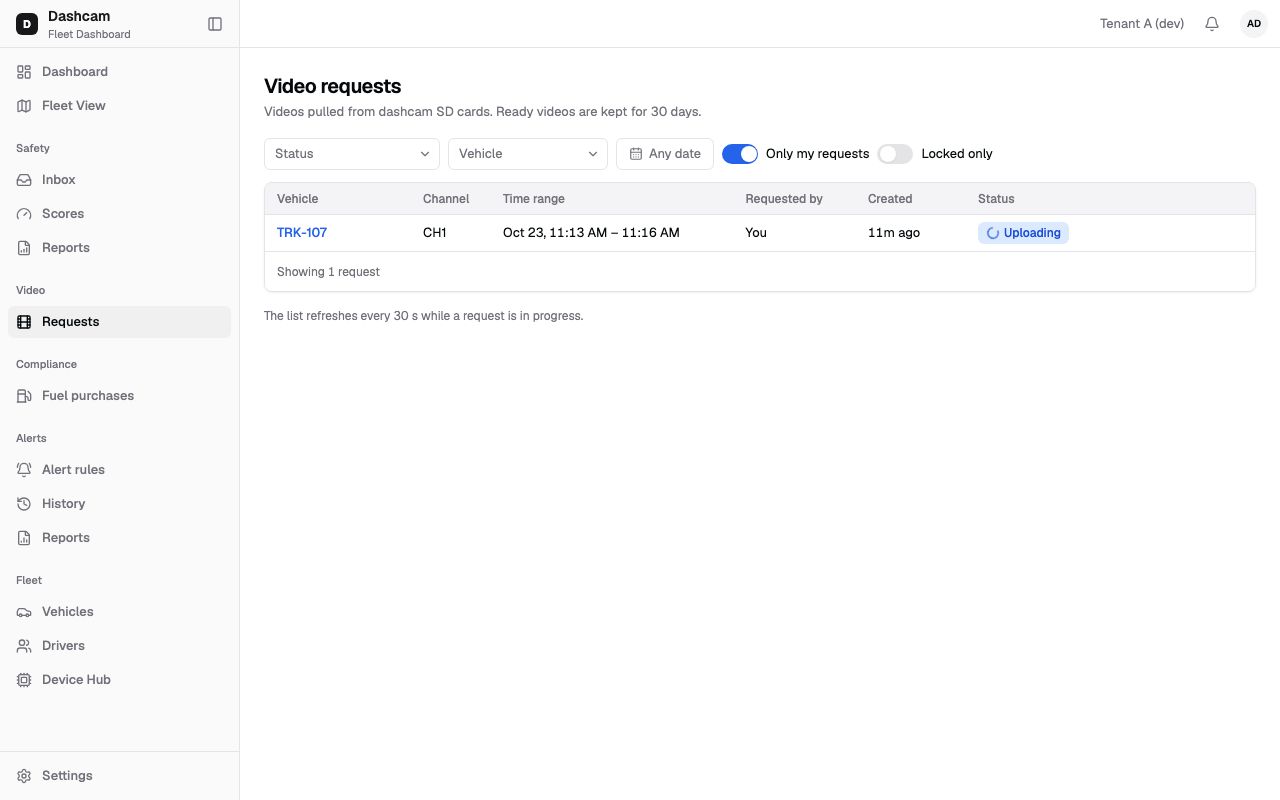
The replay could not be loaded. The steps below still describe every action.
In the demo the media pipeline never finishes, so the replay shows requests stuck in Uploading. Play, download and lock of a Ready video are described below.
Step by step
Section titled “Step by step”-
Open the page.
In the sidebar, under Video, click Requests. The page Video requests opens and shows 25 requests at a time; Load more shows the next 25.
-
Filter the list.
- Status — Queued, Waiting for device, Uploading, Ready, Failed, Overwritten.
- Vehicle — search for a unit, for example
TRK-107. - Created — Any date or a range of up to 366 days.
- Only my requests — on by default only for the Dispatcher role; off for the others. Your choice is kept in the link.
- Locked only — shows only locked videos.
- Clear filters resets them.
-
Read the rows.
Each row has Vehicle (opens its Live tab), a lock icon if locked, the channel (CH1), the time range (Oct 23, 2:03 PM – 2:12 PM), Requested by (You, a name, or Automatic (safety event)), Created (hover for the exact time) and Status with its reason.
-
Play a Ready video.
Click Play. The dialog TRK-107 · CH1 · Oct 23, 2:03 PM shows the player and details: Vehicle, Driver, Channel, Time, Duration, Requested by and Size. The play link lasts one hour; if it expires, Roudiy renews it and continues from the same second.
-
Download it.
Click the download icon in the row, or Download mp4 in the dialog. The file is named like
TRK-107_CH1_20261023-1403.mp4. -
Lock or unlock it.
Open the row menu and choose Lock. In Lock media? add an optional Note (up to 500 characters) and click Lock media. The toast says Media locked. Locked videos and photos are kept past the retention period until unlocked. To release it, choose Unlock and confirm Unlock media?; the toast says Media unlocked and normal retention applies again.
What happens next
Section titled “What happens next”- While any listed request is not finished, the list refreshes every 30 seconds: The list refreshes every 30 s while a request is in progress. When all are done it says All requests are finished.
- You get a notification when a video is ready.
- Ready, Failed and Overwritten are final. A link from View request (for example in the request dialog) opens this page with that row highlighted.
If something goes wrong
Section titled “If something goes wrong”| Message on screen | Why | What to do |
|---|---|---|
| SD card already overwritten | The card recorded over that time before upload. | Nothing to recover; request sooner next time. |
| Device was offline for 7 days | The truck never came online within the 7-day wait. | Request again once the truck is online. |
| Device did not upload the video / Device could not upload this video | The upload did not happen or failed. | Request the same time again. |
| Device did not answer | The device did not respond. | Request again when the truck is online. |
| Unsupported video format (H.265) / Video processing failed | The video could not be processed. | Contact Roudiy support. |
| This video can’t be downloaded / The video is not available | No download link or file is available. | Reload the page; if it stays, contact support. |
| Already locked by James Carter | Someone locked it first. | Nothing to do — it is locked. |
| This video is no longer locked | Someone unlocked it before you. | Nothing to do. |
| A collision or SOS lock can only be released by users with collision access | It is a system lock and you lack collision access. | Ask a user with collision access. |
Questions
Section titled “Questions”Why do I only see my own requests? Only my requests is on by default for Dispatchers. Turn it off to see every request you have access to.
How long is a Ready video kept? 30 days by default, set by your plan. A locked video is kept until it is unlocked.
What does Automatic (safety event) mean? Roudiy requested the video on its own for a collision or SOS event.