A driver's profile
Quick path
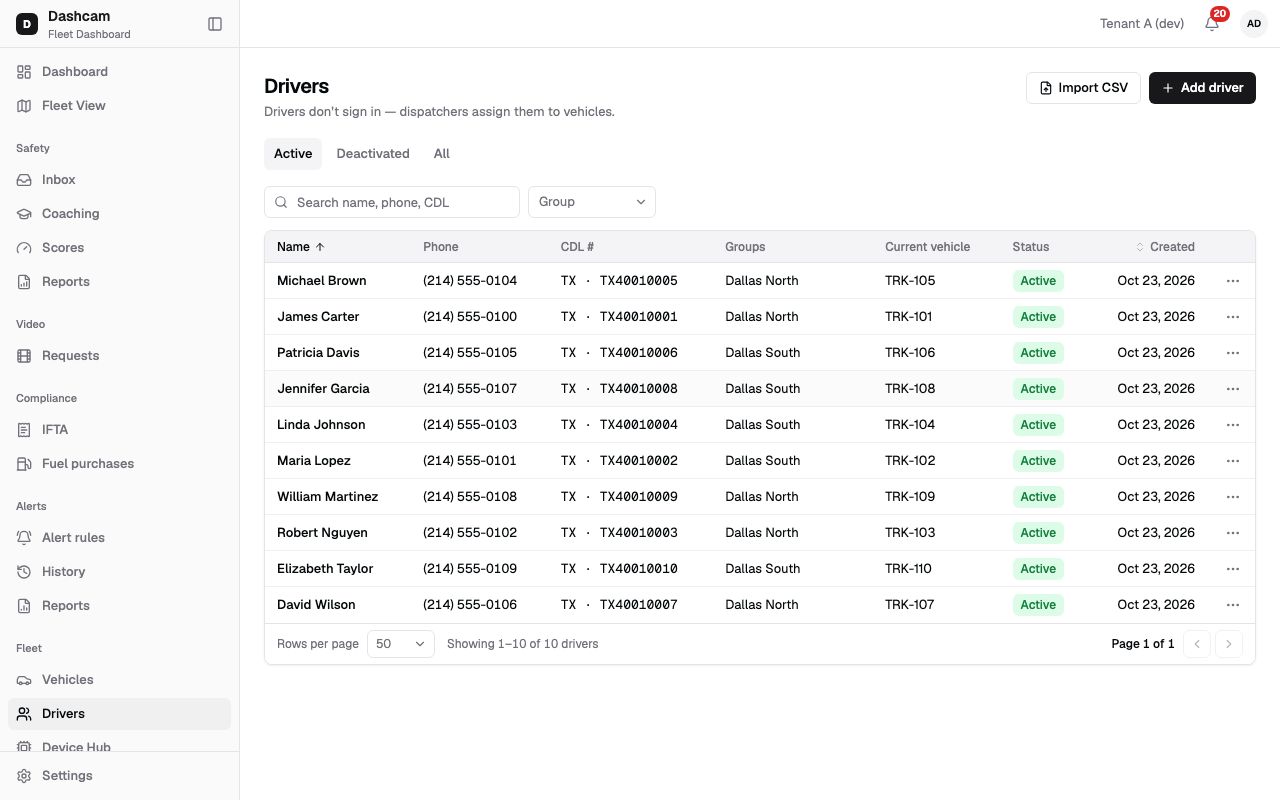
Section titled “Quick path”- Go to Fleet → Drivers and search by name, phone or CDL.
- Click the row to open the profile.
- Read the Details, Groups, Current vehicle and Safety score cards.
- Open the Vehicle history tab to see which trucks the driver drove and when.
What it is and why
Section titled “What it is and why”The profile brings together everything about one driver: contact and license details, groups, the truck they drive now, their safety score and the trucks they drove before.
Example: a customer calls about a hard-braking event on TRK-104 last Tuesday. Your safety manager opens James Carter’s profile, sees on Vehicle history that he drove TRK-104 that week, and checks his safety score trend over the last 12 weeks before a coaching talk.
Before you start
Section titled “Before you start”- By default every role can open driver profiles: Company Admin, Dispatcher, Safety Manager and Compliance Manager.
- Edit is available to the Company Admin, Dispatchers and Compliance Managers; Deactivate and Reactivate to the Company Admin.
- The Safety score card shows only if your role can see scores.
The replay could not be loaded. The steps below still describe every action.
Step by step
Section titled “Step by step”-
Find the driver.
On Fleet → Drivers type at least 2 characters in Search name, phone, CDL, for example
Carter, and click the row. You can also choose Open profile in the row menu.The header shows the name and status, then a line such as (214) 555-0101 · CDL TX D…. On the right are Deactivate (or Reactivate) and Edit; Edit only shows for an active driver.
-
Read the details and current vehicle.
The Details tab has these cards:
- Details — First name, Last name, Phone, Email, CDL number, License state, Employee ID, Notes and Added (the date the driver was created).
- Groups — the driver’s groups, or No groups.
- Current vehicle — the truck the driver is assigned to and since when, or Not assigned with the hint A dispatcher assigns drivers to vehicles from the vehicle’s Live tab.
-
Check the safety score.
The Safety score card shows the current score (or N/A) and the change since the previous week (or No change). Switch the chart between 12, 26 and 52 weeks. A new driver shows No score history yet — scores are calculated every Monday. How the score is built is explained in Safety scores.
-
Open the vehicle history.
The Vehicle history tab lists the driver’s assignments. Pick a period with Dates. Each row has:
- Vehicle — for example Unit TRK-104.
- Started and Ended — Active if the assignment is still running.
- Duration.
- Source — Manual (assigned by a dispatcher) or Retro (assigned to finished trips afterwards).
- Assigned by and Closed — who assigned the driver and why the assignment closed.
Click Load more for older rows. An empty period shows No assignments in this period.
Editing and deactivating from the profile
Section titled “Editing and deactivating from the profile”- Edit opens the drawer Edit James Carter with the same fields and rules as Add a driver. Click Save; a message confirms James Carter saved.
- Deactivate opens Deactivate James Carter? — James Carter will be removed from their current vehicle. History stays. Click Deactivate; the message James Carter deactivated appears and his open assignment closes with the reason Driver deactivated.
- Reactivate opens Reactivate James Carter? — James Carter can be assigned to vehicles again. Click Reactivate; James Carter reactivated appears.
What happens next
Section titled “What happens next”- Changes to name, phone or groups show at once in the drivers list.
- A deactivated driver moves to the Deactivated tab of Fleet → Drivers and can no longer be assigned. Past trips, events and vehicle history stay.
- To change who drives which truck, use the vehicle’s Live tab; for a truck’s side of the story, see Who drove a vehicle.
If something goes wrong
Section titled “If something goes wrong”| Message on screen | Why | What to do |
|---|---|---|
| Driver not found / It may have been removed, or the link is wrong. | The link is wrong, or the driver was removed. | Click Back to drivers and search for the driver. |
| Driver was changed by someone else. Reload | Someone saved this driver after you opened the form. | Reload, check the current values and make your change again. |
| Reactivate the driver before editing | The driver is deactivated. | Click Reactivate, then Edit. |
| Enter a US phone number | The new phone is not a 10-digit US number. | Type it as (214) 555-0101. |
| No Safety score card | Your role cannot see scores. | Ask your Company Admin if you need scores. |
Questions
Section titled “Questions”Why is the score N/A? The driver’s latest week has no score: a week under 100 miles is N/A, or no score has been calculated yet. Scores are calculated every Monday.
Can I assign a vehicle from the profile? No. The Current vehicle card only shows the assignment. A dispatcher assigns drivers from the vehicle’s Live tab.
What does Retro mean in Source? The driver was assigned afterwards to finished trips that had no driver.