Alert history
Quick path
Section titled “Quick path”- Open Alerts → History.
- Narrow the list with the date range, Rule, Trigger, Vehicle or Status.
- Click an alert to see the details and who was notified.
- Add an optional Note and click Acknowledge.
What it is and why
Section titled “What it is and why”Alert history is the log of every alert your rules created: when it fired, for which truck and driver, who was told, whether each message got through, and whether someone is on it. Use it to check that alerts reach people and to show your team who handles what.
Example: at 11:01 AM the rule Critical and high severity safety events fires for TRK-102, driven by Maria Lopez. You open the alert, see that all deliveries were sent, open the event and click Acknowledge with the note Called driver. Your team now sees the alert is handled.
Before you start
Section titled “Before you start”- Company Admin sees every alert in the company. Dispatcher sees only alerts that notified them. An alert you cannot see opens as Alert not found.
- Safety Managers and Compliance Managers have no Alert history page by default. They still get alerts as recipients, in the bell and by email.
- Alerts come from alert rules. Nothing appears here until a rule fires.
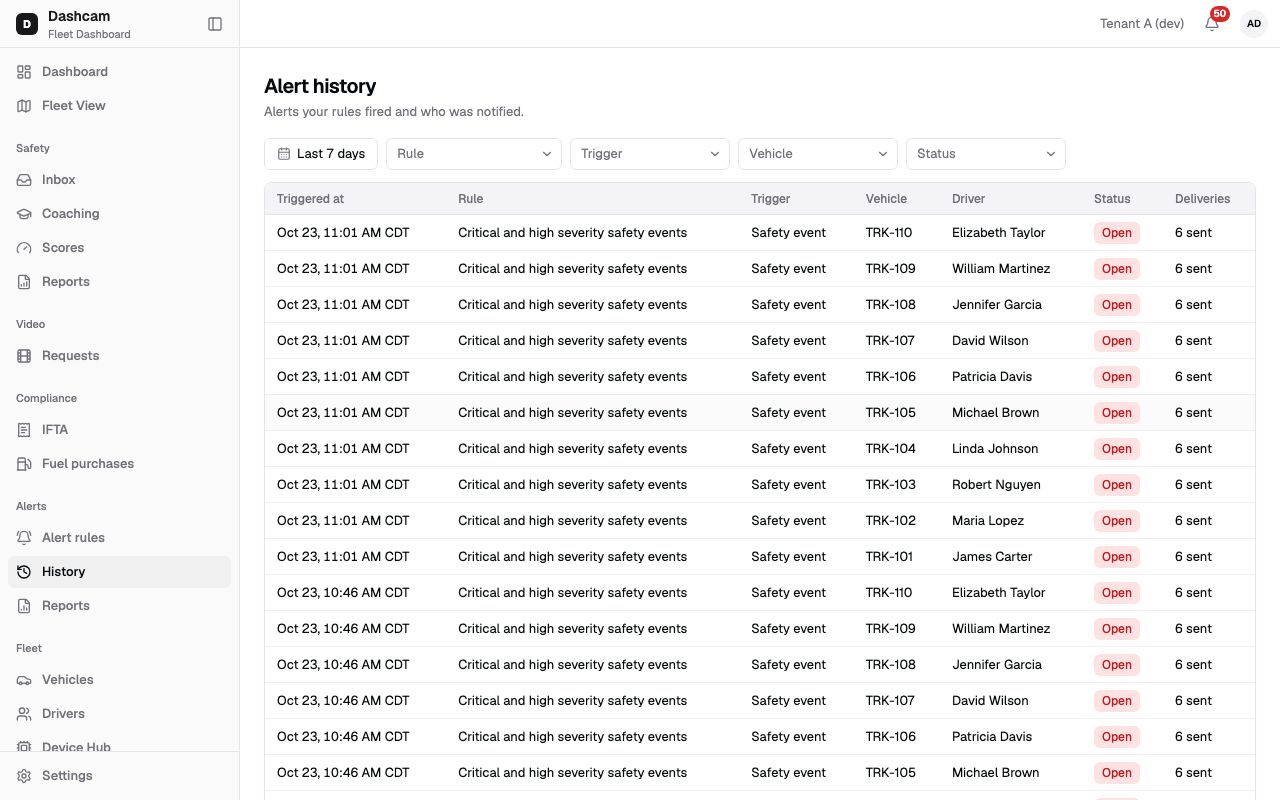
The replay could not be loaded. The steps below still describe every action.
The replay was recorded on a demo company where every alert came from the default safety rule, so all rows show Safety event and Open.
Step by step
Section titled “Step by step”-
Open the page.
Click Alerts → History. The header reads Alerts your rules fired and who was notified. Columns: Triggered at (for example Oct 23, 11:01 AM CDT, in your time zone), Rule, Trigger (Safety event, Kit offline or Fault code), Vehicle, Driver, Status and Deliveries. Vehicle and Driver show — if your role cannot see vehicles or drivers. Alerts from a New fault code rule are listed as Fault code.
-
Filter the list.
The date range starts at Last 7 days; you can pick up to 92 days. Narrow further by Rule, Trigger, Vehicle (type to search) or Status. Filters stay in the page address, so a copied link opens the same view. The list loads 50 alerts at a time; load more at the bottom.
-
Read the deliveries.
Deliveries sums up every message the alert sent, for example 3 sent · 1 failed · 1 skipped · 2 pending. It turns red when anything failed. None means nobody was notified.
-
Open an alert.
Click a row. The panel shows the rule name and the time it fired, and a link to the source: Open event (safety event), Open Health tab (fault code) or Open Device Hub (kit offline). Details lists the trigger, when it occurred, vehicle, driver and, once handled, who acknowledged it and when, the note and the time it was resolved.
The Deliveries table has one row per person and channel: User, Channel (In-app or Email) and Status: Pending, Sent, Failed or Skipped. A failed email shows its reason in red, such as Bounced, Suppressed, Provider error or invalid address. A skipped row shows its reason in grey, for example tenant suspended when the company is suspended; in-app messages are still delivered then.
-
Acknowledge it.
On an Open alert, type an optional Note (Optional, up to 500 characters) and click Acknowledge. You see Alert acknowledged and the status changes for everyone. Anyone who can see the alert can acknowledge it.
Statuses
Section titled “Statuses”- Open: the alert fired and nobody has acknowledged it.
- Acknowledged: someone is on it; their name, time and note are shown.
- Resolved: only kit offline alerts get here, by themselves, when the kit comes back online. Safety and fault code alerts never become Resolved, and nobody can resolve an alert by hand.
What happens next
Section titled “What happens next”- Clicking an alert notification in the bell opens that alert here, if you can see Alert history; see Notifications.
- Alert emails carry the notification title in the subject. Collision and SOS emails start with [COLLISION] or [SOS].
- Only temporary email provider errors are retried, after 1, 5 and 30 minutes, before the email counts as failed. A permanent refusal (an invalid address or the provider refusing it) and a suppressed address fail at once. Emails for a suspended or closed company are skipped.
If something goes wrong
Section titled “If something goes wrong”| Message on screen | Why | What to do |
|---|---|---|
| No alerts in this period | No rule fired in the range, or none notified you. | Widen the date range or clear the filters. |
| Choose up to 92 days | The date range is longer than 92 days. | Pick a shorter range. |
| Could not load alerts / Could not load the alert | Loading failed. | Click Retry. |
| Alert not found | The alert is not one you can see. | Ask your Company Admin. |
| Acknowledged by Maria Lopez / Already acknowledged | Someone acknowledged it before you. | Nothing to do; read their note. |
| This alert is already resolved | The kit came back online first. | Nothing to do. |
| A delivery shows Bounced or Suppressed | The email could not be delivered to that user’s address. | The address comes from the user’s account; contact support. |
Questions
Section titled “Questions”Why is an alert I expected not here? Alerts held back by the cooldown are not recorded, events older than 24 hours never alert, and a rule only works for events that arrive after you save it. Check the rule in Alert rules.
Can I export the history? No. There is no export.
Can I close a safety alert when it is done? No. Acknowledge it and add a note; only kit offline alerts become Resolved.