Find your way around
Quick path
Section titled “Quick path”- Use the sidebar on the left to open any section your role allows.
- Click Collapse sidebar to shrink it to icons; on a phone, use Open menu.
- Check the bell in the top bar for new notifications.
- Click your initials for My profile, Security, Theme and Sign out.
What it is and why
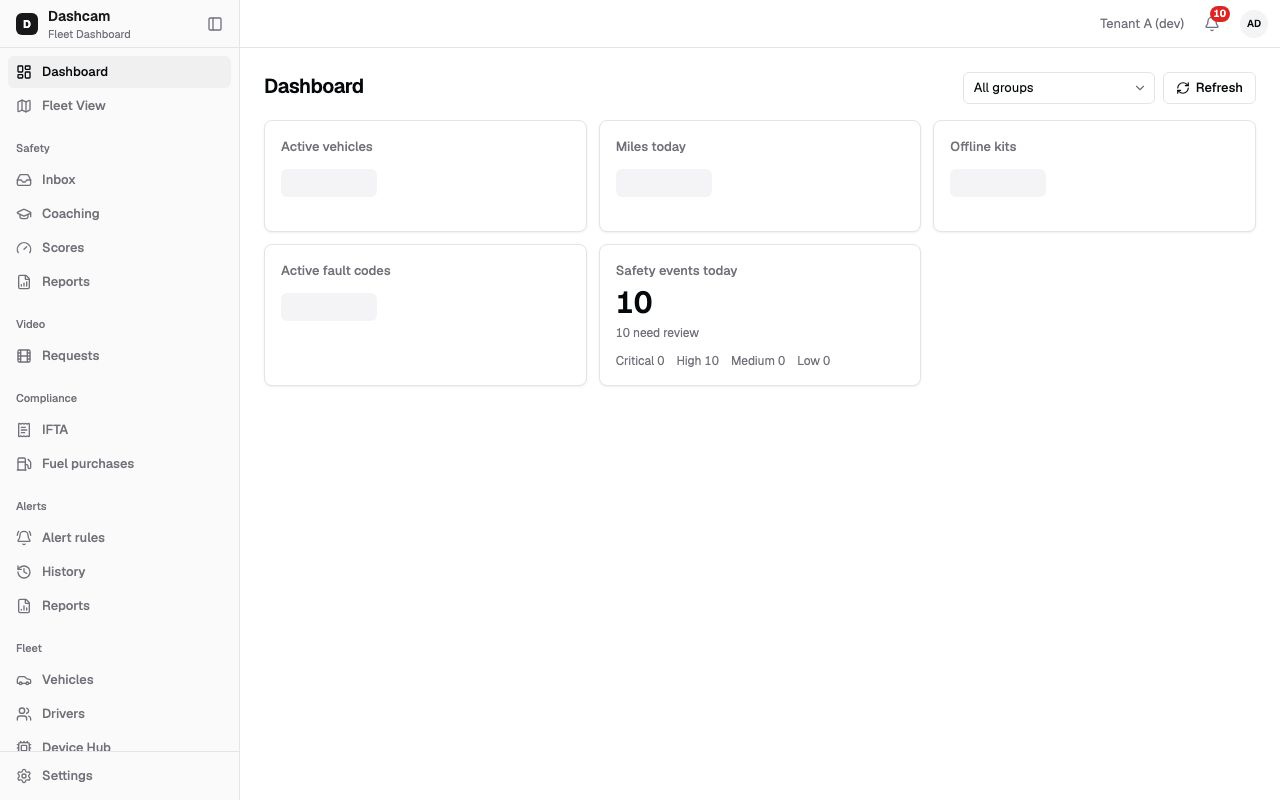
Section titled “What it is and why”Every page of the Fleet Dashboard sits in the same frame: the sidebar on the left and the top bar along the top. Once you know the frame, you know where to find everything.
The sidebar is built for you. Roudiy shows only the pages your role gives you permission to open, and hides a section when nothing in it is yours. So a dispatcher and a safety manager in the same company see different sidebars, and that is expected. A permission is the right to do one thing, for example to list safety events; a role is a set of permissions. See Groups and access.
Before you start
Section titled “Before you start”- Sign in to the Fleet Dashboard.
The replay could not be loaded. The steps below still describe every action.
Step by step
Section titled “Step by step”-
Look at the sidebar.
The sidebar lists the sections below. The last column shows which system roles usually see each item. If your company gave you a custom role, your list can differ.
Section Item and what it is for Usually seen by Dashboard The overview page. Company Admin, Dispatcher, Safety Manager Fleet View Your trucks on the live map. All roles Safety Inbox: review safety events. Company Admin, Dispatcher, Safety Manager Coaching: coach drivers on their coachable events and track the sessions. Company Admin, Safety Manager Scores: driver scores from 50 to 100 over the last 4 weeks. Company Admin, Dispatcher, Safety Manager Reports: safety reports. Company Admin, Dispatcher, Safety Manager Video Requests: video requests and their status. Company Admin, Dispatcher, Safety Manager Compliance IFTA: miles and fuel per state for the quarterly IFTA report. Company Admin, Compliance Manager Fuel purchases: the fuel bought for your trucks. Company Admin, Dispatcher, Compliance Manager Alerts Alert rules: who gets notified, and how. Company Admin, Dispatcher History: alerts your rules fired and who was notified. Company Admin, Dispatcher Reports Fleet reports. Company Admin, Dispatcher, Safety Manager Fleet Vehicles and Drivers: your trucks and the people who drive them. All roles Device Hub: the dashcam kits in your fleet. Company Admin, Dispatcher Settings (bottom) Company profile, users, groups, roles and safety settings. You see only the parts your permissions cover. All roles The full list of what each role may do is in Roles and permissions.
-
Open a page.
Click an item. The page opens on the right, and its name shows in the browser tab.
-
Collapse or expand the sidebar.
Click Collapse sidebar to shrink it to icons and give the page more room; click Expand sidebar to bring the names back. Your choice is saved for next time.
- On a narrower screen (1024 to 1279 pixels wide, a small laptop) the sidebar starts collapsed.
- Below 1024 pixels, such as on a phone or tablet, the sidebar is hidden. Tap Open menu in the top-left corner to slide it in.
-
Use the top bar.
The top bar shows your company name, the bell and your initials. The bell counts the notifications you have not read; see Notifications.
-
Open the account menu.
Click your initials. The menu shows your name, email and role, and these items:
- My profile: your name, phone and time zone. See Edit your profile.
- Security: two-step verification and signing out of all devices. See Two-step verification.
- Theme: Light, Dark or System.
- Sign out.
-
Pick a theme.
System (the default) follows your computer’s light or dark setting. Choose Light or Dark to fix it. The choice is saved in this browser, so another computer keeps its own.
-
Sign out when you are done.
Click Sign out in the account menu. Your other open tabs of the dashboard are signed out too.
What happens next
Section titled “What happens next”- When your company admin changes your role or groups, your sidebar changes with it. Access changes reach you on your next sign-in refresh, which takes up to 15 minutes.
- Your groups also limit what you see inside a page. For example, a dispatcher for Dallas North sees the trucks of that group, not the whole company.
If something goes wrong
Section titled “If something goes wrong”| Message on screen | Why | What to do |
|---|---|---|
| Can’t load your account | The dashboard could not load your account details. | Click Retry. If it keeps failing, check your internet connection. |
| No sections available for your role | Your role has no permission for any page in the sidebar. | Do what the page says: Contact your company admin to get access. |
| You don’t have access to this page | The page needs a permission your role does not have. The message names your role, for example Your role (Dispatcher) can’t open this page. | Click Go to home, or ask your company admin for access. |
| Page not found | The link may be old, or the item was removed. | Open the page again from the sidebar. |
Questions
Section titled “Questions”Why can’t I see a section my colleague has? You have different roles or permissions. Ask your company admin; they can change your access in Settings.
Can I use the dashboard on my phone? Yes, in the phone’s browser. Tap Open menu in the top-left corner to open the sidebar.
Why did the theme change back on my other computer? The theme is saved per browser. Pick it once on each computer you use.