Add vehicles to a group
Quick path
Section titled “Quick path”- Open Settings → Groups and click a group.
- On the Vehicles tab, click Add vehicles (on Drivers, Add drivers).
- Search, tick the items and click Add.
- To take items out, tick them and click Remove selected.
What it is and why
Section titled “What it is and why”A group only limits access once it has members. Users with access to Dallas North see the vehicles and drivers that are in Dallas North, so after you create a group you put its trucks and drivers into it.
For example, the Dallas North terminal runs TRK-101 to TRK-105 with drivers James Carter and Maria Lopez. You open the Dallas North group, add the five trucks on the Vehicles tab and the two drivers on the Drivers tab. From then on, a dispatcher who has Dispatcher · Dallas North sees exactly those.
Before you start
Section titled “Before you start”- You need the Company Admin role or another role with the
groups.updatepermission. Without it the group page has no Add vehicles/Add drivers, Remove or Edit buttons (Delete needsgroups.delete); you can only look. - The group must exist: Groups.
- The vehicles and drivers must exist and be active. See Add a vehicle and Add a driver, or import many at once.
The replay could not be loaded. The steps below still describe every action.
Step by step
Section titled “Step by step”-
Open the group.
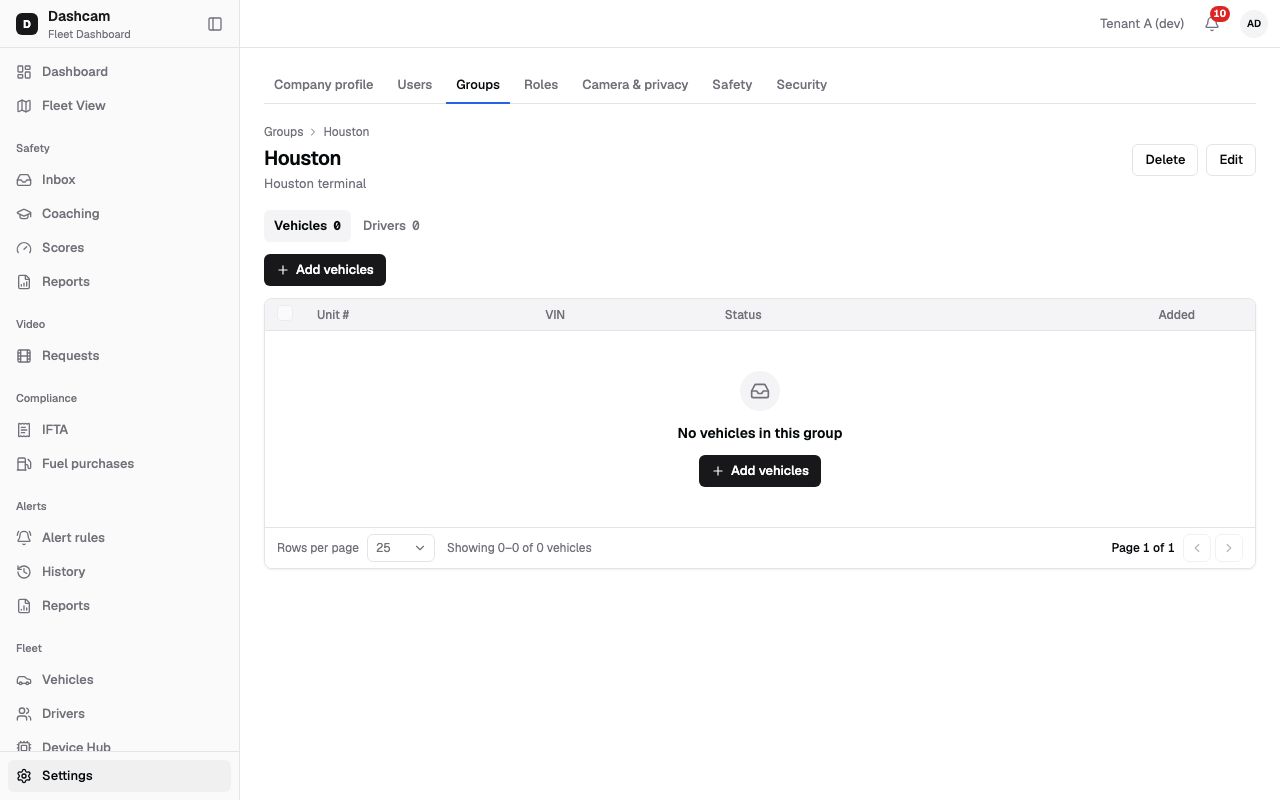
Go to Settings → Groups and click a group, for example Dallas North. The group page shows a breadcrumb (its place in the tree), the buttons Edit and Delete, and two tabs with counts: Vehicles and Drivers.
- Vehicles columns: Unit #, VIN, Status, Added.
- Drivers columns: Name, Phone, Status, Added.
An empty tab says No vehicles in this group. Click Add vehicles (or Add drivers on the Drivers tab).
-
Choose the vehicles or drivers.
The dialog lists active vehicles (or drivers) only, up to 100 at a time: Showing up to 100 active vehicles; search to narrow the list.
- Search: type at least 2 characters. For vehicles, Search unit #, VIN, plate, for example TRK-10. For drivers, Search name, phone, CDL, for example Carter.
- Tick the items you want. Items already in the group are ticked, can’t be unticked and are marked In group.
- Click Add. The button shows how many you add, for example Add 3. You can add up to 500 at once; more shows Max 500 at once.
You see a toast such as 3 vehicles added, and the tab count goes up.
-
Remove from the group.
On the Vehicles or Drivers tab, tick one or more rows. Click Remove selected (1). The confirmation asks Remove 1 vehicle from the group? and explains The vehicle stays in the company; only its membership in this group ends. Click Remove, and you see 1 vehicle removed from the group. (You can also remove one row with Remove in its row menu.)
What happens next
Section titled “What happens next”- Users with access to this group (or to a parent of it) see the added vehicles and drivers.
- Removed vehicles and drivers stay in the company. Users who see them only through this group stop seeing them.
- The Vehicles, Drivers columns on Settings → Groups show the new counts.
If something goes wrong
Section titled “If something goes wrong”| Message or situation | Why | What to do |
|---|---|---|
| Showing up to 100 active vehicles; search to narrow the list. | The dialog shows at most 100 active items at a time; this note is always there. | Type at least 2 characters of the unit #, VIN or plate. |
| Max 500 at once | More than 500 items are ticked. | Add them in batches of up to 500. |
| A vehicle or driver is not in the list | Only active items are shown. | Check its status in Fleet → Vehicles or Fleet → Drivers. |
| No Add vehicles or Remove selected button | Your role lacks groups.update. |
Ask a Company Admin. |
| No vehicles in this group | Nothing has been added yet. | Click Add vehicles. |
Questions
Section titled “Questions”Does removing a truck from a group delete it? No. The vehicle stays in the company; only its membership in this group ends.
Why is a truck already ticked in the dialog? It is already in the group and marked In group.
Can I add drivers and vehicles in one go? No, each tab has its own dialog: Add vehicles on Vehicles, Add drivers on Drivers.