Create an alert rule
Quick path
Section titled “Quick path”- Open Alerts → Alert rules and click Create rule.
- Enter a Name and pick a Trigger: Safety event, Kit offline or New fault code.
- Narrow it with severity, Applies to and Active hours.
- Pick Recipients, Channels and Cooldown (minutes).
- Click Save.
What it is and why
Section titled “What it is and why”An alert rule watches the fleet for you. It reads like a sentence: when this happens to these trucks at these hours, tell these roles in the app or by email.
Example: your Safety Managers want to hear about every phone-call event in Dallas North. A safety event’s severity is its type’s default, and a phone call is High. You create a rule with the trigger Safety event, the event type Phone call, severity High, Applies to → Groups → Dallas North, and Safety Manager as recipient.
Before you start
Section titled “Before you start”- Company Admin sees two tabs: Company rules (rules for roles across the company) and My rules (personal rules). Dispatcher sees only My rules: personal rules that notify only you.
- Safety Managers and Compliance Managers have no access to alert rules by default, but they still get alerts when a rule names their role as a recipient. A custom role needs Alerts: rules manage all or Alerts: rules manage own; see Roles and permissions.
- To target part of the fleet, set up groups first. Background: Alerts and notifications.
The replay could not be loaded. The steps below still describe every action.
Step by step
Section titled “Step by step”-
Open the page and start a rule.
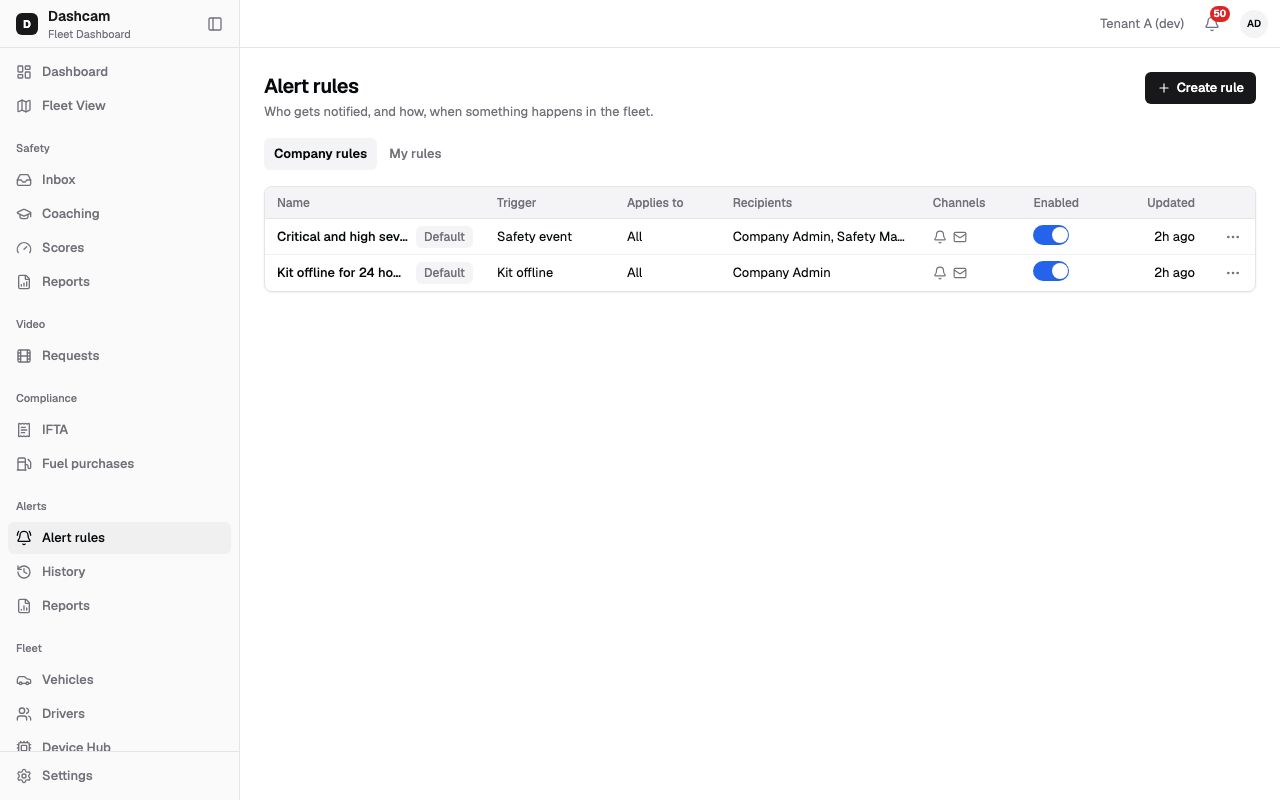
Click Alerts → Alert rules. The two rules your company starts with carry the badge Default. Click Create rule. A rule you create from My rules is personal; from Company rules it is a company rule.
-
Name the rule.
Required, up to 100 characters, for example Phone calls Dallas North. It must be unique in your company, across company and personal rules.
-
Pick the trigger.
There are three: Safety event (a new AI or harsh-driving event), Kit offline (a kit has not reported for 24 hours) and New fault code (a new engine fault code). You cannot change the trigger after saving: the hint reads The trigger of a saved rule can’t change. The hint under a new rule’s trigger is technical; in plain words, speeding alerts come after the trip ends, collision and SOS alerts are never held back, and kit offline cannot target drivers.
-
Set what counts.
- Safety event: in Event types pick types, or none for all types. Severity has Critical, High, Medium and Low; a new rule starts with Critical and High. If you pick a speeding type, the hint says Speeding alerts arrive after the trip ends. Event types is hidden if your role cannot see safety events; the rule then covers all types.
- Kit offline: Offline for is fixed at 24 hours.
- New fault code: Severity has Critical, Warning and Info; Critical is preselected.
-
Choose which trucks.
Applies to is All, Groups, Vehicles or Drivers (not for kit offline). For anything but All, pick at least one; type two letters to search vehicles or drivers. The rule fires if any listed vehicle, driver or group matches. On a personal rule you can pick only groups you have access to.
-
Set the active hours.
Always, or Selected days and hours: Days (Mon–Fri by default), From and To (8:00 AM and 6:00 PM by default). The hours are evaluated in the company time zone, the Home terminal time zone in Company profile, even though the hint shows your own zone. A window can run past midnight: 10:00 PM to 6:00 AM with Friday checked covers Friday night until Saturday morning, because the window belongs to the day it starts.
-
Pick who is told and how.
On a company rule, Recipients lists roles: Company Admin, Dispatcher, Safety Manager, Compliance Manager. You cannot pick a single person or an email address. On a personal rule it reads Only you. Each person gets alerts only for trucks in their own groups. In Channels tick In-app (the bell), Email or both; In-app is preselected. SMS is not available.
-
Set the cooldown.
Cooldown (minutes), 0 to 1440, default 10: No repeat alert for the same vehicle within this time. It counts per vehicle and event type (for fault codes, per code); 0 means no cooldown. Collision and SOS alerts are never held back. On a company rule they also go to the roles that can see collisions; a personal rule notifies only its owner.
-
Save.
Click Save. You see Phone calls Dallas North created and the rule appears in the list, switched on.
Manage your rules
Section titled “Manage your rules”- Switch off: use the Enabled switch. Default rules can be switched off and edited.
- Edit: click the row or Edit in the row menu.
- Delete: Delete in the row menu, then confirm Delete rule?. Default rules cannot be deleted. Past alerts keep the rule’s name in history.
- Limits: up to 200 alert rules per company in total (company rules, personal rules and the default rules together) and up to 20 personal rules per user.
Your company starts with two default rules: Critical and high severity safety events (Company Admin and Safety Manager, in-app and email, 10-minute cooldown) and Kit offline for 24 hours (Company Admin, in-app and email, no cooldown). Both apply to all trucks.
What happens next
Section titled “What happens next”- A saved rule starts working within about a minute, and only for events that arrive after that. Events older than 24 hours never send an alert.
- Each matching event creates one alert per rule, listed in Alert history. Alerts held back by the cooldown are not listed.
- Recipients see it in the bell and, with Email on, in their inbox: Notifications.
- Company Admins and Dispatchers already get an in-app notice for every new fault code without a rule, so a fault-code rule can notify them twice.
If something goes wrong
Section titled “If something goes wrong”| Message on screen | Why | What to do |
|---|---|---|
| A rule with this name already exists | Another rule uses that name. | Pick a different name. |
| Pick at least one severity | All severity boxes are empty. | Tick at least one. |
| Pick at least one | Applies to is not All but nothing is picked. | Pick a group, vehicle or driver, or choose All. |
| Must differ from the start | From and To are the same. | Change one of the times. |
| Pick at least one role / Pick at least one channel | Recipients or Channels are empty. | Tick at least one. |
| 0–1440 minutes | The cooldown is out of range. | Enter 0 to 1440. |
| Rule was changed by someone else | Someone saved this rule while you edited it. | Click Reload and make your changes again. |
| You have reached the alert rule limit. Delete or reuse a rule. | The company has 200 rules in total, or you have 20 personal rules. | Delete or edit an existing rule. |
| Could not load rules | The list failed to load. | Click Retry. |
Questions
Section titled “Questions”Why didn’t my rule fire? Check that it is switched on, that the event happened inside Active hours in company time, that the truck is in your groups, and that the cooldown was not running. Events from before you saved the rule do not count.
Can I send alerts by SMS? No. Your profile’s phone field mentions SMS alerts, but the only channels are In-app and Email.