AI profiles
Quick path
Section titled “Quick path”- In Fleet → Device Hub open AI profiles and click Create profile.
- Name it, adjust the ADAS and DMS settings and click Create profile.
- Open the draft and click Publish.
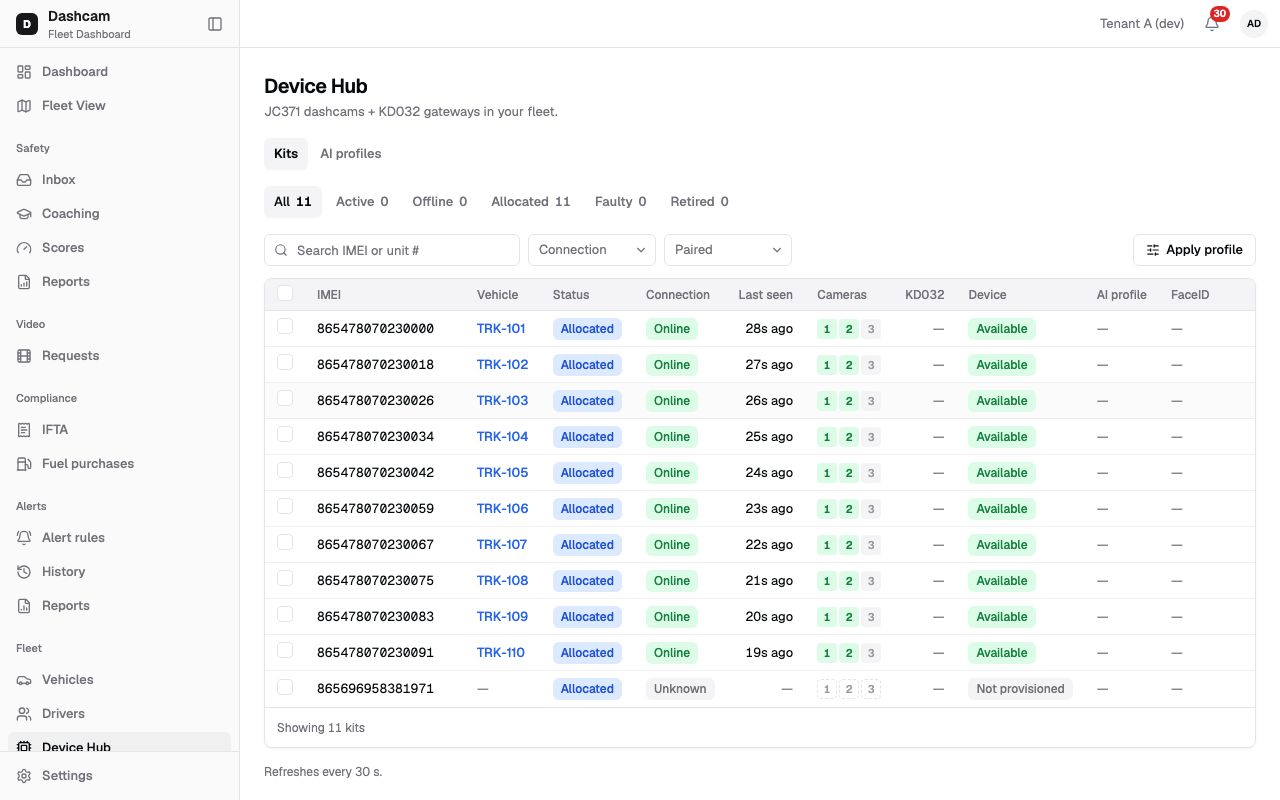
- On Kits, tick the kits and click Apply profile, pick the profile and click Apply.
What it is and why
Section titled “What it is and why”A profile holds the ADAS and DMS settings applied to kits. ADAS settings drive the road-camera warnings (forward collision, headway, pedestrian, lane departure); DMS settings drive the driver-camera events (eyes closed, yawning, phone use and more). A profile lets trucks on the same kind of work behave the same.
Example: your Dallas North trucks run long highway hauls, your Dallas South trucks do city deliveries. You create a profile Long haul, publish it and apply it to all kits of the group Dallas North. In Device Hub their AI profile column then shows Long haul v1. Kits whose last applied settings are the company-wide ones show Company AI settings; a kit that never got any shows —. Company-wide ADAS and DMS settings are in Safety settings.
Before you start
Section titled “Before you start”- By default only the Company Admin can see the AI profiles tab and tick kits.
- A kit needs an active ADAS or DMS licence for that part of the profile; see the kit’s Licences in Device Hub.
The replay could not be loaded. The steps below still describe every action.
Step by step
Section titled “Step by step”-
Open AI profiles.
In Fleet → Device Hub click the AI profiles tab. The list shows Name, Owner (Platform for Roudiy templates, Company for yours), Status (Draft, Published, Archived), Version (for example v2), Kits applied (for example 3 (1 outdated)) and Updated. Click Create profile. The drawer New AI profile says Starts as a draft. Publish it to apply it to kits.
-
Name the profile.
Name is required, up to 100 characters, for example
Long haul. Names must be unique: a repeat shows A profile with this name already exists. -
Set ADAS and DMS.
The form starts with the vendor defaults, which Roudiy marks as provisional. Reset to vendor defaults brings them back at any time. A value outside its range shows From min to max with the unit, for example From 0 to 75 mph or From 0.5 to 300 s; text shows Enter a number, and a decimal in a whole-number field shows A whole number. Ranges: FCW 500–5000 ms, HMW 500–5000 ms, PCW 1000–10000 ms, LDW 0–200 cm, Report interval 0–3600 s, Voice and PCW voice interval 0–600 s.
ADAS setting Default DMS event Sensitivity Detect time Activation speed 37 mph Eyes closed Medium 2.5 s Vehicle type Not set Yawning Medium 2.5 s FCW time to collision 1200 ms Distraction Medium 3 s HMW headway 2500 ms Smoking Medium 5 s PCW 5000 ms Phone use Medium 5 s LDW distance 60 cm No face Off 60 s Report interval 120 s Camera blocked Off 60 s Voice interval 5 s Sunglasses Off 60 s PCW voice interval 10 s - ADAS Activation speed: 0–75 mph. DMS has its own Activation speed, default 19 mph (0–75).
- Sensitivity per DMS event: Off, Low, Medium or High. Off turns the event off.
- Detect time (s): from 0.5 to 300 seconds.
- Detection zone: x1, y1, x2, y2, each 0–1000 (default 0, 0, 1000, 1000). If x2 is not above x1 or y2 not above y1, you see x2 must be above x1 / y2 must be above y1.
Click Create profile. The message Profile Long haul created as a draft appears.
-
Publish it.
Open the draft and click Publish (Long haul published). Only published profiles can be applied. Later changes: click Save (Long haul saved). Saving a published profile makes a new version; kits applied with the old one show as outdated.
Other actions: Archive a published profile (Archive profile? — An archived profile can no longer be applied. Kits keep their current settings.). Click Archive in the dialog; Long haul archived appears. Roudiy’s platform templates show This is a platform template. Duplicate it to make a company profile you can edit. To copy a profile, click Duplicate, enter a Name in the Duplicate profile dialog (The copy is a company draft with the same settings; edit and publish it.) and click Duplicate; Long haul (copy) created appears.
-
Pick the kits.
On the Kits tab tick the kits (up to 500); the button shows the count, for example Apply profile (1). Click it.
-
Apply.
The dialog Apply AI profile explains The kits get the profile’s ADAS and DMS settings as device commands; an offline kit gets them when it reconnects (up to 7 days).
- Profile — pick a published profile (Only published profiles can be applied.).
- Apply to — The 1 selected kit (your ticked kits) or All kits of a group, for example Dallas North.
- A warning such as ADAS/DMS licence missing on 2 kits — the section without a licence is skipped. tells you some kits get only part of the profile.
Click Apply. The result reads, for example, Sent to 4 of 5 kits. Status updates as the kits answer. with a table Kit, Status, Note. Click Done.
-
If device commands are pending.
On accounts where device commands are not available yet, after Apply the dialog shows Device command list pending — apply manually via TF card or device Wi-Fi page. Nothing is sent. The settings have to be applied on each dashcam from its TF card or Wi-Fi page. Contact Roudiy Support: they can record the manual apply, and the kit then shows Applied manually.
What happens next
Section titled “What happens next”- Each kit gets an apply status:
- Pending — sent, waiting for the kit.
- Applied — ADAS and DMS both applied.
- Applied manually — Roudiy Support recorded a TF-card or Wi-Fi apply.
- Partial — one section applied, the other skipped (no licence) or failed.
- Failed — no section applied (the device reported failure, or the kit did not answer within 7 days).
- Not applied — the kit was refused before anything was sent; the Note column gives the reason, for example Kit is faulty or retired, Another command is in progress or Kit is not allocated to your company.
- Device Hub’s AI profile column shows the profile and version, for example Long haul v1. After you save a new version, kits with the old one show Outdated — apply the profile again.
- An offline kit gets the settings when it reconnects, for up to 7 days.
If something goes wrong
Section titled “If something goes wrong”| Message on screen | Why | What to do |
|---|---|---|
| A profile with this name already exists | The name is taken. | Choose another name. |
| Only published profiles can be applied. | The profile is a draft or archived. | Publish it, or pick a published one. |
| ADAS/DMS licence missing on N kits — the section without a licence is skipped. | Some kits have no ADAS or DMS licence. | Apply anyway, or ask Roudiy about the licence. |
| Device command list pending — apply manually via TF card or device Wi-Fi page | Device commands are not available on your account yet. | Nothing was sent. Contact Roudiy Support for a manual apply. |
| Outdated badge | The profile was saved as a new version after it was applied. | Apply the profile to those kits again. |
| No AI profiles tab | Your role cannot configure AI. | Ask your Company Admin. |
Questions
Section titled “Questions”What does Archive do? An archived profile can no longer be applied. Kits that already have it keep their current settings.
Can I change a Platform profile? No. Duplicate it to make a company copy you can edit.
What does Company AI settings mean in Device Hub? The company-wide ADAS and DMS settings from Safety settings were the last settings sent to this kit, not a profile. A kit that never got any settings shows —. Company-wide ADAS and DMS settings are in Safety settings.