Device Hub
Quick path
Section titled “Quick path”- Go to Fleet → Device Hub.
- Use the status tabs, Search IMEI or unit # or the Connection and Paired filters.
- Click a kit to open its drawer.
- Click Troubleshooting for LED meanings and fixes; Back to kit returns.
What it is and why
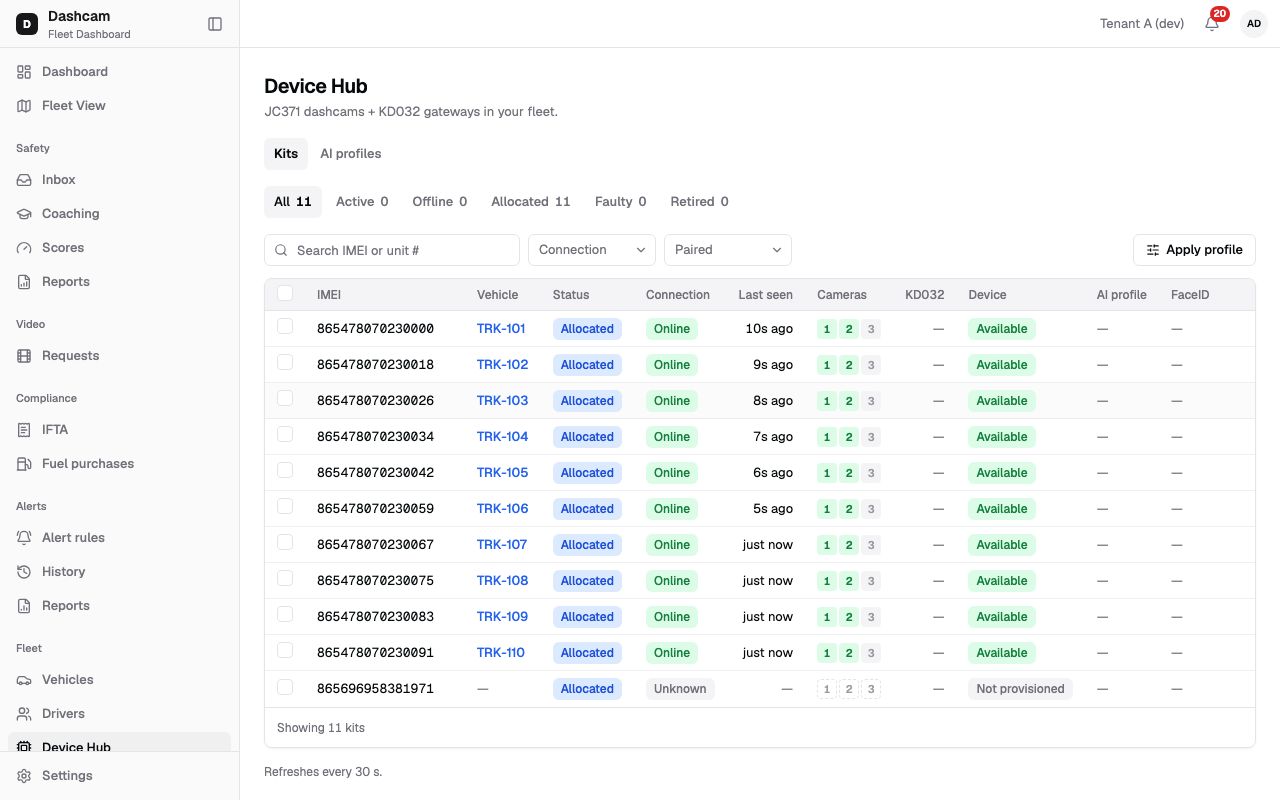
Section titled “What it is and why”Each truck has a kit: a JC371 AI dashcam and a KD032 gateway. Device Hub (JC371 dashcams + KD032 gateways in your fleet.) shows every kit, which truck it is paired with, whether it is online and whether its cameras and engine data are working.
Example: a dispatcher notices TRK-105 has not moved on the map since yesterday. In Device Hub the kit K-000005 · TRK-105 shows Offline with Last seen 20 hours ago. The Troubleshooting page suggests what to check, and the driver is asked about the blue LED. For what kits, channels and statuses mean, see Kits and cameras.
Before you start
Section titled “Before you start”| What | Who (default roles) |
|---|---|
| See Device Hub, open kits, Troubleshooting | Company Admin, Dispatcher |
| Pair to vehicle / Unpair | Company Admin |
| Reboot | Company Admin |
| AI profiles tab, kit checkboxes | Company Admin |
| Device Hub at all | Not Safety Managers or Compliance Managers |
A custom role may have other rights. Kits are installed by Roudiy Support; if the list is empty you see No kits yet — Kits are installed by Support.
The replay could not be loaded. The steps below still describe every action.
Step by step
Section titled “Step by step”-
Look at your kits.
Go to Fleet → Device Hub. The Kits tab lists every kit with these columns:
- IMEI — the dashcam’s ID.
- Vehicle — the unit number; it links to the vehicle’s Live tab.
- Status — In stock, Allocated, Active, Offline, Faulty, Allocation failed or Retired.
- Connection — Online, Offline, Sleeping (offline with the ignition off) or Unknown.
- Last seen.
- Cameras — one chip per channel: green OK, red last snapshot failed, gray not installed or no snapshot yet, dashed unknown.
- KD032 — the time of the last engine (OBD) data; amber after 24 hours.
- Device — Available, Not provisioned or Blocked.
- AI profile (only for roles that can configure AI) — profile name and version, for example Long haul v1, or Company AI settings, with its apply status chip and Outdated if a newer version exists; — if nothing was applied.
- FaceID (only for roles that can enroll faces).
The list refreshes every 30 s. Load more shows the next 50 kits.
-
Find a kit.
The status tabs All · Active · Offline · Allocated · Faulty · Retired show counts for the whole company. Search with Search IMEI or unit #, for example
TRK-105, or filter by Connection and Paired. If nothing matches you see No matching kits. -
Open the kit.
Click the row. The drawer title is the kit and its truck, for example K-000005 · TRK-105, with the IMEI below. The open kit stays in the page address, so you can send the link to a colleague. The drawer has:
- The details list — IMEI, Vehicle (Not paired if none), Kit status, Connection (Last seen …), Cameras (for example CH1: OK · CH2: not installed), KD032 (Last OBD …), Device, Firmware and Variant.
- Licences — Video, ADAS, DMS and FaceID; a licence that is not active is greyed out and struck through.
- Last install check — Running, Passed or Failed with the time, or No install check yet.
- Recent commands — the last 5, for example Reboot · date · requester with a status, or No commands sent to this kit yet.
Buttons at the top: Pair to vehicle (unpaired kit) or Unpair (paired kit) and Reboot show only if your role allows them; Troubleshooting is always shown. See Pair a kit with a vehicle.
-
Check the pairing history.
Pairing history lists the trucks the kit was paired with and when, for example TRK-105 Oct 23 – now, or Never paired.
-
Open Troubleshooting.
Click Troubleshooting. It has six sections; the ones that match the kit’s current state carry a Suggested chip. Back to kit returns to the drawer. The sections are summarised below.
Troubleshooting reference
Section titled “Troubleshooting reference”-
LEDs (JC371). Red: recording (solid with the ignition on). Green: GNSS (GPS) fix. Blue: network and platform — a slow blink means the IMEI is not in inventory or is blocked (contact Support) or the server address is wrong (rewrite
writeconfig.txt). White: AI running. -
Not online. Check the kit is the North America SKU and the SIM has an active data plan and the right APN. Wrong server: rewrite
writeconfig.txtto the TF card and restart. Blue slow blink: contact Support. APN setup over SMS is not available yet. -
No GPS fix. Ignition on, clear sky, drive out of the garage and wait 2–3 minutes. The green LED comes on with a fix.
-
No camera snapshot. Check the CH2/CH3 cables. The TF card must be FAT32, 32–512 GB, with the red LED solid. You can preview over the device Wi-Fi: the network name (SSID) is the IMEI; open
192.168.169.1. -
No ECM data. The KD032 must sit in the ECM port (9-pin Deutsch or 16-pin OBD) with the TTL-2 cable to the JC371, and the engine must run. Rewrite
writeconfig.txtor send this command (the page has a Copy button):UARTCONFIG,TTL2,1,19200,ON#Minimum firmware: MCU V1.2.12.0_250630 and video V1.4.10b_250712. Supported protocols: J1939, ISO 15765-4 and J1708 (not J1850, ISO 9141 or KWP2000).
-
Hardware faulty → RMA. Contact Support for an RMA with the kit’s IMEI.
What happens next
Section titled “What happens next”- Fix a kit on site, then watch its Connection change to Online; the list refreshes every 30 s.
- The Faulty status is set by Roudiy Support; for a hardware fault, ask Support for an RMA.
If something goes wrong
Section titled “If something goes wrong”| Message on screen | Why | What to do |
|---|---|---|
| Live data unavailable — showing inventory only | Connection data could not be loaded; the kit list still shows. | Reload the page later. |
| Couldn’t refresh the devices. Showing the last loaded data. | An automatic refresh failed. | Wait for the next refresh or reload the page. |
| Kit not found / It may have been removed from your company, or the link is wrong. | The link points to a kit that is not in your company. | Search for the kit by IMEI or unit #. |
| No matching kits | No kit matches your search or filters. | Clear the search and filters. |
| No Pair, Unpair or Reboot button | Your role cannot use it. | Ask your Company Admin. |
Questions
Section titled “Questions”Why is a kit Sleeping and not Offline? Sleeping means it is offline because the ignition is off, which is normal for a parked truck.
Can I add a kit myself? No. Kits are installed by Roudiy Support; you see them here once they are in your company.
Who can tick kits to apply an AI profile? Only roles that can configure AI profiles, by default the Company Admin. See AI profiles.