Who drove a vehicle
Quick path
Section titled “Quick path”- Open the vehicle and go to its Assignments tab.
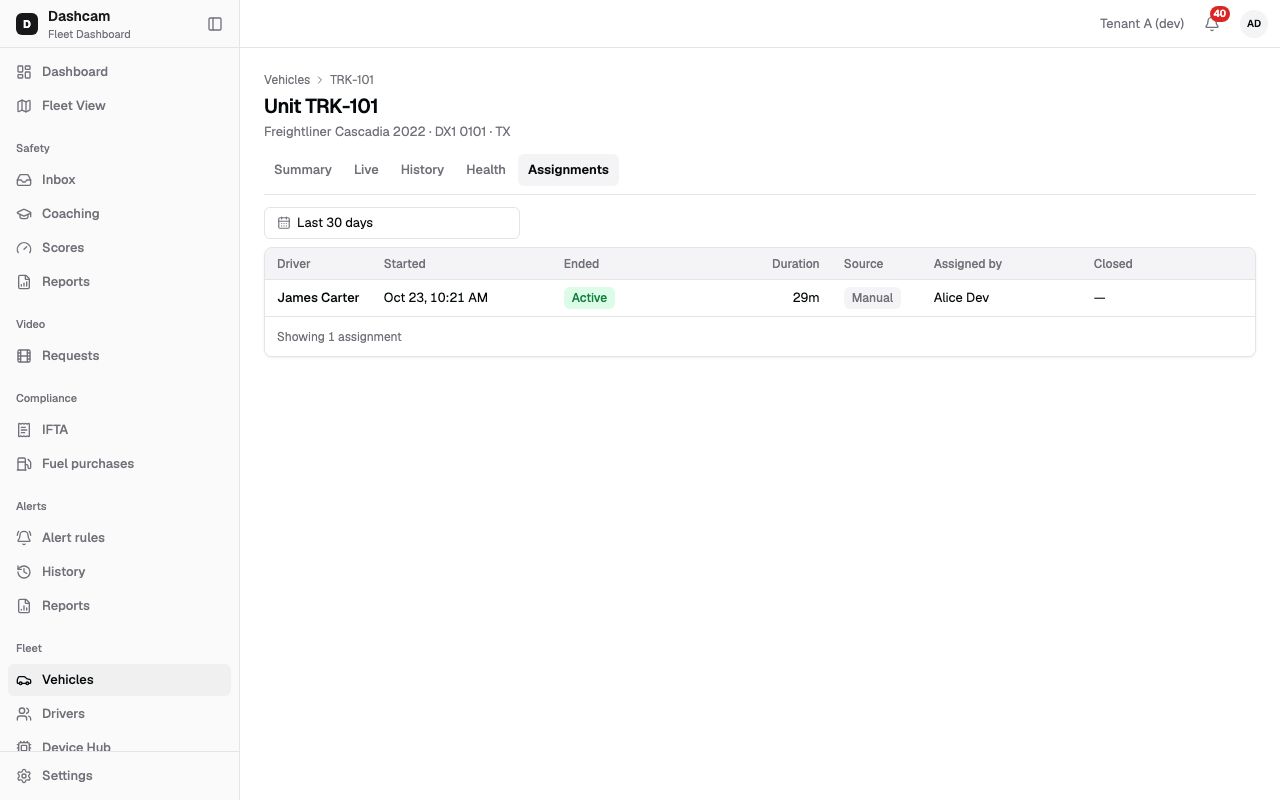
- Read the table: driver, start, end, how it was made and how it closed.
- Change Dates to look further back than the last 30 days.
- Click Load more at the bottom for older rows.
What it is and why
Section titled “What it is and why”An assignment links one driver to one truck for a period. Trips and safety events recorded in that period belong to that driver, which is what their safety score is built on. The Assignments tab is the record of who drove the truck and when. Example: a ticket arrives for TRK-101 from last Tuesday. You open Assignments, see that James Carter drove it from Monday 6:10 AM until Maria Lopez was assigned on Wednesday, and know who to talk to.
Each truck has at most one active driver, and each driver is on at most one truck. See Vehicles, drivers and assignments for the full picture.
Before you start
Section titled “Before you start”- You need the
vehicles.viewpermission. All four default roles have it. Without it the tab is hidden, and opening it by link shows You don’t have access to this page. - This tab only shows assignments. You change them elsewhere — see What happens next.
The replay could not be loaded. The steps below still describe every action.
Step by step
Section titled “Step by step”-
Open the tab.
On the vehicle page, click Assignments. The table shows the last 30 days by default, 25 rows at a time.
-
Read the columns.
- Driver — links to the driver’s profile. A Deactivated badge marks a driver who is no longer active.
- Started and Ended — an open assignment shows an Active badge instead of an end.
- Duration — for an active assignment, counted up to when you opened the table.
- Source — Manual (assigned on the vehicle’s Live tab) or Retro (trips assigned afterwards from the Trips page).
- Assigned by — the user’s name, Unknown user, or “—” when the system did it.
- Closed — how it ended: Ended by Maria Lopez for a manual end (Ended manually when the user is not known), or a reason such as Auto — new assignment, Auto — driver moved, Driver deactivated, Vehicle deactivated or Account closed. Retro and open assignments show “—”.
-
Change the dates.
Click Dates and pick a range. Days are in your time zone: your personal time zone if you set one, otherwise your company’s. A range longer than 366 days is ignored.
-
Load older rows.
Click Load more at the bottom of the table for the next 25.
The driver’s side of the same record is the Vehicle history tab on their profile. It is the same table, with a Vehicle column instead of Driver.
What happens next
Section titled “What happens next”You change assignments in two places; each change adds a row here.
- Live tab, Driver block — Assign driver, Change driver or End assignment on the
vehicle’s Live tab. These rows show Source: Manual. Needs
assignments.manage, which the Company Admin and Dispatcher have by default. - Trips, Assign driver — on Trips, select finished trips without a driver
(up to 50) and click Assign driver. These rows show Source: Retro. Also needs
assignments.manage.
If something goes wrong
Section titled “If something goes wrong”| Message on screen | Why | What to do |
|---|---|---|
| No assignments in this period | Nobody was assigned to the truck in the chosen dates. | Widen Dates. |
| Couldn’t load assignments | The table did not load. | Click Retry. |
| You don’t have access to this page | Your role has no vehicles.view. |
Ask your Company Admin. |
| Vehicle not found | The truck is not in your groups, or the link is wrong. | Click Back to vehicles and open it from the list. |
Questions
Section titled “Questions”Why does a row say Retro? A driver was assigned to finished trips afterwards from the Trips page, rather than on the truck’s Live tab.
Can I edit a past assignment here?
No. The tab is read-only. Use Assign driver on Trips for finished trips without a driver; it needs
assignments.manage.
Why does Assigned by show “—”? The system made the assignment, not a user.