Company profile
Quick path
Section titled “Quick path”- Open Settings → Company profile.
- Fill in the company name, phone, USDOT and MC numbers.
- Fill in the address and pick the Home terminal time zone.
- Click Save changes.
What it is and why
Section titled “What it is and why”The company profile is the basic record of your carrier: its legal name, contact phone, USDOT and MC
numbers, mailing address and the time zone of your home terminal. Everyone in your company can see
it; only users with org.update (Company Admin by default) can change it.
Two fields matter more than the rest. The USDOT number links your company with the ELD platform, and saving it is what activates a new company. The Home terminal time zone decides when a day starts: days in History, reports and scores begin at 00:00 in this zone. For example, a carrier based in Dallas picks Central, so a drive of TRK-101 at 23:40 Dallas time shows up under that day in History, not the next one.
Before you start
Section titled “Before you start”- You need the Company Admin role or another role with the
org.updatepermission. With onlyorg.viewyou see the page as Read-only for your role: fields are disabled and there is no Save changes button. - Have your USDOT number at hand and check it twice: it can’t be changed after saving.
- New company? A Company Admin of a company that is still in onboarding is sent to this page automatically. See Start here: Company Admin.
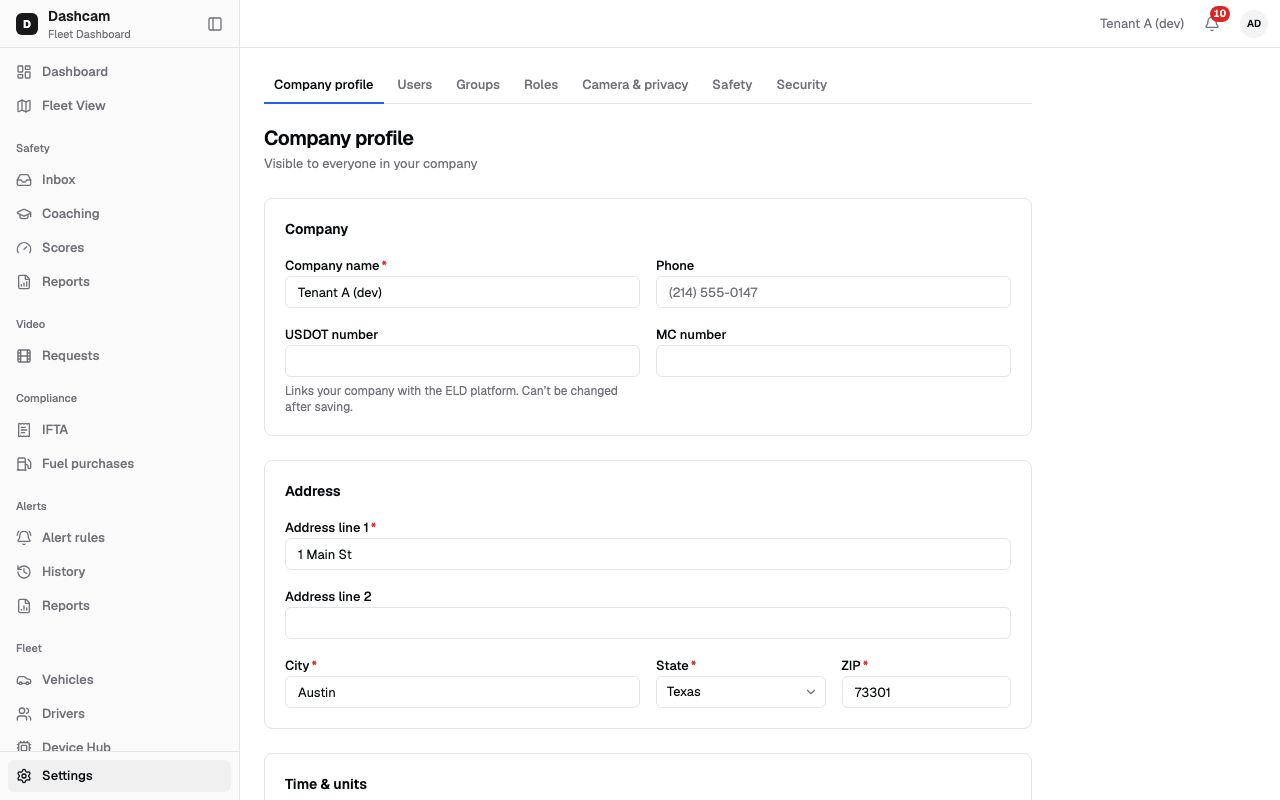
The replay could not be loaded. The steps below still describe every action.
Step by step
Section titled “Step by step”-
Open the page.
In the sidebar, click Settings, then the Company profile tab. Under the title you see Visible to everyone in your company (you can edit) or Read-only for your role.
If your company is in onboarding, a banner says Complete your company profile to get started and Enter your USDOT number and save: that activates your company.
-
Fill in Company details.
- Company name (required): your carrier’s name, for example Lone Star Freight LLC. Under 2 characters shows Enter the company name (2–120 characters); over 120 shows Max 120 characters.
- Phone (optional): a US number, for example (214) 555-0147. Anything else shows Enter a US phone number.
- USDOT number: the hint says Links your company with the ELD platform. Can’t be changed after saving. Digits only, up to 8, for example 3141592; otherwise Digits only, up to 8. Once saved, the field is locked and shows Contact support to change.
- MC number (optional): digits only, up to 8, same message as USDOT.
-
Fill in the Address.
- Address line 1 (required, up to 120 characters), for example 2400 Commerce St.
- Address line 2 (optional, up to 120 characters), for example Suite 300.
- City (required, up to 80 characters), for example Dallas.
- State (required): pick from the list, for example Texas.
- ZIP (required): 5 digits, for example 75201. ZIP+4 such as 75201-4512 is accepted too. A wrong format shows Enter a 5-digit ZIP.
-
Choose the Home terminal time zone.
Pick Eastern, Central, Mountain, Arizona or Pacific (required). The hint reminds you: Days in History, reports and scores start at 00:00 in this time zone.
When you change it, a Change time zone? dialog explains, for example: Times across the dashboard will be shown in Pacific — America/Los_Angeles. Past days are not recalculated. Continue? Continue only changes the value in the form; nothing is saved yet. Cancel keeps the old zone.
Units show Miles, gallons, mph with the note Fixed for US fleets; you can’t change them.
Further down, the Plan section is read-only: it shows your plan name and its modules (Tracking, Video safety, Compliance).
-
Save.
At the bottom are Cancel and Save changes. Cancel puts back the saved values (both buttons stay disabled until you change something). Click it to save; you see the toast Profile saved.
If you try to leave the page with unsaved edits, a Discard changes? dialog says Your unsaved changes will be lost. Click Keep editing to stay or Discard to leave. Reloading or closing the tab shows the browser’s own warning.
What happens next
Section titled “What happens next”- Activation. If this save included the USDOT number of a company in onboarding, the page shows Your company is active. and Next: add vehicles. Continue with Add a vehicle. If you saved without a USDOT number, you see Profile saved. Add your USDOT number to activate your company.
- Time zone. After you save a new zone, times across the dashboard use it. Past days are not recalculated.
- USDOT. From now on the USDOT field is locked.
If something goes wrong
Section titled “If something goes wrong”| Message on screen | Why | What to do |
|---|---|---|
| Enter the company name (2–120 characters) | The name is empty or shorter than 2 characters. | Type the full company name. |
| Max 120 characters | A name or address line is over 120 characters. | Shorten it. |
| Enter a US phone number | The phone is not a valid US number. | Use a format like (214) 555-0147. |
| Digits only, up to 8 | USDOT or MC contains something other than digits. | Enter digits only, for example 3141592. |
| This USDOT is already registered. Contact support. | Another company already uses this USDOT number. | Check the number; if it is yours, contact support. |
| Enter a 5-digit ZIP | The ZIP is not 5 digits (or ZIP+4). | Enter 75201 or 75201-4512. |
| Profile was updated by another admin. Reload | Someone else saved the profile while you were editing. | Click Reload, check their changes, then make yours again. |
| Profile saved. Add your USDOT number to activate your company. | The profile was saved without a USDOT number. | Enter the USDOT number and click Save changes again. |
| Contact support to change (locked USDOT) | USDOT can’t be changed after saving. | Contact support. |
Questions
Section titled “Questions”Why can’t I edit anything on this page?
Your role has org.view but not org.update, so the page is Read-only for your role. Ask a
Company Admin.
I clicked Continue in the time zone dialog. Is it changed? Not yet. Continue only changes the form. Click Save changes to apply it.
Will my old reports move to the new time zone? No. Past days are not recalculated.
Can I change my plan here? No. The Plan section is read-only.