Sign in
Quick path
Section titled “Quick path”- Open app.roudiy.com.
- Enter your work Email and Password.
- Tick Remember me on your own computer.
- Click Sign in. If asked, type the 6-digit code from your email.
What it is and why
Section titled “What it is and why”The Fleet Dashboard is where your team watches the fleet, reviews safety events and prepares compliance reports. Everyone signs in with their own account, so the dashboard shows each person only the pages their role allows.
Roudiy uses the same account as your ELD platform: one email and one password for both. If you already sign in to the ELD platform, you use that same password here.
Before you start
Section titled “Before you start”- You need an account. Your company admin creates it by inviting you; the invitation email has a link to set your password.
The replay could not be loaded. The steps below still describe every action.
Step by step
Section titled “Step by step”-
Open the sign-in page.
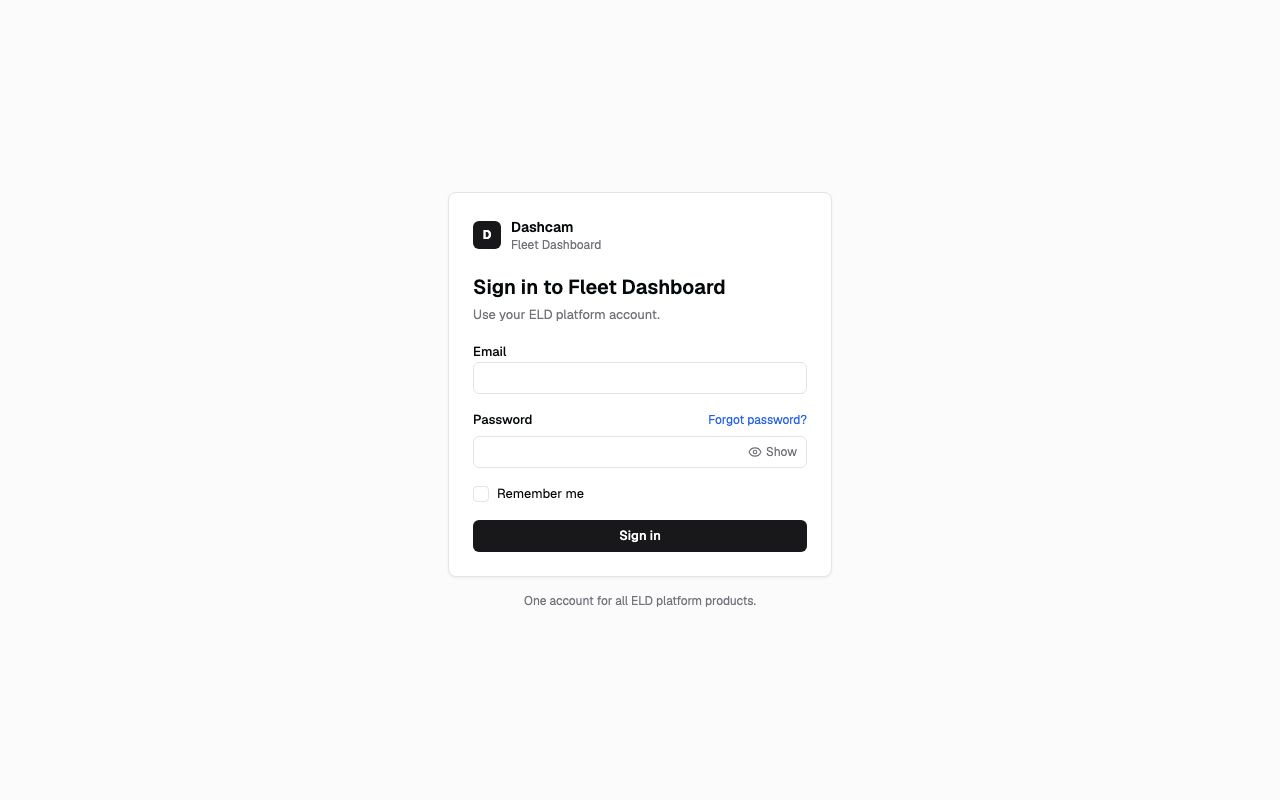
Go to app.roudiy.com. You see a card titled Sign in to Fleet Dashboard with the line Use your ELD platform account.
If you opened a link to a specific page while signed out (for example from an alert email), you are sent here first and taken back to that page after you sign in.
-
Enter your email.
Type the work email your company admin invited. If the format is wrong, the field shows Enter a valid email.
-
Enter your password.
Type your password. It is hidden while you type; click Show to check what you typed and Hide to hide it again. An empty field shows Enter your password.
Forgot it? Click Forgot password? and follow Reset a forgotten password.
-
Choose Remember me (optional).
Tick Remember me on a computer only you use, so you stay signed in on that computer. Leave it unticked on shared or public computers. It is off by default.
-
Click Sign in.
- If two-step verification is on for your account, a page titled Check your email opens. Type the 6-digit code we sent you; it is checked as soon as you type the sixth digit.
- Otherwise you are signed in right away (see the next step for which page opens).
-
Find your way around.
Where you land depends on how you reached the sign-in page. If you opened app.roudiy.com (or a link to a page) while signed out, you go back there. app.roudiy.com opens the first page in your sidebar: the Dashboard for Company Admins, Dispatchers and Safety Managers, Fleet View for Compliance Managers, and Company profile for a Company Admin while the company is in onboarding. If you opened the sign-in page directly (a bookmark, a typed address or after Sign out), you land on Fleet View. The sidebar on the left lists every page you can open. See Find your way around.
What happens next
Section titled “What happens next”- You stay signed in when you reload the page or open a new tab.
- Sign out is in the account menu (your initials, top right). Signing out in one tab signs you out in your other tabs too.
- To end your sessions on every device at once, use Sign out of all devices on the Security page.
If something goes wrong
Section titled “If something goes wrong”| Message on screen | Why | What to do |
|---|---|---|
| Incorrect email or password. | The email or password does not match. | Check the email for typos and try again, or reset your password. |
| Too many failed attempts. Try again in 15 minutes. | After 5 wrong passwords in a row, sign-in is locked for a while. The Sign in button stays disabled. | Wait until the time shown has passed, or reset your password. |
| Your account doesn’t have access to this product yet. Ask your administrator for an invitation. | Your ELD account exists, but you were not invited to the Fleet Dashboard. | Ask your company admin to invite you. |
| Your account is deactivated. Contact your administrator. | Your company admin deactivated your user. | Contact your company admin. |
| This account can’t sign in here. | Your account belongs to another Roudiy app. | Click the Go to … link under the message. |
| Too many active sessions. Sign out on another device first. | You are signed in on too many devices. | Sign out somewhere else, or use Sign out of all devices. |
| Sign-in is temporarily unavailable. Try again in a minute. | The sign-in service is busy or down. | Wait a minute and try again. |
| Can’t connect. Check your connection and try again. | Your device is offline or the connection dropped. | Check your internet connection. |
| Account suspended page | Access to your company account is suspended. Your data is still being collected. | Contact your Roudiy account manager. |
Questions
Section titled “Questions”Is my Roudiy password the same as my ELD password? Yes. It is one account: changing the password in one place changes it in both.
I never got an invitation. Can I sign up myself? No. Accounts are created by your company admin, so the right role and access are set from the start.
Can I use Roudiy on my phone? Yes, in the phone’s browser. The sidebar folds into the menu button in the top-left corner.