Run a report
Quick path
Section titled “Quick path”- Open Reports in the sidebar and click a report card, for example Trips & mileage.
- Pick a Period (default Last 7 days) and, if you like, groups, vehicles or drivers.
- Keep CSV or choose PDF, then click Generate.
- Wait for Ready in My reports, then click Download.
What it is and why
Section titled “What it is and why”A report collects a period of fleet data into a file you can open in Excel or send to someone. The dashboard shows today; reports cover past days, weeks and months.
Example: on October 2 you run Trips & mileage for Last month as CSV. When the row in
My reports turns Ready, Download saves
trips_mileage_2026-09-01_2026-09-30.csv with every September trip and the miles per truck.
Before you start
Section titled “Before you start”- You need Reports: view to open the page and Reports: export to generate and download. By default the Company Admin, the Dispatcher and the Safety Manager have both; the Compliance Manager has neither.
- Each report needs its own permission too, so you see only the cards your role may run. The Safety Manager sees Trips & mileage, Idle and Vehicle utilization by default.
- Rows cover only the vehicles and drivers of your groups. See Groups and access.
The replay could not be loaded. The steps below still describe every action.
Step by step
Section titled “Step by step”-
Open Reports.
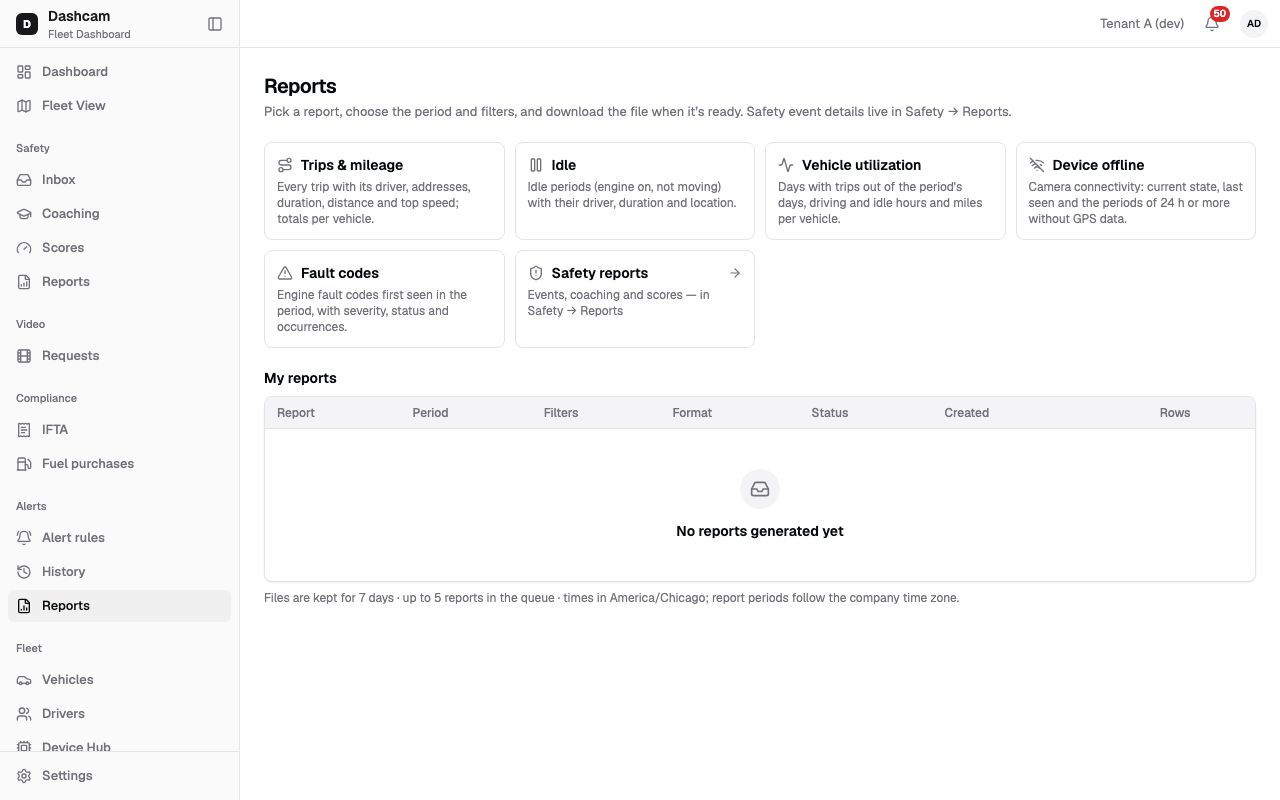
Click Reports in the sidebar. The page shows the report cards and, below them, My reports.
Card What the file holds Needs Trips & mileage Every trip with its driver, addresses, duration, distance and top speed; totals per vehicle. History: view Idle Idle periods (engine on, not moving) with their driver, duration and location. History: view Vehicle utilization Days with trips out of the period’s days, driving and idle hours and miles per vehicle. History: view Device offline Camera connectivity: current state, last seen and the periods of 24 h or more without GPS data. Devices: list Fault codes Engine fault codes first seen in the period, with severity, status and occurrences. Health: view If your role can list safety events, a Safety reports card leads to Safety reports.
-
Pick a report and a period.
Click a card. A dialog opens with the report’s name. In Period choose one of the fixed periods; there is no custom date range. Days are cut at midnight in your company time zone and weeks start on Monday.
Period Covers Today Today from midnight Yesterday The whole of yesterday Last 7 days The last 6 days plus today (default) Last 30 days The last 29 days plus today This week Monday of this week to now Last week Monday to Sunday of the previous week This month The 1st of this month to now Last month The whole previous month The period is fixed when you click Generate. Rows stop when the file is actually produced, so a run that waits as Queued can include rows from after the click.
-
Narrow it down (optional).
Groups (All groups), Vehicles (All vehicles) and Drivers (All drivers) accept several picks each; leave a field empty to include everything. Only Trips & mileage has Drivers; the other reports have Groups and Vehicles. A field shows only if your role can list those items.
-
Choose the format.
CSV is selected. Pick PDF for a printable file of up to 5,000 rows; CSV takes up to 500,000.
-
Click Generate.
A toast says Report queued — we’ll keep checking, the dialog closes and the run appears at the top of My reports as Queued. If an identical run is still queued or running, you get that run back instead of a copy.
-
Watch My reports.
The table lists your latest 50 runs, newest first, with Report, Period, Filters (for example All vehicles or 2 groups · 3 vehicles), Format, Status, Created and Rows. While a run is Queued or Running, it shows Checking every 5 s and the list updates by itself until it turns Ready or Failed.
-
Download.
Click Download on a Ready row. Each click opens a fresh link valid for 15 minutes. The file is named after the report and its first and last day, for example
trips_mileage_2026-09-01_2026-09-30.csv. -
Run it again.
Failed and Expired rows have Run again. It repeats the same report, filters and format, but cuts the period again: Last week run next Monday covers a new week.
What happens next
Section titled “What happens next”-
CSV: one header row, a Timezone column on every row, totals rows at the end. Times look like
2026-09-14 06:05in your company time zone; miles have 1 decimal and durations are in minutes. -
PDF: US Letter landscape, with a header naming the report, your company, the period (for example Period: Sep 1, 2026 - Sep 30, 2026 (last month)), the time zone and who generated it. With no rows it reads No data for this period.
-
Columns per report:
Report Columns Trips & mileage Vehicle, Driver, Status, Start, End, Start address, End address, Duration (min), Distance (mi), Distance source, Max speed (mph) Idle Vehicle, Driver, Idle start, Duration (min), Location Vehicle utilization Vehicle, Days in period, Days with trips, Driving (h), Idle (h), Distance (mi), Utilization (%) Device offline IMEI, Vehicle, Current state, Last seen, No GPS data periods (24 h+), No GPS data (h) Fault codes Vehicle, Code, Description, Severity, First seen, Resolved, Status, Occurrences A trip belongs to the period it started in. Device offline counts gaps in GPS data, which can also come from the engine being off.
-
A period with no data still becomes Ready; a CSV then has only the header.
-
Files are kept 7 days, then the row turns Expired. Runs cannot be deleted, cancelled or scheduled, and you get no notification when one is ready.
-
You can have 5 runs queued at a time; a company runs 2 at once and the rest wait as Queued. A run that takes more than 10 minutes fails.
If something goes wrong
Section titled “If something goes wrong”| Message on screen | Why | What to do |
|---|---|---|
| You already have 5 reports in the queue | Five of your runs are already waiting. | Wait until one finishes, then try again. |
| Some of the picked vehicles, drivers or groups are outside your access | A picked group is not one of yours. | Remove it and click Generate again. |
| This report is not available any more | The report type no longer exists on the server. If your role lost the report’s permission, you see a message about a missing permission instead. | Reload the page and pick another card. |
| Too many rows for PDF — try CSV | The PDF would have more than 5,000 rows. | Click Run again as CSV. |
| Too many rows — try a shorter period or fewer vehicles | The CSV would have more than 500,000 rows. | Pick a shorter period or fewer vehicles. |
| Timed out — try a shorter period | The run took more than 10 minutes. | Pick a shorter period, then generate again. |
| Report failed — try again | Something went wrong while building the file. | Click Run again. |
| This report has expired — run it again | The file is older than 7 days. | Click Run again. |
| Your role can’t generate or download reports (on a disabled button) | Your role lacks Reports: export. | Ask your Company Admin. |
| You don’t have access to any reports | Your role can run none of these reports and can’t see safety events. If it can see safety events, only the Safety reports card shows. | Ask your Company Admin. |
| Could not load reports | The list failed to load. | Click Retry. |
Questions
Section titled “Questions”Why did Run again give different dates? The period is cut again at the new run time. Yesterday run today and tomorrow covers two different days.
Can I get a report every Monday by email? No. There is no scheduling and no email; run the report when you need it.
Can I see a report a colleague generated? No. My reports shows only your own runs. Ask them to send you the file.