Draw a geofence
Quick path
Section titled “Quick path”- In Fleet View → Live, open the Geofences tab and click Create.
- Pick Circle or Polygon and draw the area on the map.
- Enter a Name, pick a Type and, if needed, Groups.
- When the status says Shape looks good, click Create geofence.
What it is and why
Section titled “What it is and why”A geofence is an area you draw on the map. Roudiy records when your trucks enter and leave it, and shows those entries and exits on each vehicle’s Summary, for example Exited Dallas Yard · Yard · … after 2h 10m.
Example: your drivers often wait at the Plano Distribution Center. You draw it as a Customer site. From then on, TRK-103’s Summary shows when it arrived and how long it stayed, so you can back up a detention claim.
Before you start
Section titled “Before you start”- To create, change or delete geofences you need the Geofences: create, update and delete permissions. By default the Company Admin and the Dispatcher have them.
- The Safety Manager can open geofences but not change them. The Compliance Manager has no Geofences tab by default.
- If your access is limited to groups, each geofence you make must belong to at least one of your groups, and you cannot change a whole-company geofence.
- A company can have up to 2,000 active geofences.
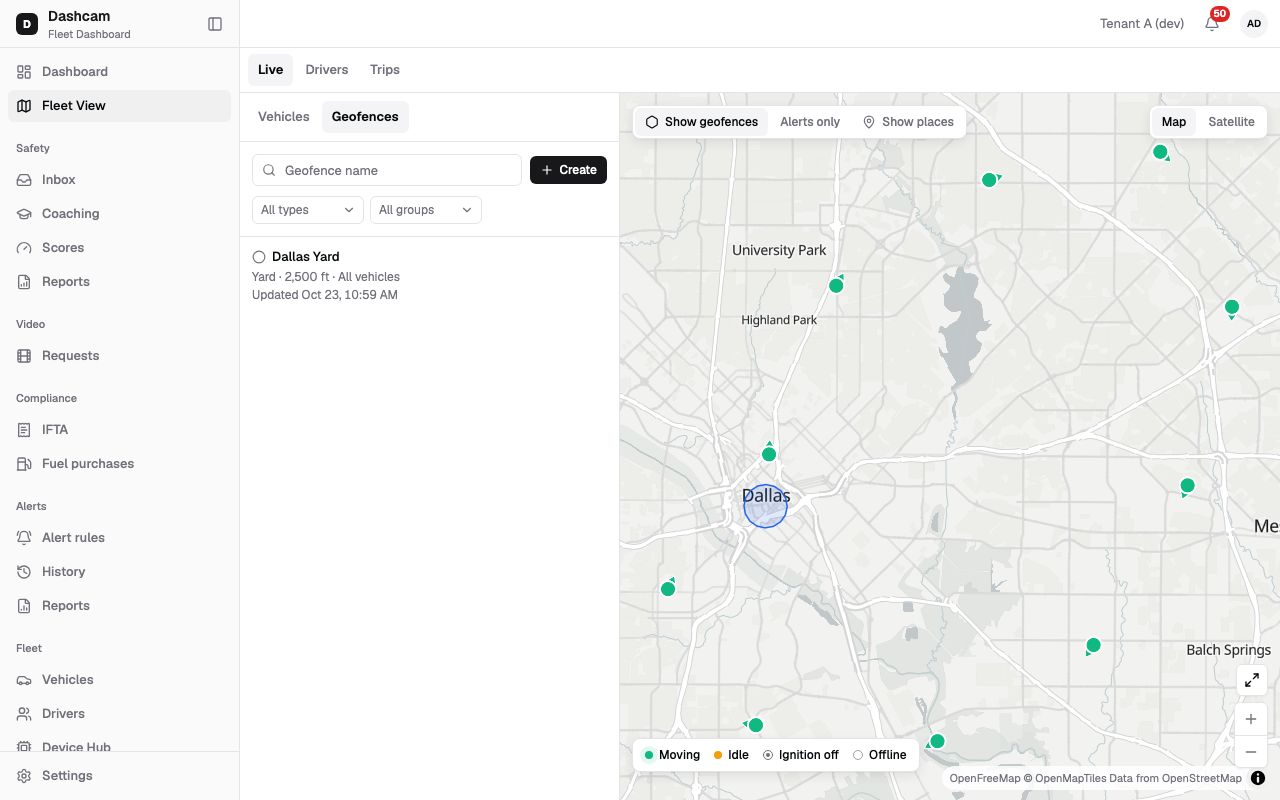
The replay could not be loaded. The steps below still describe every action.
Step by step
Section titled “Step by step”-
Open the Geofences tab.
In Fleet View → Live, click Geofences at the top of the list panel. Each row shows the name, a line such as Yard · 1,500 ft · Dallas North (or All vehicles) and Updated … by …. Search with Geofence name or filter by Types and Groups. Clicking a row opens the geofence and zooms the map to it; clicking a geofence on the map opens it without moving the map.
-
Start a new geofence.
Click Create. The editor Create geofence opens; the back arrow (Back to geofences) returns to the list.
-
Choose the shape.
Pick Circle or Polygon. You choose only when creating; you cannot switch a saved geofence to the other shape.
-
Draw a circle.
Follow the hint: Click the centre on the map, then the edge. Drag the edge or type the radius.
- Radius unit is ft (the default) or mi. A typed radius applies when you press Enter or leave the field.
- The radius must be from 200 ft to 15 mi (79,200 ft).
-
Or draw a polygon.
Follow the hint: Click the points on the map; click the first point or double-click to close. Drag a point to move it, right-click it to remove it. A polygon has 3 to 100 points and its outline must not cross itself.
-
Check the shape status.
Under the shape you see Shape looks good, or what is still missing: Click the centre, then the edge, Draw the circle, Draw the area, A polygon needs at least 3 points, Max 100 points or The outline crosses itself. You cannot save while a problem shows. Undo steps back, up to 50 steps.
-
Fill in the fields.
- Name — required, up to 100 characters, unique in your company. Example:
Plano Distribution Center. - Type — required, Yard by default. Options: Yard, Customer site, Risk zone, Avoidance, Alerts only. The type sets the colour on the map.
- Groups — Empty = all vehicles of the company. If your access is limited to groups, pick at least one of your groups.
- Notes — optional, up to 500 characters.
There is no address field: find the place by moving the map.
- Name — required, up to 100 characters, unique in your company. Example:
-
Save.
Click Create geofence. A message confirms Geofence Plano Distribution Center created and the area appears on the map. Cancel closes the editor; if you changed something, Roudiy asks before discarding it.
Edit or delete a geofence
Section titled “Edit or delete a geofence”Click the geofence in the list or on the map. If you can change geofences, the editor title is Edit geofence; otherwise the title is the geofence’s name. The Shape box shows Circle · 1,500 ft or Polygon · 8 points, and the bottom of the form shows Created by … · Updated by ….
- Edit shape lets you move, resize or reshape it. Change the fields and click Save: you see Geofence saved.
- The trash icon (Delete geofence) asks Delete geofence? — Past entry/exit events will be kept. Click Delete to confirm; you see Geofence Dallas Yard deleted.
- Without edit rights you see the geofence read-only: fields are disabled and the line reads, for example, Yard · view only.
What happens next
Section titled “What happens next”- The geofence is drawn on the map while Show geofences is on. Alerts-only geofences show only with Alerts only on; see Map layers.
- Entries and exits appear on the vehicle’s Summary tab under Geofence & place events: the last 7 days, newest first, with the driver. Clicking the geofence name there opens it on the map.
- Nobody is notified; there is no geofence alert rule.
If something goes wrong
Section titled “If something goes wrong”| Message on screen | Why | What to do |
|---|---|---|
| A geofence with this name already exists | Names are unique in your company. | Use another name, for example add the city. |
| Your company already has 2 000 active geofences | The company limit is reached. | Delete geofences you no longer use. |
| Radius must be at least 200 ft / Radius must be at most 15 mi | The radius is outside 200 ft – 15 mi. | Type a radius in that range or drag the edge. |
| The outline crosses itself | Two sides of the polygon cross. | Drag or right-click a point to remove it, or click Undo. |
| Pick at least one of your groups | Your access is limited to groups, so the geofence needs one of them. | Pick one of your groups. |
| Only a company-wide user can change a geofence of the whole company | The geofence has no groups, and your access is limited to groups. | Ask a Company Admin to change it. |
| Geofence was changed by another user | Someone saved this geofence while you were editing. | Click Reload and make your change again. |
| Couldn’t load geofences | The list could not load. | Click Retry. If it fails again, check your connection. |
Questions
Section titled “Questions”Can Roudiy alert me when a truck enters a geofence? Not currently. Entries and exits are shown on the vehicle Summary; there is no geofence alert rule.
Can I turn a circle into a polygon? No. Delete the circle and create a polygon.
If I delete a geofence, do its past events disappear? No. Past entry/exit events will be kept.
What does each type do? The type sets the colour on the map, and Alerts only geofences are hidden unless Alerts only is on in Map layers.