Edit or deactivate a vehicle
Quick path
Section titled “Quick path”- Go to Fleet → Vehicles and search for the unit #, VIN or plate.
- Open the row menu ⋯ and choose Edit, change the fields and click Save.
- To take the truck out of service, choose Deactivate, then click Deactivate in the dialog.
- To bring it back, open the Deactivated tab and choose Reactivate.
What it is and why
Section titled “What it is and why”Trucks change: a new plate after a move to another state, a corrected VIN, a new group when a truck moves from Dallas North to Dallas South. You keep the record up to date by editing it.
When a truck leaves the fleet, you deactivate it instead of deleting it. Vehicles are never deleted, so their trips, events and IFTA miles stay. For example, when TRK-108 is sold, you deactivate it: it disappears from the map and the active list, but last quarter’s IFTA report still has its miles.
Before you start
Section titled “Before you start”- Editing: by default the Company Admin, Dispatchers and Compliance Managers can edit vehicles. Safety Managers can only view them.
- Deactivating and reactivating: by default only the Company Admin.
- A vehicle with a paired kit cannot be deactivated. Unpair the kit in Device Hub first.
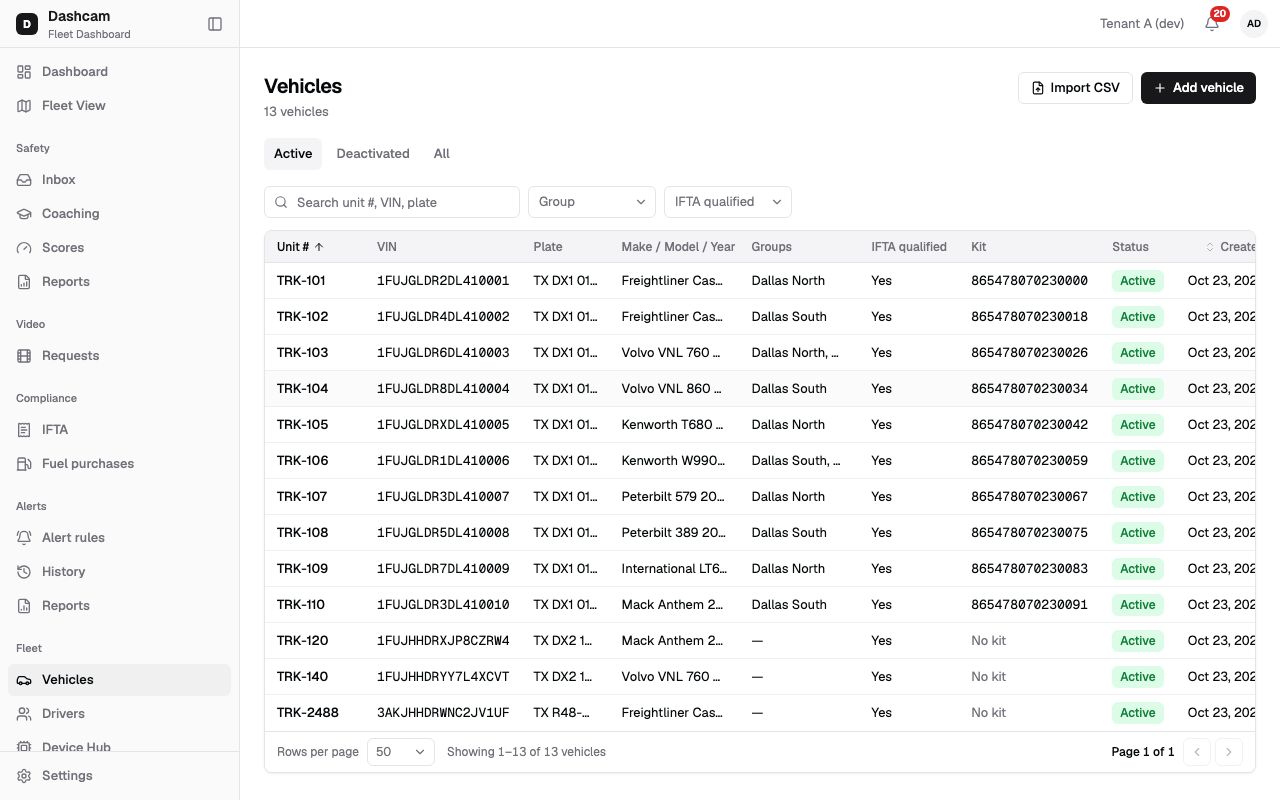
The replay could not be loaded. The steps below still describe every action.
Step by step
Section titled “Step by step”-
Find the vehicle.
Go to Fleet → Vehicles and type at least 2 characters in Search unit #, VIN, plate, for example
TRK-108. Part of a plate is enough. The Active, Deactivated and All tabs and your search stay in the page address, so you can share or bookmark the view. -
Open the vehicle for editing.
Open the row menu (Actions for TRK-108) and choose Edit. Or click the row: a side sheet opens with the unit number, its status and the buttons Live, History and Health, followed by all details — Unit #, VIN, Plate, Make / Model, Year, Fuel type, GVWR, Axles, IFTA qualified, ECM connector, Kit, Groups, Notes and Created. Click Edit at the bottom of the sheet.
Edit is only offered for active vehicles. A deactivated vehicle must be reactivated first.
-
Change the fields and save.
The drawer Edit TRK-108 has the same fields and rules as Add a vehicle: Unit # and VIN required, VIN 17 characters without I, O or Q, plate state required with a plate, and the IFTA qualified line updating as you change GVWR or axles.
- Only the fields you changed are sent when you save.
- If you empty Plate, its state is cleared too.
Click Save. A message confirms Unit TRK-108 saved. Closing with unsaved changes asks Discard changes? (Discard or Keep editing).
-
Deactivate the vehicle.
Choose Deactivate in the row menu or at the bottom of the side sheet. A dialog asks Deactivate unit TRK-108? and explains: It leaves the map and lists and its driver assignment ends. History stays; you can reactivate it later. Click Deactivate, and a message shows Unit TRK-108 deactivated.
If a kit is still paired, the dialog shows the warning A kit is paired with this vehicle. Unpair the kit in Device Hub first (the second sentence links to Device Hub), Deactivate is disabled and the vehicle stays active.
-
Find it on the Deactivated tab.
Deactivated vehicles are on the Deactivated tab (and on All). To bring one back, choose Reactivate in the row menu or the side sheet. The dialog Reactivate unit TRK-108? says It returns to the vehicle lists. Click Reactivate, and Unit TRK-108 reactivated appears.
What happens next
Section titled “What happens next”- After an edit, the new values show everywhere the vehicle appears, for example a new group changes who can see the truck. See Groups and access.
- After deactivation, the truck leaves the live map and the vehicle lists. If a driver was assigned, that assignment ends; in Who drove a vehicle it is closed with the reason Vehicle deactivated. Trips, events and history stay.
- After reactivation, the truck is back in the vehicle lists. To give it a driver, a dispatcher assigns one on its Live tab.
If something goes wrong
Section titled “If something goes wrong”| Message on screen | Why | What to do |
|---|---|---|
| Vehicle was changed by someone else. Reload | Someone saved this vehicle after you opened it. | Click Reload in the banner, check the current values and make your change again. |
| A kit is paired with this vehicle. Unpair the kit in Device Hub first | A truck with a paired kit cannot be deactivated. | Unpair the kit in Device Hub, then deactivate. |
| This vehicle already exists | The new unit number or VIN is used by another vehicle. | Use a different value, or check the other vehicle. |
| Some groups no longer exist. Reload the form. | A group you picked was deleted while the drawer was open. | Close and reopen the drawer, then pick groups again. |
| Vehicle not found | The link is wrong or points to a vehicle that does not exist. | Click Back to vehicles and search for it. |
| No Edit button | The vehicle is deactivated, or your role cannot edit vehicles. | Reactivate it first, or ask your Company Admin. |
Questions
Section titled “Questions”Can I delete a vehicle that was added by mistake? No. Vehicles are never deleted. Deactivate it; it stays only on the Deactivated and All tabs.
Does deactivation remove the truck from past IFTA reports? No. History stays, including trips and miles.
Why can my dispatcher edit a truck but not deactivate it? By default, Dispatchers and Compliance Managers may edit vehicles; deactivation is for the Company Admin. See Roles and permissions.