Accept your invitation
Quick path
Section titled “Quick path”- Open the invitation email and click its link.
- Check your company, role and email on the Welcome page.
- Choose a password (10+ characters) and type it twice.
- Click Set password and continue.
What it is and why
Section titled “What it is and why”Nobody signs up to Roudiy on their own: your company admin invites each person and picks their role, for example Dispatcher or Safety Manager. The invitation email carries a link that creates your account. When you accept, you are signed in and land on the page your role uses most.
If you already have an account on your ELD platform, you do not create a new password. You confirm the one you have, because Roudiy and the ELD platform share one account.
Before you start
Section titled “Before you start”- Find the invitation email in your inbox (check spam too). Ask your company admin to resend it if you cannot find it.
- If you are signed in to Roudiy as someone else on this browser, you will be asked to sign out first.
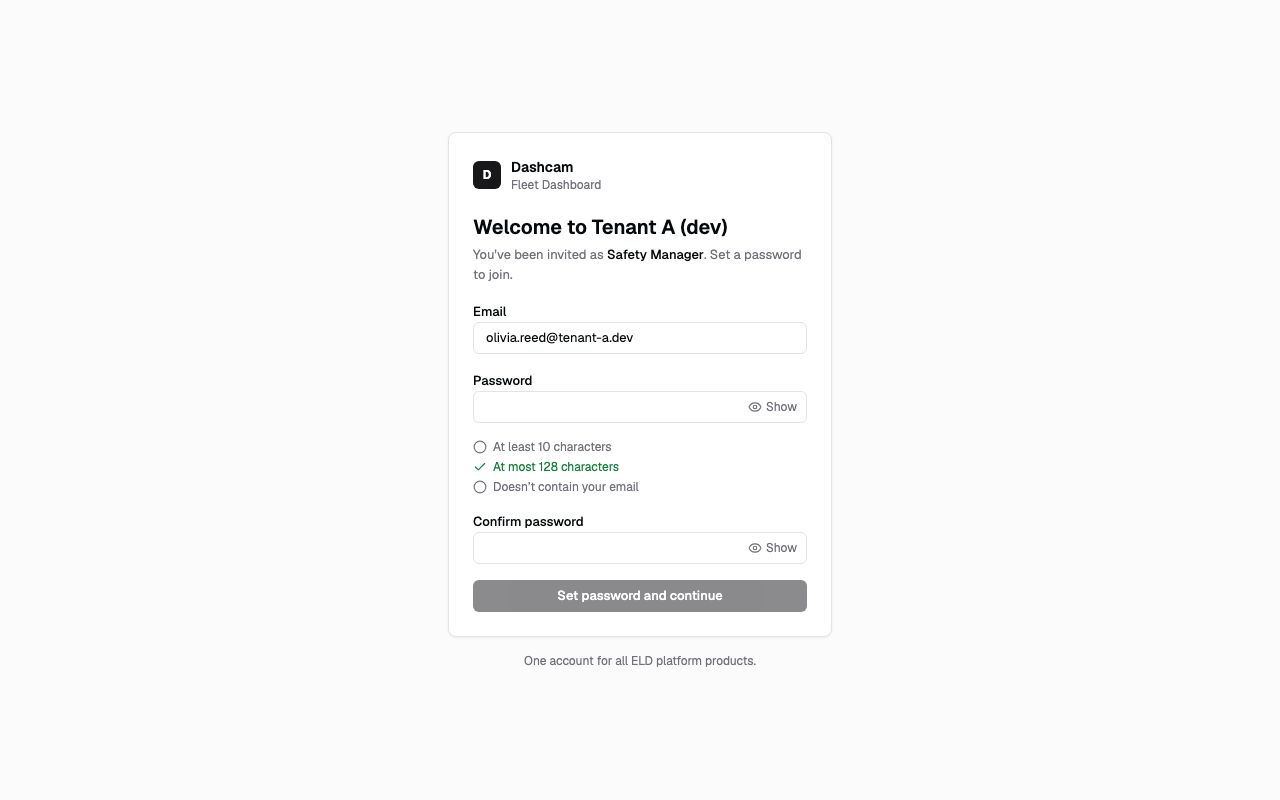
The replay could not be loaded. The steps below still describe every action.
Step by step
Section titled “Step by step”-
Open the link from the email.
The page opens with the title Welcome to and your company name, and the line You’ve been invited as followed by your role. For safety, the link’s code is removed from the address bar as soon as the page opens.
-
Check your email address.
The Email field is filled in and cannot be changed: the invitation belongs to that address. If it is wrong, ask your admin for a new invitation to the right address.
-
Choose a password (new account).
Type it in Password. The list under the field ticks each rule as you type:
- At least 10 characters
- At most 128 characters
- Doesn’t contain your email (the part before the @)
Then type it again in Confirm password. Click Show to see what you typed.
Already have an ELD account? The page says You already have an account. Enter your existing password to join. Type your current password instead; there is no second field. Forgot it? Use the Forgot password? link on the same page.
-
Continue.
Click Set password and continue (or Confirm and continue for an existing account). For a new account, the button stays disabled until every password rule is met.
-
Start working.
You are signed in and taken to your role’s first page: Company profile for Company Admins, Fleet View for Dispatchers, the Safety Inbox for Safety Managers and IFTA for Compliance Managers. If your role must use two-step verification, you are asked for an email code first.
What happens next
Section titled “What happens next”- The invitation link is used up. Next time, sign in at app.roudiy.com with your email and the password you just chose. See Sign in.
- Your admin sees you change from Invited to Active in their user list.
- The same password works on your ELD platform.
If something goes wrong
Section titled “If something goes wrong”| Message on screen | Why | What to do |
|---|---|---|
| This invitation has expired | The link is too old. | Ask your administrator to send a new one. |
| This link is no longer valid | A newer invitation was sent and replaced this one. | Open the newest invitation email. |
| This invitation was already accepted | You (or someone with the link) already used it. | Click Sign in and use your email and password. |
| Invalid invitation link | The link is incomplete or was changed. | Open the link from the invitation email again; copy the whole link. |
| You’re already signed in | Another account is signed in on this browser. | Click Sign out, then the form appears. |
| This invitation is for the … | The link was opened in another Roudiy app. | Click Continue to the …. |
| Passwords don’t match | The two password fields differ. | Type the same password in both. |
| Incorrect password. | (Existing account) the ELD password is wrong. | Try again or use Forgot password?. |
| This password doesn’t meet the password policy. Choose another one. | The password is too weak for the account rules. | Choose another password that is at least 10 characters and does not contain your email. |
| This company account is closed | Your company’s Roudiy account was closed. | Contact your company admin. |
Questions
Section titled “Questions”Can I change my email later? Not by yourself. Your email is your sign-in for the ELD platform too, so it is changed through support.
I was invited twice. Which link do I use? The newest one. A new invitation replaces the old link.
Can my admin change my role after I join? Yes, at any time in Settings → Users. You get the new pages after your next sign-in refresh.