The live map
Quick path
Section titled “Quick path”- Click Fleet View in the sidebar. The Live tab opens.
- Type a unit, driver or address in the search box, or press status chips such as Moving.
- Click a card: the map centres on the truck and shows its details.
- Click Open vehicle → to go to the truck’s Live tab.
What it is and why
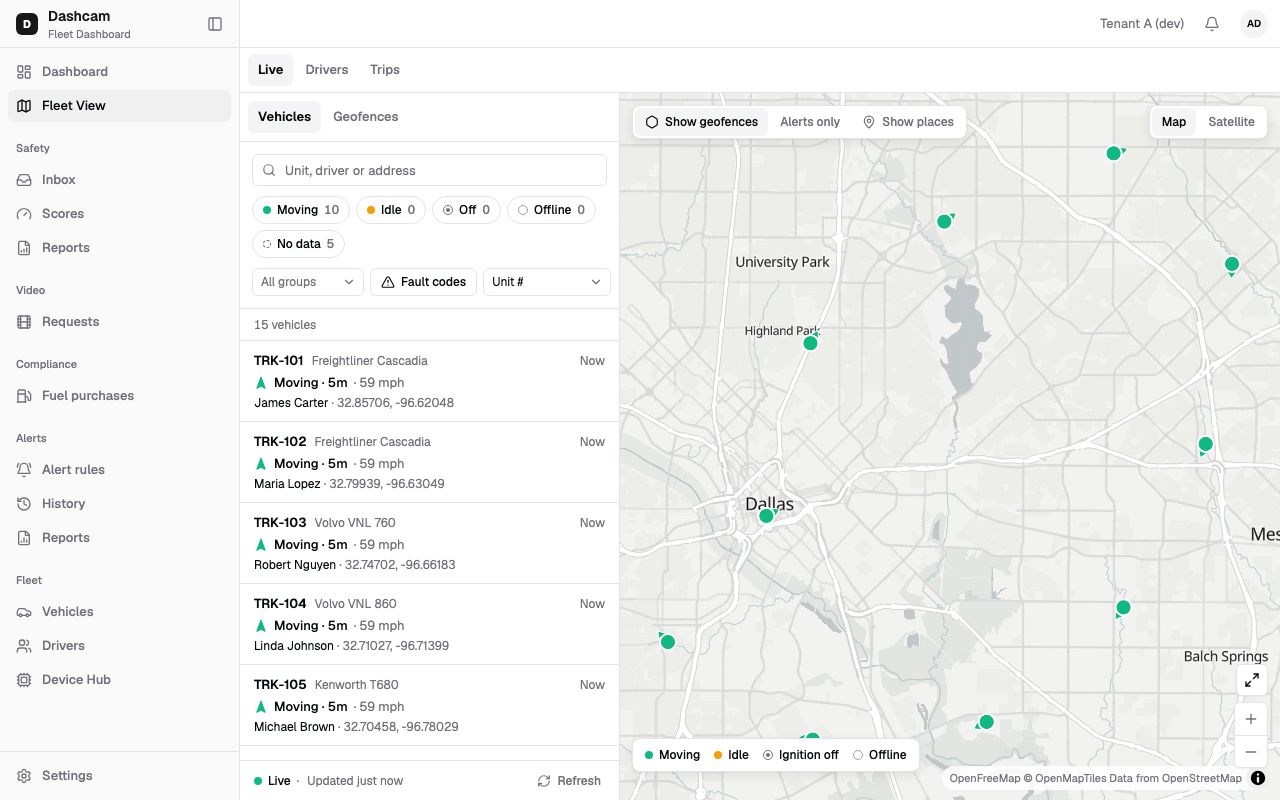
Section titled “What it is and why”The Live tab of Fleet View is the picture of your fleet right now: a list of vehicles on the left and the same vehicles on a map. Every truck has one status — Moving, Idle, Off (ignition off), Offline or No data — explained in Trips and GPS.
Example: a customer calls at 10:40 AM and asks where the load is. You type TRK-105, and the card
shows Moving · 2h 14m, 54 mph, Maria Lopez and the current address. You answer before the
customer finishes the question.
Before you start
Section titled “Before you start”- You need the Fleet View permission. By default all four system roles have it.
- You see the vehicles of your groups. See Groups and access.
- A truck is drawn on the map once its kit has reported a position. Until then it stays in the list as No data yet. See Kits and cameras.
The replay could not be loaded. The steps below still describe every action.
Step by step
Section titled “Step by step”-
Open Fleet View.
Click Fleet View in the sidebar. The tab row shows Live, Drivers and Trips; tabs your role cannot open are hidden. On your first visit the map zooms to fit all vehicles. After that, this browser remembers the last map position, zoom and map type.
If your role can see geofences, the list panel has two tabs: Vehicles and Geofences. This page covers Vehicles; see Draw a geofence for the other.
-
Search for a truck.
Type in Unit, driver or address, for example
TRK-105orLopez. The list and the map show only matching vehicles. -
Filter by status.
The chips Moving, Idle, Off, Offline and No data each show a count. Press one or more: a truck that matches any pressed chip stays. The line under the chips, for example 12 vehicles, adds up the pressed chips. Press a chip again to release it.
-
Narrow by group or fault codes.
- All groups — pick one or more groups, for example Dallas North. With more than 8 groups the menu has a search box.
- Fault codes — keeps only vehicles with active fault codes.
-
Sort the list.
Sort by offers Unit # (the default), Status, Last updated and Driver. The list shows 50 vehicles at a time; more load as you scroll, or click Load more.
-
Read a card.
Each card shows:
- the unit, make and model, and the update time (Now, 5m ago; hover for the full time);
- the status and how long it has lasted, for example Moving · 2h 14m (
<1munder a minute); - the speed, for example 54 mph, only while the truck is moving;
- the driver (a link to the driver’s profile) or Unassigned, then the address, or coordinates when there is no address;
- a red badge such as 2 faults when the truck has active fault codes.
Offline and No data cards are greyed out. An Offline card shows when the kit was last heard from, for example Offline · Last seen 3h ago. A No data card reads No data yet, has no update time and is not drawn on the map.
-
Select a vehicle.
Click a card. The map centres on the truck (the zoom stays) and opens a popup with the unit and status, driver or Unassigned, status and speed, address, Updated … and Open vehicle →. Close in the popup clears the selection.
On the map, clicking a marker selects it and scrolls its card into view; clicking empty map clears the selection. Hovering a marker shows a label such as TRK-101 • James Carter.
-
Move around the map.
- At zoom 10 and below, nearby trucks merge into bubbles with a count. Click a bubble to zoom in. With more than 1,000 vehicles the map always groups them.
- Fit all vehicles, Zoom in and Zoom out are on the map.
- The Map / Satellite switch at the top right of the map changes the map type: click Satellite or Map (shown when satellite tiles are available).
- The legend shows Moving, Idle, Ignition off and Offline. The map follows your light or dark theme.
- Geofences and places are layers; see Map layers.
-
Open the vehicle.
Click Open vehicle → in the popup, click Open on the selected card, or double-click a card. The truck’s Live tab opens.
Share what you see
Section titled “Share what you see”Your status, group, fault-code, search and sort filters, and the selected truck, are part of the page address. Copy the address bar and send it: a colleague who opens it sees the same filters, and the map centres on the selected truck at zoom 13 or closer. If the link has a group outside their access, the group filter is cleared with That group is not in your scope — the group filter was cleared.
On a phone
Section titled “On a phone”On a narrow screen a View switch shows List (the default) or Map. Picking a vehicle in the list switches to the map.
What happens next
Section titled “What happens next”- Positions arrive live. The footer says Live, or Connecting… while it reconnects. When the live feed is down, the page checks every 30 seconds and the footer says Updates every 30 s (sometimes with · Too many open tabs). The footer also shows Updated … and a Refresh button.
- From a selected truck, open its Live tab or replay its day in History.
If something goes wrong
Section titled “If something goes wrong”| Message on screen | Why | What to do |
|---|---|---|
| Data not updated · last update 2m ago | A refresh failed. The cards keep the last loaded data. | Click Retry. After 3 failures in a row the warning turns red; check your connection. |
| Map failed to load | The map could not load. The rest of the page still works. | Click Retry. The list keeps working meanwhile. |
| No vehicles yet | Your company has no vehicles. | A Company Admin clicks Add vehicle. The installer pairs a kit to each truck, then it shows up. |
| No vehicles match your filters | The search, chips or group filter exclude every truck. | Click Clear filters, or try another status or group. |
| That group is not in your scope — the group filter was cleared. | The link had a group you have no access to. | Pick one of your groups. Ask your Company Admin if you need wider access. |
| A card reads No data yet and the truck is not on the map | Roudiy has no position to show for this truck. | Check in Device Hub that a kit is paired and online. |
Questions
Section titled “Questions”Can I save a named view, like “Dallas North moving”? No, there are no named or shared views. The browser remembers the map position, zoom and map type, and the filters are in the page address, so you can bookmark the page.
Why is a truck grey? It is Offline (the kit stopped reporting; the pin shows the last known place) or No data.