Trips
Quick path
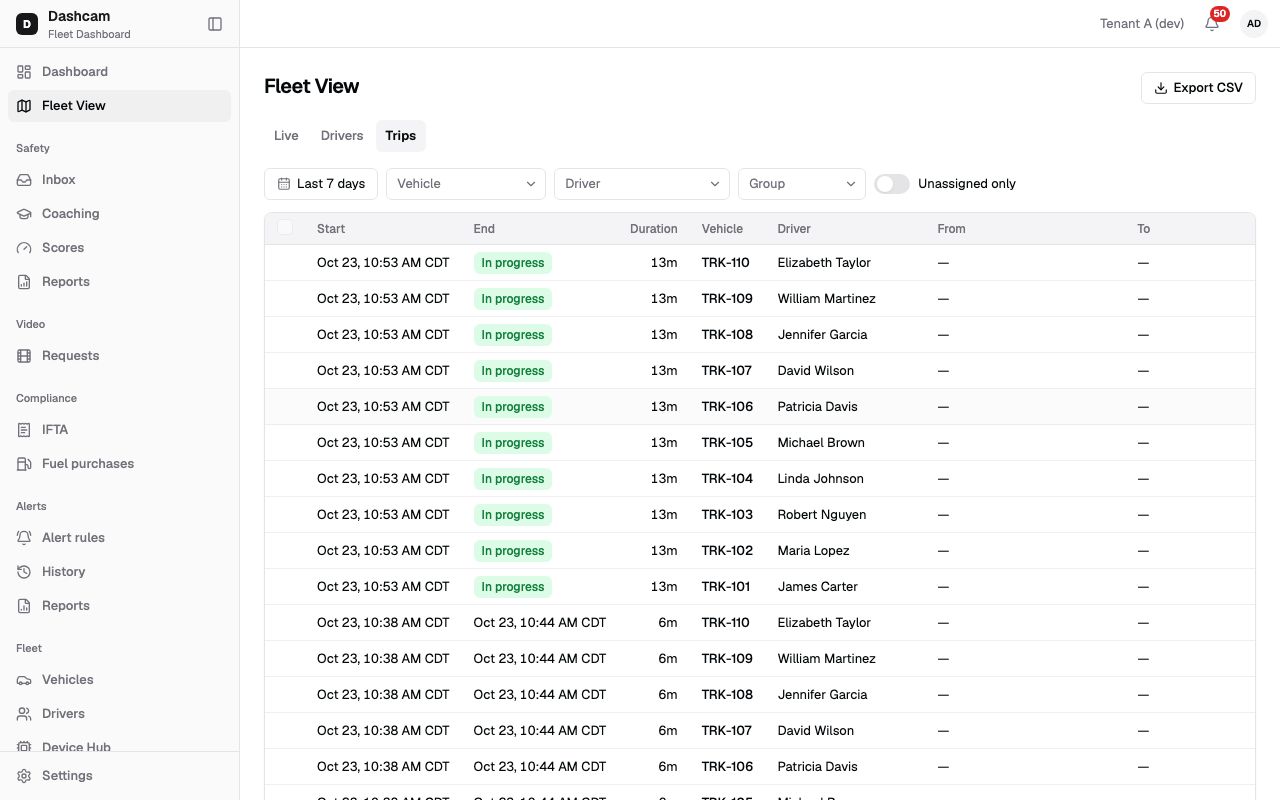
Section titled “Quick path”- Go to Fleet View and click the Trips tab.
- Set Dates, and if needed Vehicle, Driver or Group.
- Click a row to replay that day on the vehicle’s History tab.
- Click Export CSV to download the list.
- To fix trips without a driver: turn on Unassigned only, tick the trips and click Assign driver.
What it is and why
Section titled “What it is and why”A trip is one drive: it starts when the truck reaches 5 mph and ends after 5 minutes below 5 mph, or at a state border. See Trips and GPS. The Trips tab lists the trips of your whole fleet in one table.
Example: Maria Lopez drove TRK-103 all day yesterday, but nobody assigned her to the truck, so her trips show Unassigned. You filter Unassigned only, tick yesterday’s trips of TRK-103 and assign them to her. Now the trips are hers; until then they counted for nobody, because unassigned events don’t affect driver scores.
Before you start
Section titled “Before you start”- Viewing trips needs the History: view permission. By default all four system roles have it.
- Export CSV needs History: export; by default the Company Admin and the Dispatcher.
- Assigning drivers needs Assignments: manage; by default the Company Admin and the Dispatcher.
- You see the trips of the vehicles in your groups.
The replay could not be loaded. The steps below still describe every action.
Step by step
Section titled “Step by step”-
Open the Trips tab.
Click Fleet View in the sidebar, then Trips in the tab row.
-
Choose the dates.
Dates shows the last 7 days by default. Pick Today, Yesterday, Last 7 days or Last 30 days, or click a start day and an end day and then Apply. A range can be at most 31 days; an invalid range falls back to the last 7 days.
-
Filter.
Narrow the list with Vehicle, Driver and Group (one group at a time), or turn on Unassigned only to see trips without a driver.
-
Read the table.
Columns: Start, End, Duration, Vehicle, Driver, From, To, Miles, State.
- Start and End show the date and a 12-hour time, for example Sep 17, 2:03 PM CDT, in your time zone: your personal one if it is set in your profile, otherwise the company’s. The Dates filter uses the same time zone.
- A trip that is still running shows an In progress badge in End.
- A trip without a driver shows an Unassigned badge.
- Miles reads 12.3 mi for short trips and whole miles from 100 mi. Hover it to see the source: From the engine odometer (ECM) or From GPS (no engine odometer).
- State is the jurisdiction code, for example TX, or —.
The table shows 50 rows; click Load more for more.
-
Open a trip.
Click a row. The vehicle’s History tab opens on that day, where you can replay the route.
-
Export the list.
Click Export CSV. Roudiy downloads the trips that match your filters as a CSV file whose name starts with
trips-and contains the date range. -
Select trips without a driver.
With Assignments: manage, a checkbox appears on finished trips that have no driver. Trips in progress and trips with a driver cannot be picked. You can tick up to 50 trips: once 50 are ticked, the other checkboxes are disabled and the page shows Up to 50 trips at a time.
-
Assign the driver.
Click Assign driver (3) (the number is how many you ticked). The dialog shows 3 unassigned trips · first start – last end, for example 3 unassigned trips · Sep 17, 6:12 AM CDT – Sep 17, 2:03 PM CDT. In Driver, type in Search active drivers, pick Maria Lopez and click Assign. You see 3 trips assigned to Maria Lopez.
It is all or nothing: if one trip cannot be assigned, none are.
What happens next
Section titled “What happens next”- Assigned trips show the driver’s name in Driver and on the vehicle’s History tab.
- The assignment also appears in the vehicle’s assignment history as a Retro assignment.
If something goes wrong
Section titled “If something goes wrong”| Message on screen | Why | What to do |
|---|---|---|
| This vehicle already has an assignment for that time (…). Nothing was assigned. | Another assignment of this truck overlaps the selected trips. | Untick the overlapping trips, or check the truck’s assignment history. |
| Driver was assigned to another vehicle during this time (…). Nothing was assigned. | The driver was on a different truck during one of the trips. | Check the trips and the driver, then pick the right driver. |
| This driver was deactivated. Choose another driver. | The driver’s record was deactivated. | Pick an active driver. |
| Up to 50 trips at a time. | You ticked 50 trips, the limit for one assignment; the other checkboxes are disabled. | Assign these 50, then tick the next batch. |
| No trips for selected filters | No trip matches the dates and filters. | Widen Dates or clear Vehicle, Driver, Group or Unassigned only. |
| A trip has no checkbox | It is still in progress, already has a driver, or you lack Assignments: manage. | Wait until it ends, or ask a Company Admin or Dispatcher. |
Questions
Section titled “Questions”Why does one long drive show up as several trips? A trip ends at each state border and after 5 minutes below 5 mph, so a fuel stop or a border crossing starts a new trip.
Can I change the driver of a trip that already has one? Not on this tab. Only trips without a driver can be picked.
Can I export more than 31 days? Not in one go. Export each period separately.
Where do the miles come from? From the engine odometer when the KD032 gateway provides it, otherwise from GPS. Hover the miles to see which.