A vehicle right now
Quick path
Section titled “Quick path”- On the live map, select a truck and click Open vehicle →. The Live tab opens.
- Read the speed, status and address; click Follow to keep the map on the truck.
- Check the engine data tiles and the fault codes row.
- Use the Cameras block for live video, SD card video or a snapshot.
- In the driver block, click Assign driver, Change driver or End assignment.
What it is and why
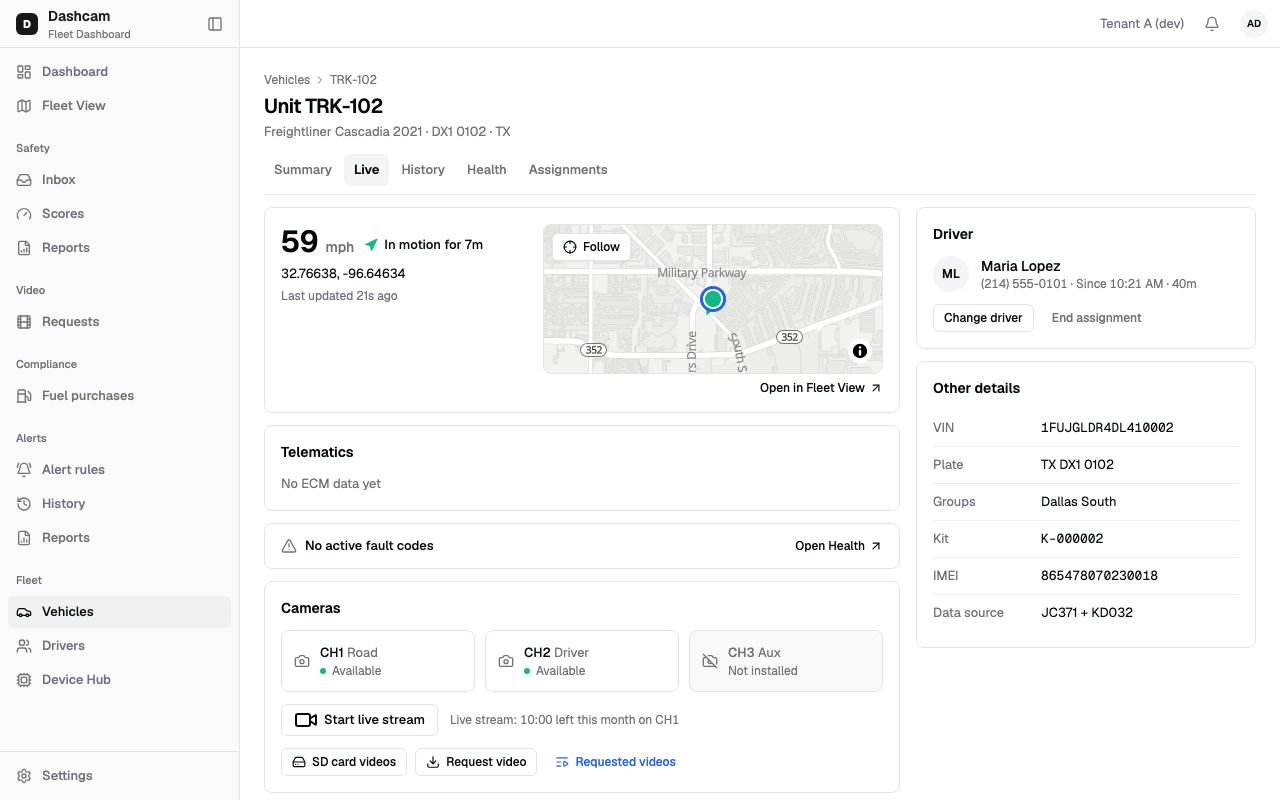
Section titled “What it is and why”The Live tab is everything about one truck at this moment: where it is, whether it is moving, what the engine reports, which cameras are ready and who is driving. It refreshes every 30 seconds.
Example: TRK-101 has been Idle for 12m at a customer dock. You open its Live tab, see that James Carter is the driver and that the coolant tile looks normal, then start a live stream on the road camera to see if the dock is busy.
Before you start
Section titled “Before you start”- All four system roles can open the Live tab of vehicles in their groups.
- Changing the driver needs Assignments: manage; by default the Company Admin and the Dispatcher. Without it the driver block is read-only.
- The Cameras block needs a device or video permission. By default the Compliance Manager has none, so it sees no Cameras block.
- Engine data and cameras need a paired kit. See Kits and cameras.
The replay could not be loaded. The steps below still describe every action.
Step by step
Section titled “Step by step”-
Open the Live tab.
Click Open vehicle → on the live map, or click Live on the vehicle page. Data and the camera tiles refresh every 30 seconds while the browser tab is visible; times like 2m ago update every few seconds.
-
Read the status block.
- Speed in large type, for example 54 mph (— when offline or unknown).
- The state: In motion for 2h 14m, Idle for 12m, Ignition off or Offline.
- The address, or coordinates. Offline it reads Last known: …; with nothing, Location unknown.
- Last updated 1m ago, or offline Last seen … with the date and time, for example Last seen 3h ago · Sep 17, 2:03 PM CDT. Hover for the exact time.
A truck that never reported shows No location yet — The vehicle hasn’t reported a position since it was set up.
-
Follow the truck on the mini-map.
The mini-map has no zoom buttons. Click Follow: it turns into Following, zooms in if needed and keeps the marker in the middle. Dragging the map turns it off. Follow is disabled while the truck is offline, and if the truck goes offline while you follow, you see Vehicle went offline — follow stopped. Follow mode is not remembered when you leave the tab. Open in Fleet View shows the truck on the big map.
-
Check the engine data.
The telematics block shows as of 2m ago (hover for the device time) and five tiles: Fuel (%), Coolant (°F), Battery (V), RPM and Odometer (mi). A value the truck did not send shows —. Engine data comes from the KD032 gateway.
-
Check the fault codes row.
It reads No active fault codes, or for example 2 active fault codes · 1 critical. The icon is red when a code is critical and amber when codes are active. Open Health (needs Health: view) opens the Health tab.
-
Use the cameras.
Tiles show CH1 Road, CH2 Driver and CH3 Aux, each with a state:
State Meaning Available camera installed and device online Device is sleeping the device is not online No video licence the video licence is missing Device blocked the device is blocked Not installed no camera on that channel Status unknown camera data is unavailable Unknown — kit has not connected yet the kit has never connected Under the tiles, depending on your permissions: Start live stream, SD card videos, Request video, Requested videos (opens Video requests for this truck) and Take snapshot.
-
Manage the driver.
- With no driver: Unassigned — Trips and events are recorded without a driver and Assign driver.
- With a driver: initials, the name (a link to the profile), and a line with the phone, Since … and how long, for example Since 6:12 AM · 8h 5m (the date is added when it was not today).
Assign driver and Change driver open Assign driver to Unit TRK-101. Search with Search name or CDL; only active drivers are listed. One active driver per vehicle and one vehicle per driver. If the driver is on another truck, you see Maria Lopez is on Unit TRK-104 now — that assignment will end. You then see Driver assigned.
End assignment asks End assignment? — James Carter will be unassigned from Unit TRK-101. You then see Assignment ended. The change shows on the tab at once.
-
Check the other details.
VIN, Plate (state first, for example TX DX1 0101) and Groups. With a kit paired you also see Kit, IMEI and Data source (JC371 + KD032 or JC371).
What happens next
Section titled “What happens next”- A driver change appears in the truck’s assignment history, and new trips are recorded with the new driver.
- Videos you request appear in Video requests.
If something goes wrong
Section titled “If something goes wrong”| Message on screen | Why | What to do |
|---|---|---|
| Data didn’t refresh — showing what we had 2m ago. | A refresh failed; the tab shows the last data. | Click Retry. |
| Vehicle not found or you don’t have access | The truck was deactivated or moved out of your groups. | Click Back to Fleet View. |
| No device paired to this vehicle — Telematics and cameras appear once a kit is installed. | No kit is paired with the truck. | Open Device Hub (needs Devices: assign) and pair a kit. |
| Camera info unavailable | You lack Devices: view, or the kit data failed to load. | The rest of the tab still works. Ask your Company Admin if you need the tiles. |
| Video is not enabled for this account | The video module is off for your company. | Contact your Roudiy account manager. |
| No camera kit on this vehicle | The truck has no kit with cameras. | Pair a kit first. |
| This assignment was already closed | Someone ended the assignment before you. | Check the driver block; it shows the current driver. |
| Vehicle went offline — follow stopped | The truck stopped reporting while you followed it. | Wait for it to come back online, then click Follow again. |
Questions
Section titled “Questions”Why is Follow greyed out? The truck is offline. Hover the button to see when it was last seen.
Why are there no engine hours on this tab? The Live tab shows fuel, coolant, battery, RPM and odometer. For more engine data open the Health tab.
Can a Safety Manager change the driver? Not with the default role: the driver block is read-only without Assignments: manage.