Change a user's access
Quick path
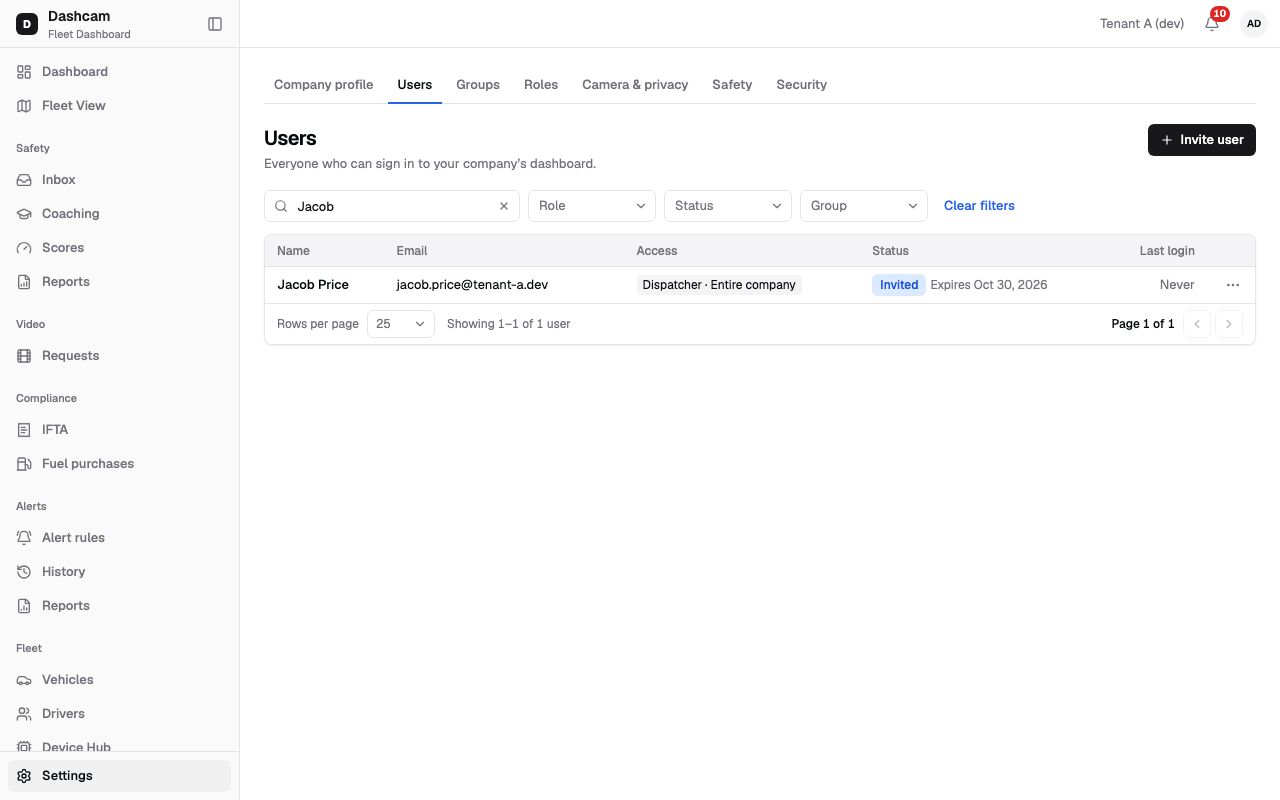
Section titled “Quick path”- Open Settings → Users and find the user.
- Open the ⋯ menu at the end of the row.
- Choose Edit user & access, Resend invite, Deactivate or Reactivate.
- Confirm. Access changes reach the user within 15 minutes.
What it is and why
Section titled “What it is and why”People change jobs, move between terminals and leave the company. The row menu on the user list lets you keep their access in step: give a new role, move them to another group, send a fresh invitation link, or take their access away without deleting their account.
For example, Emma Walsh was invited as Dispatcher · Dallas North. She now also covers Dallas South, so you add a second row Dispatcher · Dallas South. Later she leaves the company, so you deactivate her: she is signed out, and you can reactivate her if she comes back.
Before you start
Section titled “Before you start”- Edit user & access needs
users.update, Resend invite needsusers.invite, Deactivate/Reactivate needusers.deactivate. A Company Admin has all three. - Know how access rows work: Groups and access.
- To give a custom role, create it first.
The replay could not be loaded. The steps below still describe every action.
Step by step
Section titled “Step by step”-
Find the user and open the menu.
Open Settings → Users. Use Search name or email, or filter by Role, Status (Invited, Active, Deactivated) or Group. Your own row is marked (you). Click ⋯ at the end of the row.
-
Edit the user and their access.
Choose Edit user & access (not offered for deactivated users; reactivate them first). You can change:
- First name, Last name (required, up to 60 characters) and Phone (optional).
- Email, but only while the invite is pending. For an active user the field shows Email can be changed only while the invite is pending.
- Access rows, exactly as in the invite dialog: pick a Role and a Group (or Entire company) per row, add a row with + Add access (up to 20), remove one with X. A role on a group also covers its subgroups.
The same rules apply: every row needs a role, at least one row uses a system role, and the company keeps at least one Company Admin for the entire company.
Click Save. You see the toast Emma Walsh saved.
-
Resend the invite (invited users only).
Someone lost the email or the invite expired? Choose Resend invite. You see Invite sent again to emma.walsh@tenant-a.dev. The new email has a new link; the old link stops working.
You can resend once every 60 seconds. If you try sooner, you see You can resend the invite in 42 s and the item reads Resend invite (in 42 s) until the wait ends.
-
Deactivate or reactivate.
Choose Deactivate. The confirmation explains, for example, Emma Walsh will be signed out. Access ends within 15 minutes on all services. Click Deactivate in the Deactivate Emma Walsh? dialog, and the toast says Emma Walsh deactivated. The status changes to Deactivated.
Deactivate is not shown on your own row: you can’t deactivate yourself. The last active Company Admin can’t be deactivated either.
To bring the user back, choose Reactivate. The Reactivate Emma Walsh? dialog says They get their access back (a user who never signed in gets a new invite). Click Reactivate; the toast says Emma Walsh reactivated.
What happens next
Section titled “What happens next”- Access changes apply to users on their next sign-in refresh (up to 15 minutes). A new group or role may take up to 15 minutes to show on the user’s screen, and so does a removed one.
- A deactivated user is signed out, and their access ends within 15 minutes on all services.
- After a resend, the invite has a new link. The user should open the newest email; the old link shows This link is no longer valid. See Accept your invitation.
If something goes wrong
Section titled “If something goes wrong”| Message on screen | Why | What to do |
|---|---|---|
| Email can be changed only while the invite is pending | The user already accepted the invite. | Keep the email. Their sign-in email can’t be edited here. |
| You can resend the invite in 42 s | You resent it less than 60 seconds ago. | Wait until the countdown ends. |
| At least one active Company Admin is required | You tried to deactivate the last active Company Admin. | Make another user Company Admin first. |
| The company needs at least one Company Admin for the entire company | The edit would leave no company-wide Company Admin. | Keep a Company Admin · Entire company row on at least one user. |
| Add at least one system role | All rows of the user use custom roles. | Add a row with a system role. |
| User was changed by someone else. Reload | Another admin saved this user while you were editing. | Close the dialog, reload the page, open Edit user & access again and redo your change. |
| Some groups no longer exist. Reload groups | A group in a row was deleted meanwhile. | Close the dialog, reload the page and pick an existing group. |
| Bounced status | The invite email could not be delivered. | Correct the email in Edit user & access, then Resend invite. |
Questions
Section titled “Questions”The user still sees the old trucks after I changed their group. Why? Access changes reach users on their next sign-in refresh, which can take up to 15 minutes.
Can I delete a user? The menu offers Deactivate, not delete. A deactivated user stays in the list with the Deactivated status and can be reactivated.
Why is there no Resend invite on this row? It is shown only for users with the Invited status.
Can I deactivate myself? No. Deactivate is not shown on your own row.