Review many events at once
Quick path
Section titled “Quick path”- Open Safety → Inbox and filter the list down to the events you want.
- Tick the rows, or the header checkbox for every loaded row.
- In the bar at the bottom, click Dismiss, Mark coachable or Recognize.
- For Dismiss, pick a reason and confirm.
- Read the result; click View details if some events were skipped.
What it is and why
Section titled “What it is and why”Bulk review applies one decision to many events in one go. It saves time when a group of events clearly belongs together. Example: the Inbox shows eight Forward collision warning events at Oct 23, 10:46 AM, all at 0 mph on trucks parked in the yard. You check two of them, see nothing on the road, tick all eight and dismiss them as Incorrect — no real event.
Before you start
Section titled “Before you start”- You need Safety: events update status: by default the Company Admin and Safety Manager. A Dispatcher sees no checkboxes and no action bar.
- Know what each status means for coaching and scores. See Safety events.
- To judge a single event first, use Quick view or the event page. See The Safety Inbox.
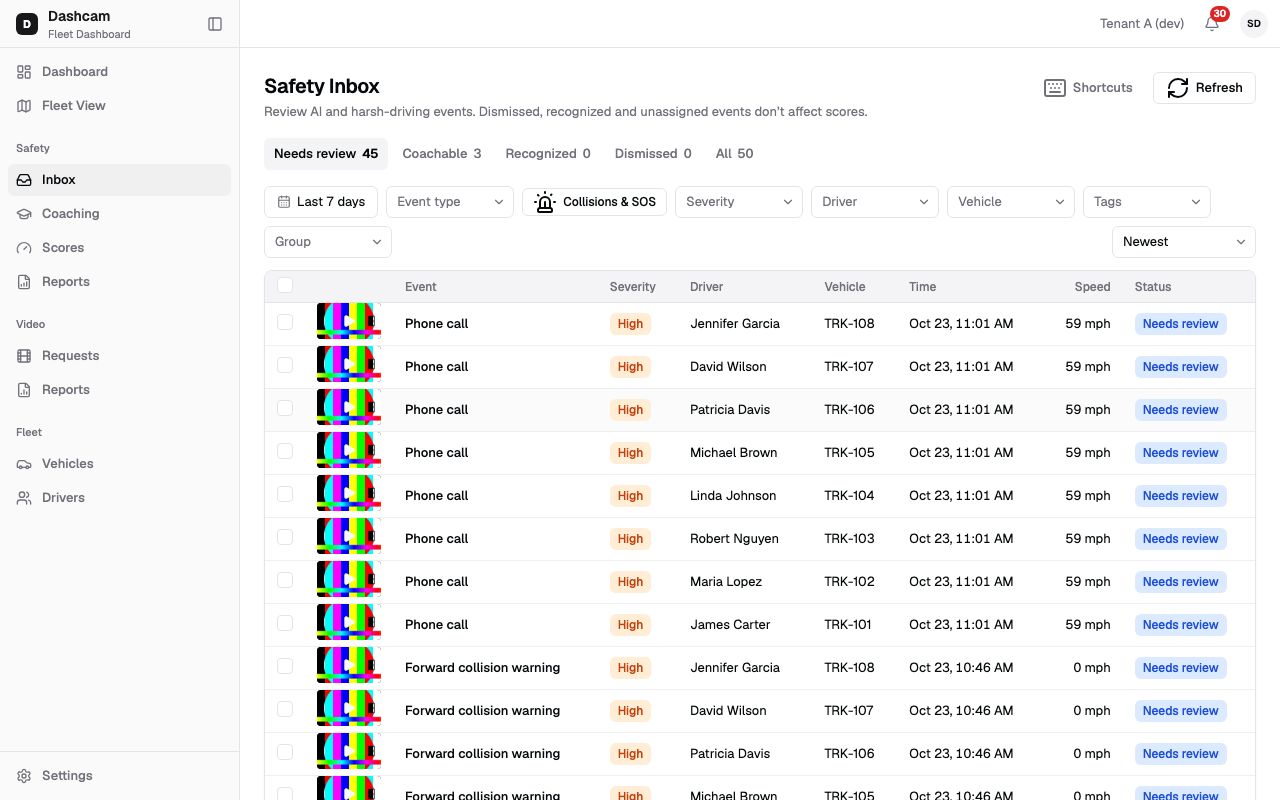
The replay could not be loaded. The steps below still describe every action.
Step by step
Section titled “Step by step”-
Narrow the list.
Pick the tab and filters first, for example Event type = Forward collision warning and the date of the false alarms. The selection covers only the rows on screen, and it clears when you change the tab, a filter or the sort.
-
Select the events.
- Tick the checkbox at the start of a row.
- Tick the header checkbox (Select all rows on this page) to take every loaded row. Click Load more first if you need more than the first 25.
- From the keyboard: move with J and K, press X to select or unselect the highlighted row.
You can select up to 100 events at once. At the limit the other checkboxes are disabled, with the tooltip Up to 100 events at once.
-
Pick the action.
A bar appears at the bottom, for example 8 selected, with Dismiss (D), Mark coachable (C), Recognize (R) and Clear. Clear empties the selection. All buttons are disabled while a request runs.
-
Dismiss with a reason.
Dismiss opens Dismiss 8 events? (or Dismiss event? for one). Pick a reason:
- Incorrect — no real event
- Minor — not worth coaching
- Other
Note (optional) takes up to 500 characters. With Other the note is required. The dialog warns: Events already reviewed by someone else or included in a coaching session are skipped. Click Dismiss 8 events. Clicking outside the dialog does not close it.
-
Mark coachable or recognize.
Mark coachable and Recognize run at once, with no confirmation. Check your selection before you click. You can also switch events directly between Coachable, Recognized and Dismissed this way.
-
Read the result.
A toast says 8 updated, or 6 updated, 2 skipped with View details. The details dialog (2 events skipped) lists each event, for example Forward collision warning · TRK-104 — Already in this status. Skip reasons:
Reason What it means Already in this status Nothing to change. Not found or no longer in your scope Removed, moved out of your groups, or confidential. In an open coaching session Review it inside the coaching session. Already coached — the status can’t change Coached is final. Changed by someone else Another user changed it meanwhile; check it again. -
Work from the keyboard.
D, C and R act on the selected rows, or on the highlighted row when nothing is selected. D still opens the reason dialog. After a row leaves the list, the next row takes its place under the cursor, so you can keep pressing keys. Shortcuts are off while you type in a field, while a dialog is open, and when you hold Ctrl, Cmd or Alt. Press ? for the full list.
What happens next
Section titled “What happens next”- Updated events leave the selection, and the list and tab counts reload. Events that changed status leave the current tab.
- Coachable events show up for coaching.
- Dismissed and recognized events stop counting toward safety scores from the next weekly calculation.
- There is no bulk Undo. To move an event back to Needs review, open it and click Undo on the event page.
If something goes wrong
Section titled “If something goes wrong”| Message on screen | Why | What to do |
|---|---|---|
| Pick a reason | You clicked Dismiss without a reason. | Choose Incorrect, Minor or Other. |
| Describe why the events are dismissed | You chose Other without a note. | Write a short note. |
| Use up to 500 characters | The note is too long. | Shorten it. |
| Up to 100 events at once | You reached the selection limit. | Apply the action, then select the next batch. |
| Could not update events | The network or the server failed. | Click Retry; your selection is kept. |
| 6 updated, 2 skipped | Some events could not change. | Click View details and check each reason. |
Other errors show the server’s message with Copy details.
Questions
Section titled “Questions”Can I select more than 100 events? No. Work in batches of up to 100.
Why are there no checkboxes? Your role lacks Safety: events update status. A Dispatcher can view events but not review them.
Does my selection survive a tab change? No. Changing the tab, a filter or the sort clears it.
Can I undo a bulk action? Not in bulk. Open each event and click Undo, or select them again and pick another action.