Review a safety event
Quick path
Section titled “Quick path”- In the Safety Inbox, click an event row.
- Watch the video and check the map, speed chart and details.
- Under Review, pick Coachable, Recognized or a Dismiss reason.
- Add a tag or a comment if your team needs context.
- Click Inbox at the top left to return to your list.
What it is and why
Section titled “What it is and why”The event page holds everything you need to decide what happened: the video from the cameras, the truck’s track and speed around the moment, and the details. Your decision drives what happens next: coachable events go to coaching, while dismissed and recognized events stop counting toward the driver’s score. See Safety events for the full lifecycle.
Example: a Phone call event on TRK-105 at Oct 23, 11:01 AM with Michael Brown driving. The driver camera shows him holding a phone at 59 mph, so you click Coachable and add the tag phone for the next coaching session.
Before you start
Section titled “Before you start”- Opening the page needs Safety: events view: by default the Company Admin, Dispatcher and Safety Manager.
- Reviewing, tags, comments and Change driver need Safety: events update status: by default the Company Admin and Safety Manager. A Dispatcher sees the status and history, but no buttons.
- The driver camera (CH2) needs Video: driver facing, a sensitive permission held by default by the Company Admin and Safety Manager. A Dispatcher sees only CH1 · Road.
- Request video needs Video: request (all three roles). Locking media and the Confidential switch need permissions the Company Admin and Safety Manager have by default.
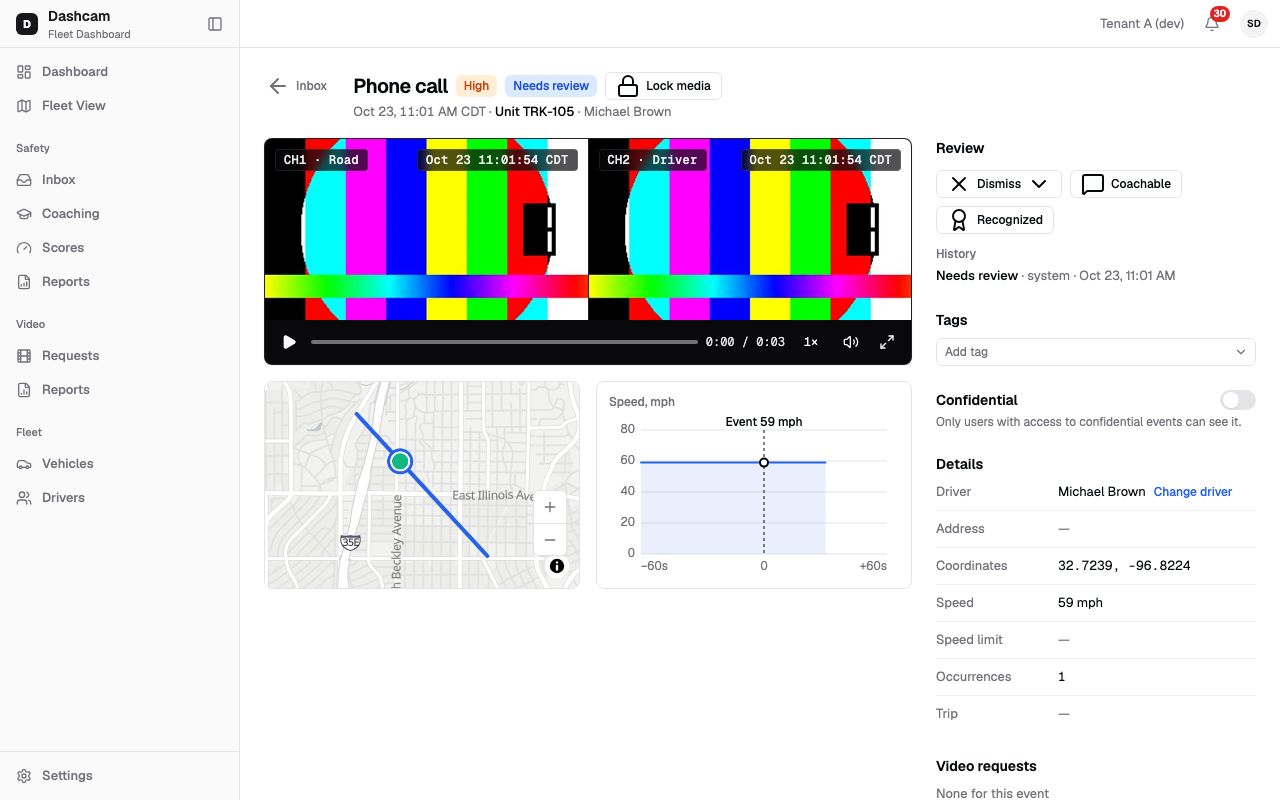
The replay could not be loaded. The steps below still describe every action.
The replay was recorded on a demo fleet, so the video shows a test pattern instead of real footage.
Step by step
Section titled “Step by step”-
Read the header.
You see the back link Inbox, the event type (with ×3 when repeats were merged), a red Collision or SOS badge for those types, the severity and status badges, and a red Confidential badge if the event is hidden from others. The line below reads, for example, Oct 23, 11:01 AM CDT · Unit TRK-105 · Michael Brown. Click the unit to open the truck’s Live tab. Times are in 12-hour format, in your personal time zone if you set one, otherwise in the company’s.
-
Watch the video.
With a road clip and a driver clip, both play side by side with one control bar: play, pause, seek and speed act on both, kept in sync within half a second. Chips name the channels: CH1 · Road, CH2 · Driver, CH3. With only one clip you get a single player, with only photos a gallery, and with a CH3 clip the tabs CH1 + CH2 and CH3. Keys: Space or K play and pause, ← / → jump 5 seconds, M mutes, F goes fullscreen.
Right after an event the camera may still be uploading. You see Fetching video from device (up to 10 min) — This page checks again every 30 seconds. and the page picks up the video on its own.
-
Request video if it is missing.
When the device sent nothing, you see No video from device. Click Request video. The dialog is pre-filled with CH1 from 30 seconds before the event to 30 seconds after it ends, linked to this event. Submit, and you see Video requested with View requests. If the truck is offline, the request waits up to 7 days. The request then appears under Video requests on this page and in Video requests. Without the permission you see Video not available.
-
Check the map and speed.
The map shows the truck’s track from 60 seconds before the event to 60 seconds after it ends, with the event marker. The Speed, mph chart covers the same window, with a dashed line such as Event 59 mph at the event. When the speed limit is known, a red dashed Limit 55 mph line appears and speed above it is shaded red.
-
Read the details.
Driver (with Change driver), Address, Coordinates, Speed, Speed limit, Max over (for example +12 mph), Duration, Occurrences and Trip. View trip opens the truck’s history for that day.
-
Make the review decision.
On a Needs review event the Review block offers:
- Dismiss ▾ with Incorrect (not a real event), Minor (not worth coaching) and Other…. Incorrect and Minor apply at once. Other… asks for a Note of up to 500 characters: Reason: Other. The note is kept in the event history.
- Coachable: the driver should be coached on this.
- Recognized: you reviewed it and it needs no coaching.
You see Event dismissed, Marked coachable or Marked recognized. The block then shows the status, the reason, who decided and when, the note, and Undo. Undo is the only button after a review: it moves the event back to Needs review (Moved back to Needs review). To change Coachable to Recognized here, click Undo first, then pick again. Undo is hidden for Coached events, which change only in a coaching session. History lists every change, newest first.
Status Counts toward the driver score Needs review Yes Coachable Yes Coached Yes Recognized No Dismissed No Events without a driver count only toward the vehicle score. Review changes apply from the next weekly calculation.
-
Add tags, comments and check activity.
Under Tags, type in Add tag to pick a company tag, or pick Create “phone” for a new one (up to 32 characters, 10 tags per event). In Comments, write up to 2,000 characters and click Post (or Ctrl/Cmd + Enter). You can delete only your own comments. Activity lists status changes, comments, tags, the confidential mark and driver changes, newest first.
-
Change the driver if it is wrong.
Click Change driver. Search by Name or phone; Unassigned is first, and the driver assigned to the truck at the event time is marked Assigned at event time. Enter a reason (it is saved as a comment) and save. You see Driver changed; driver scores update within 10 minutes.
-
Mark the event confidential.
Turn on the Confidential switch and confirm Mark confidential. The event is then hidden from users without access to confidential events. An optional note is posted as a comment. Turn it off with Remove mark.
-
Keep the media.
Lock media keeps the videos and photos past the retention period until someone unlocks them, for example for an insurance claim. The chip then reads Locked. Collisions and SOS events are locked by the system (Locked (System)) and get an Automatic video request for the road camera around the event, with a status such as Waiting for device or Ready. Unlock asks Unlock media? and lets retention delete the media later.
What happens next
Section titled “What happens next”- The event leaves Needs review in the Inbox. Coachable events show up for coaching.
- Scores pick up review changes at the next weekly calculation; a driver change applies within 10 minutes. See Safety scores.
- Requested videos appear in Video requests.
If something goes wrong
Section titled “If something goes wrong”| Message on screen | Why | What to do |
|---|---|---|
| Event not found or you don’t have access | The event is outside your groups, confidential, or the link is bad. | Click Back to Inbox. Ask your Company Admin if you need it. |
| Could not load the event | The page failed to load. | Click Retry. |
| No video from device | The camera did not upload a clip. | Click Request video. |
| No video from device (server-detected event) | Speeding is detected by Roudiy after the trip, so there is no clip. | Click Request video if you need footage. |
| Video unavailable or Link expired | The file or its link could not be loaded. | Click Retry. |
| This vehicle already has a request in progress. | Another video request for this truck is still running. | Click View request and wait for it. |
| This event was updated by another user | Someone reviewed it while you had the page open. | The page reloads; check the new status. |
| Remove this event from the coaching session first. | The event is in an open coaching session. | Click Open coaching sessions and remove it there. |
| Track unavailable | The truck’s history failed to load. | The rest of the page works; reload later. |
Questions
Section titled “Questions”Why can’t I see the driver camera? CH2 needs Video: driver facing. A Dispatcher sees only the road camera by default.
How do I move an event from Coachable to Recognized? On this page, click Undo, then Recognized. In the Inbox, Quick view and bulk actions switch it directly.
Is there a next or previous button? Not on this page. Use Quick view in the Inbox, where J and K move between events.
Why is there no Undo? The event is Coached, or your role cannot review events.