Groups
Quick path
Section titled “Quick path”- Open Settings → Groups and click Create group.
- Enter a Name (and optionally a description and a parent group).
- Click Create group. The new group’s page opens.
- To nest, use Add subgroup in the row menu; to rename or move, Edit.
What it is and why
Section titled “What it is and why”Groups are your terminals, regions or branches. They decide which part of the fleet a user sees: a dispatcher with access to Dallas North works only Dallas North trucks. Groups can contain subgroups, up to 5 levels deep, and A parent’s users also see its subgroups.
For example, you create Texas as a top-level group and Dallas North and Dallas South under it. TRK-101 to TRK-105 go into Dallas North, TRK-106 to TRK-110 into Dallas South. A safety manager with access to Texas reviews both; a dispatcher with Dallas North sees only TRK-101 to TRK-105. How groups combine with roles is explained in Groups and access.
Before you start
Section titled “Before you start”- To see the page you need the
groups.listpermission. To create groups you needgroups.create; to edit or move them,groups.update; to delete them,groups.delete. A Company Admin has these. - Sketch your tree first: which terminals, which level. You can move groups later, but every move changes what users see.
The replay could not be loaded. The steps below still describe every action.
Step by step
Section titled “Step by step”-
Open Groups and start a group.
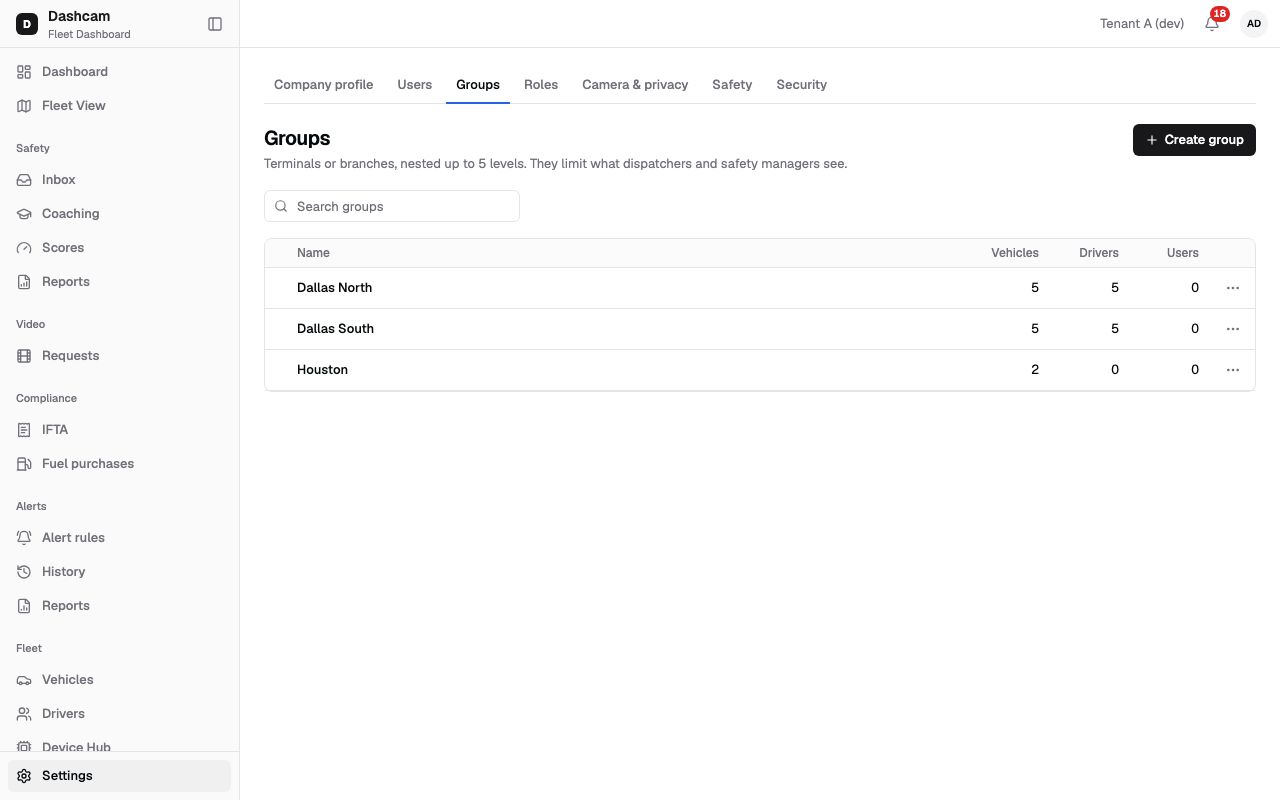
In the sidebar, click Settings, then the Groups tab. The tree shows Name, Vehicles, Drivers and Users for each group. With no groups yet you see No groups yet and Groups limit what dispatchers and managers can see. Click Create group.
-
Name the group.
- Name (required, up to 60 characters), for example Dallas North. Names must be unique; otherwise you see A group with this name already exists.
- Description (optional, up to 300 characters), for example North Dallas yard, I-35 corridor.
- Parent group: None (top level) or an existing group, for example Texas. The hint says Groups nest up to 5 levels. A parent’s users also see its subgroups.
Click Create group. You see Group Dallas North created, and the group’s page opens so you can add vehicles and drivers.
-
Add a subgroup.
Back on Settings → Groups, open the row menu of a group (for example Texas) and choose Add subgroup. Fill in the group dialog as in step 2; Parent group is already set to that group.
On a group at the fifth level, Add subgroup shows the tooltip Groups nest at most 5 levels; if you go on, the dialog stops you with Groups can be nested at most 5 levels deep.
-
Find, rename or move a group.
Type in Search groups: matching groups stay in the tree together with their parents, so you see where they sit.
Choose Edit in the row menu to change the name, description or parent. Click Save; you see Group saved. If you change the parent, a Move group? dialog explains the effect, for example: 4 users’ visibility will change. They see the vehicles and drivers of the new parent’s scope on their next sign-in refresh. Click Move to confirm.
-
Delete a group.
Choose Delete in the row menu. The dialog Delete group Dallas South? says Vehicles and drivers stay, only group membership is removed.
If some users are assigned only to this group, a warning tells you about them: after deleting, they will see the whole company. Click Delete group to confirm. You see Group Dallas South deleted.
What happens next
Section titled “What happens next”- New groups appear in the tree and in the Group list of access rows, so you can invite users for them.
- After a move, affected users see the new scope on their next sign-in refresh (up to 15 minutes).
- After a delete, the vehicles and drivers stay in the company; only their membership is gone.
If something goes wrong
Section titled “If something goes wrong”| Message on screen | Why | What to do |
|---|---|---|
| A group with this name already exists | Another group has the same name. | Use a distinct name, for example Dallas North – Yard 2. |
| A group can’t be moved under itself or its subgroups | You picked the group itself or one of its children as parent. | Pick a parent outside this branch. |
| Groups can be nested at most 5 levels deep | The new parent would put the group (or its subgroups) below level 5. | Pick a parent higher up the tree. |
| Tooltip on Add subgroup: Groups nest at most 5 levels | The group is already at level 5. | Add the subgroup to a group higher up. |
| No Create group, Edit or Delete | Your role lacks groups.create, groups.update or groups.delete (one per button). |
Ask a Company Admin. |
Questions
Section titled “Questions”Does deleting a group delete its trucks? No. Vehicles and drivers stay, only group membership is removed.
Can a user with access to Texas see Dallas North? Yes. A parent’s users also see its subgroups.
When do users notice a move? On their next sign-in refresh, up to 15 minutes.