Replay where a vehicle has been
Quick path
Section titled “Quick path”- Open the vehicle and go to its History tab.
- Pick the day with Previous day, the date picker or Next day.
- Click a trip or stop in Day timeline to zoom the map to it.
- Choose ×1, ×10 or ×60 and press Play to watch the truck move.
What it is and why
Section titled “What it is and why”History shows one day of one truck: where it drove, where it stopped and for how long, with speed, fuel and RPM along the way. Use it to answer questions after the fact. Example: a customer says TRK-101 never arrived at 9 am. You open yesterday, see a 47-minute stop on the way, play the route at ×60, and check the camera at that time.
A day runs in your time zone: your personal time zone if you set one, otherwise your company’s. For how trips, stops and GPS gaps are worked out, see Trips and GPS.
Before you start
Section titled “Before you start”- You need the
history.viewpermission. All four default roles have it. Without it the tab is hidden, and opening it by link shows Your role can’t view vehicle history. - Safety events on the map need
safety.events.list. View camera at HH:MM needsvideo.playbackand a paired kit. - Engine charts need the KD032 gateway; see Kits and cameras.
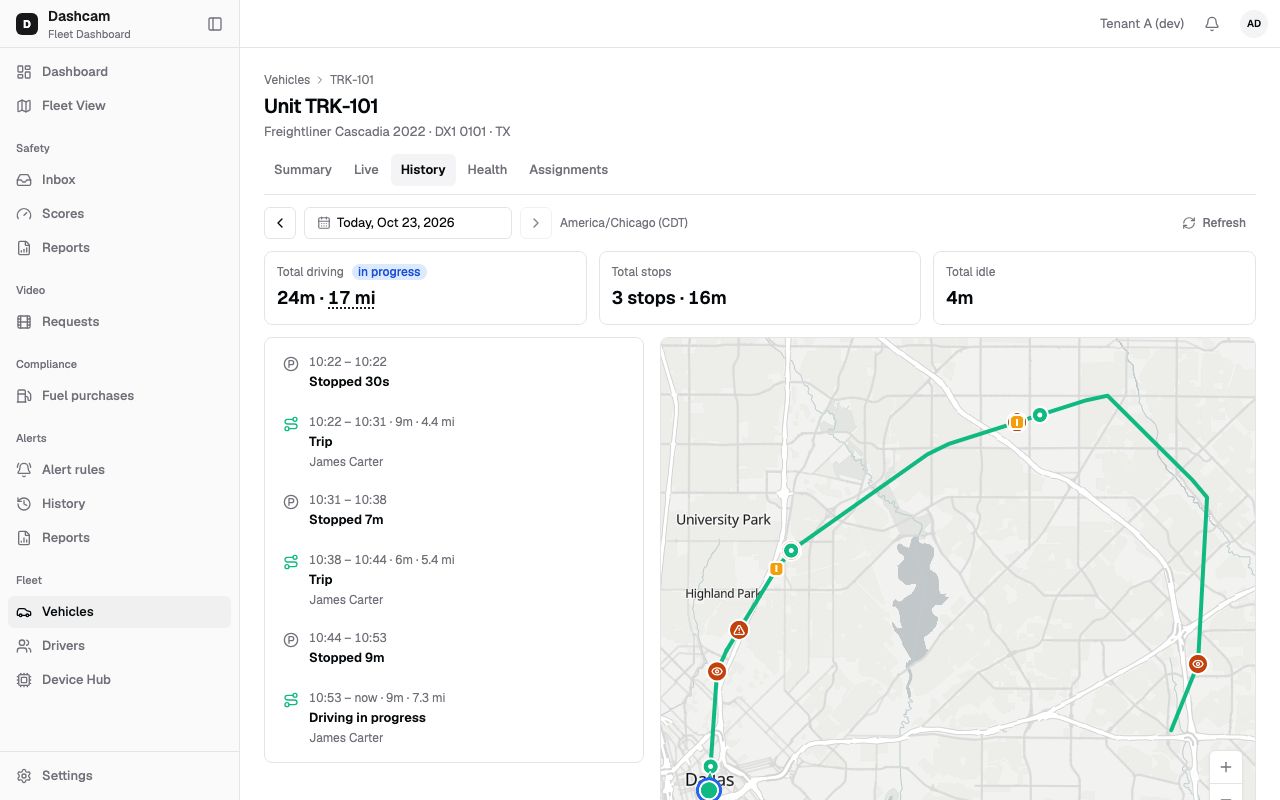
The replay could not be loaded. The steps below still describe every action.
Step by step
Section titled “Step by step”-
Pick the day.
Today opens by default. Use Previous day, the date picker or Next day (off on today). Next to them is the zone, for example America/Chicago (CDT). The day is kept in the link (
?date=2026-10-23), so you can share it. Refresh appears only for today; the day does not update on its own. -
Read the day totals.
At the top: Total driving (for example 6h 12m · 318 mi), Total stops (4 stops · 1h 35m) and Total idle. An in progress badge shows while a trip or stop is still running. Hover the miles to see whether they come from the engine (ECM) or include GPS-based distance. Totals are hidden on a day without trips.
-
Go through the timeline.
Day timeline lists the day in order:
- Trip — 08:02 – 10:47 · 2h 45m · 162 mi, then Dallas, TX → Waco, TX and the driver or Unassigned. A running trip reads Driving in progress. A trip that crosses midnight says it comes from the previous day or continues next day.
- Stop — Stopped 47m with the address.
- Gap — No GPS data / Shown dotted on the map.
Click a row to select it, zoom the map to it and move the playback cursor to its start.
-
Read the map.
The History map colours the track by state (Moving, Idle, Ignition off, No GPS data) with pins for trip start, trip end and stops. Hover the track for the time, driver, speed, state and location; hover a pin for Trip start, Trip end or the stop’s from and to times. Zooming loads a finer track.
-
Check safety events.
The day’s safety events show as map pins and as coloured dots above the slider. Click a dot to jump there. The event card shows the type, severity, time, speed and driver; Open event opens it (needs
safety.events.view). Click the map to close the card. -
Play the day back.
Choose Playback speed ×1, ×10 (default) or ×60: ×60 plays 60 seconds of the day per real second. Press Play. The marker moves, the map follows it, and Current time shows HH:MM:SS. Drag the Playback time slider to jump. Playback stops at the last point.
-
View the camera (optional).
Click View camera at 14:05 to play CH1 from the SD card at the cursor time. The dialog TRK-101 · SD card video at 14:05 plays the 3-minute segment holding that time, up to 180 seconds. The button works only while the truck is online with the ignition on.
-
Read the charts.
Speed, mph, Fuel, % and RPM follow the cursor; the caption shows the value at that time. Fuel and RPM are Engine data as reported by KD032. Click a chart to move the cursor.
What happens next
Section titled “What happens next”Nothing is changed by viewing history. To keep video from that day, use Get a video from the SD card. To list trips across many trucks, use Trips.
If something goes wrong
Section titled “If something goes wrong”| Message on screen | Why | What to do |
|---|---|---|
| No trips on this day | The truck didn’t move that day. Stops still show if the ignition was on. | Pick another day. |
| Device must be online to play TF card video | The truck is offline or the ignition is off. | Try View camera when the truck is running, or request the video. |
| No recording for this time / Device did not respond | The card has no video there, or the device did not answer. | Move the cursor, or try again later. |
| Couldn’t load events | Safety events did not load; the rest of the day works. | Click Retry on the map. |
| Couldn’t load charts / Couldn’t load history | A load failed. | Click Retry. |
| Vehicle not found or you don’t have access | The truck is not in your groups or the link is wrong. | Open it from Fleet View or ask your admin. |
Questions
Section titled “Questions”Why is part of the route dotted? The truck sent no GPS there. The timeline shows it as No GPS data.
Why can’t I press Play? The day has fewer than two GPS points.
Can I see another day for the same trip? Yes. Trips that cross midnight appear on both days.