Map layers
Quick path
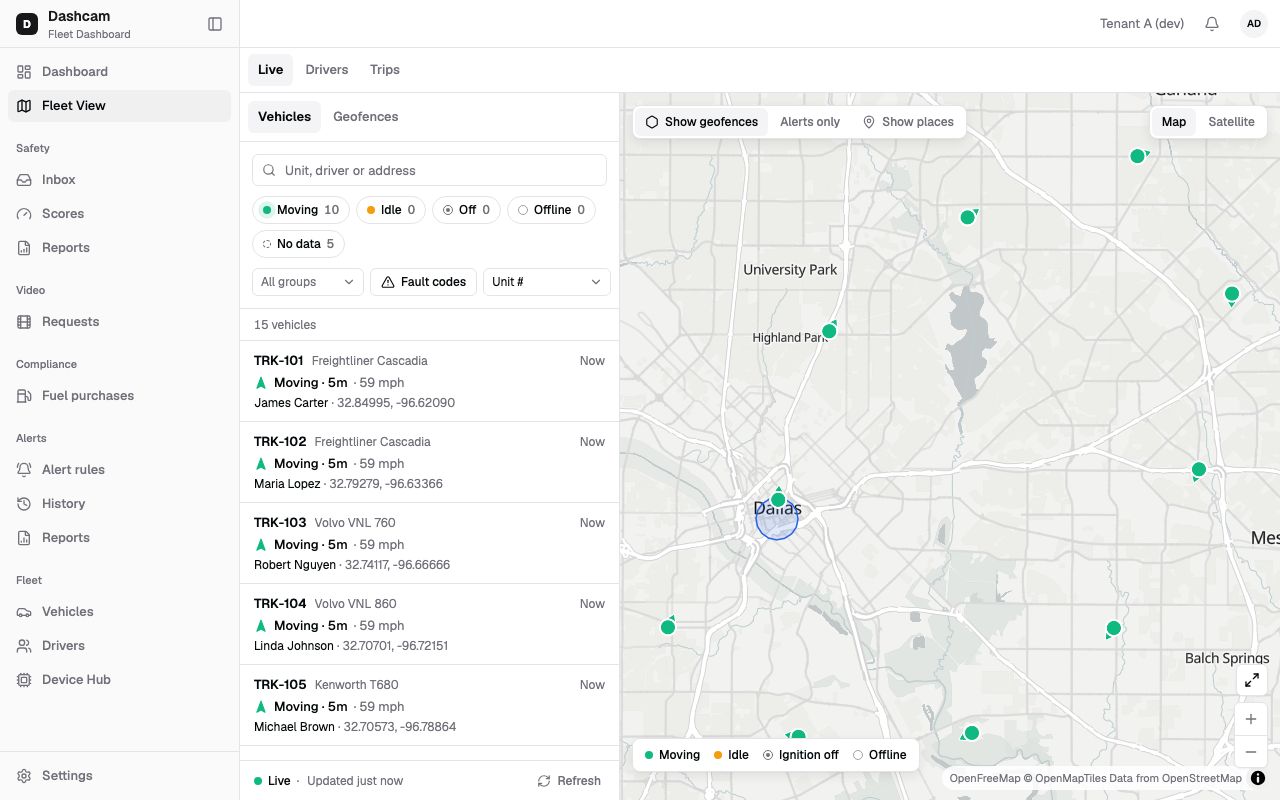
Section titled “Quick path”- In Fleet View → Live, find the layer buttons at the top left of the map.
- Keep Show geofences on to see your areas; turn on Alerts only to add the alerts-only geofences.
- Turn on Show places and click a place group chip, for example Fuel.
- Zoom in and click a place for its details.
- Click Satellite in the Map / Satellite switch at the top right of the map.
What it is and why
Section titled “What it is and why”Layers add context to the truck markers. Two layers sit on top of the live map:
- Geofences — areas your company drew, such as a yard or a customer site. See Draw a geofence.
- Places — a directory of truck stops, rest areas, shippers, service shops and similar places. Roudiy manages this list; nobody in your company can add or change a place.
Example: TRK-104 has been stopped for 40 minutes at an address you don’t recognise. Turn on Show places with the Fuel chip and you see it is parked at a truck stop. Switch to Satellite to check which side of the lot it is on.
Before you start
Section titled “Before you start”- The geofence layer needs the Geofences: list permission. By default the Company Admin, Dispatcher and Safety Manager have it; the Compliance Manager does not, so for that role there are no geofence buttons on the map.
- The places layer needs the Places: list permission. By default all four system roles have it.
- Geofences only appear after someone creates them on the Geofences tab.
The replay could not be loaded. The steps below still describe every action.
Step by step
Section titled “Step by step”-
Find the layer buttons.
Go to Fleet View → Live. At the top left of the map there is always a small toolbar with Show geofences and Show places. Alerts only appears next to them while Show geofences is on. Click a button to turn the layer on or off.
-
Show or hide your geofences.
Show geofences is on by default. Each geofence is drawn in the colour of its type:
Type Colour Yard brand blue Customer site green Risk zone amber Avoidance red Alerts only grey Click a geofence on the map to open it on the Geofences tab.
-
Add the alerts-only geofences if you need them.
Alerts only appears only while Show geofences is on, and it is off by default. While it is off, geofences of the type Alerts only are not drawn. Turning it on adds them to the map. It does not hide geofences of other types — despite the name, it is not a filter.
-
Show places.
Turn on Show places. It is off by default, and this browser remembers your choice.
- Places appear from zoom 9. Further out, the map says Zoom in to see places.
- When the visible area has too many places, the map says Showing first 2 000 — zoom in.
-
Pick a place group.
While Show places is on, a row of place group chips (All, Fuel, Rest and so on) appears under the toolbar. Click a chip to show one group at a time:
Chip Full name All every group Fuel Fuel & truck stops Rest Rest & parking Shipper / receiver Shipper / receiver Retail Retail Service Vehicle service Enforcement Enforcement & border Other Other -
Open a place.
Click a place. The popup shows its name, type and brand, address, and phone with a Website link that opens in a new tab. Places are read-only.
A link to a place opens the map on that place at zoom 16, so you can send it to a colleague.
-
Switch to satellite.
In the Map / Satellite switch at the top right of the map, click Satellite to see the actual yard, dock or parking lot. Click Map to switch back. This browser remembers the choice. The switch appears only when satellite tiles are available.
What happens next
Section titled “What happens next”- Your Show places and map type choices stay in this browser for your next visit.
- When trucks enter or leave a geofence or a place, the vehicle’s Summary tab lists it under Geofence & place events.
If something goes wrong
Section titled “If something goes wrong”| Message on screen | Why | What to do |
|---|---|---|
| Zoom in to see places | Places only show from zoom 9. | Zoom in on the area you care about. |
| Showing first 2 000 — zoom in | The visible area has more places than the map draws at once. | Zoom in, or click a single place group chip. |
| An Alerts only geofence is missing | Alerts only is off, so that type is not drawn. | Turn on Alerts only. |
| No Show geofences button on the map | Your role has no Geofences: list permission. | Ask your Company Admin if you need to see geofences. |
| No Satellite option | Satellite tiles are not available. | Use Map. |
| Map failed to load | The map could not load. | Click Retry. The vehicle list keeps working meanwhile. |
Questions
Section titled “Questions”Can I add my own truck stop or customer to places? No. Places are managed by Roudiy. To mark your own location, draw a geofence.
Does Alerts only hide my other geofences? No. It only adds geofences of the Alerts only type to the map.
Will my layer choices follow me to another computer? No. Show places and the map type are remembered per browser.