A vehicle's summary
Quick path
Section titled “Quick path”- Open a truck’s page, for example with Open vehicle → on the live map.
- Click the Summary tab.
- Read the vehicle card at the top; click Edit to change the record.
- Switch the Recent activity tabs; click a row to go deeper.
- Scroll to Fuel and idle and pick 7, 30 or 90 days.
What it is and why
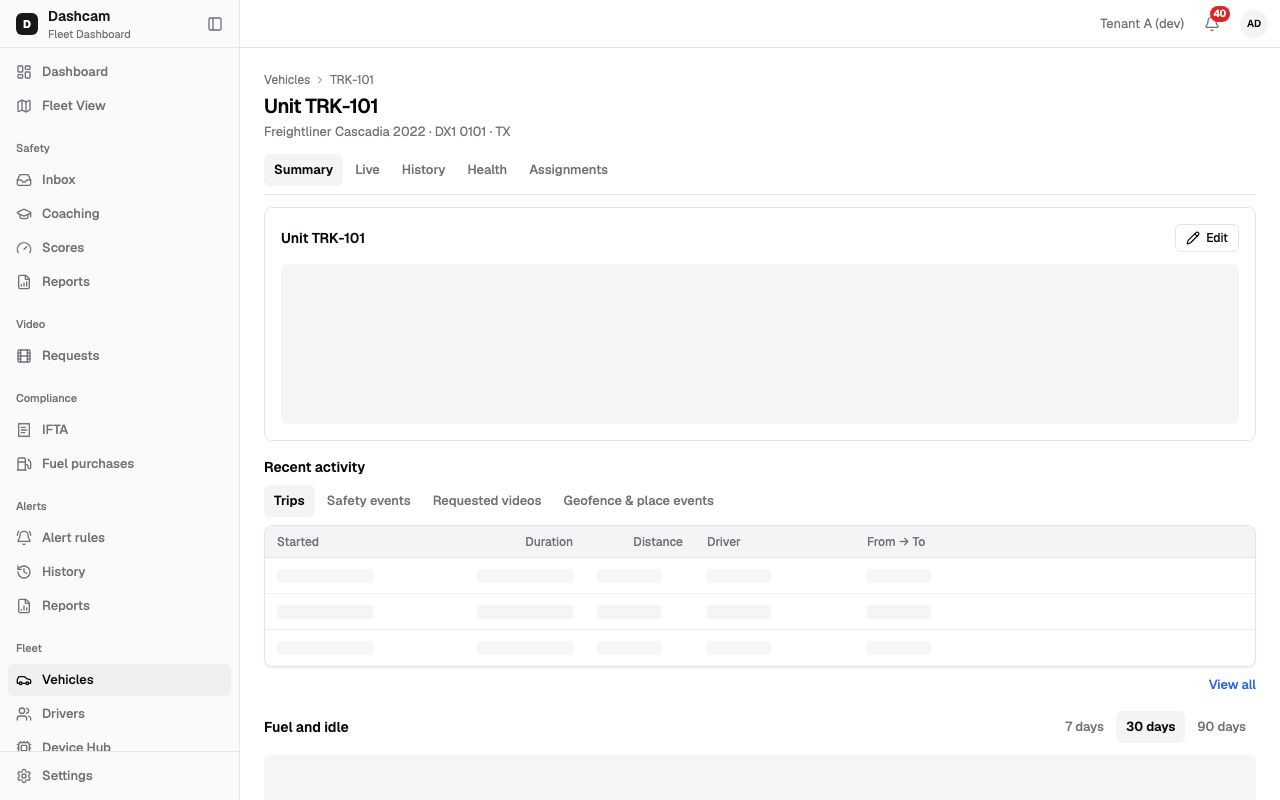
Section titled “What it is and why”Every vehicle has its own page. Summary is the overview: who and what the truck is, what it is doing now, and its last trips, safety events, video requests and geofence visits — on one screen.
Example: the shop manager asks about TRK-102. On its Summary you see it is Idle for 12m at the Dallas Yard, has 2 open faults, made 4 trips today, and that the last fuel drop was dismissed. Two clicks take you to the fault codes or yesterday’s route.
Before you start
Section titled “Before you start”- All four system roles can open a vehicle page. You see only vehicles in your groups.
- Some tabs and sections need extra permissions. By default the Company Admin and the Dispatcher see everything on this page; the Safety Manager and Compliance Manager see less (details below).
The replay could not be loaded. The steps below still describe every action.
Step by step
Section titled “Step by step”-
Open the vehicle page.
Click Open vehicle → on the live map, then the Summary tab. The header shows the breadcrumb Vehicles › TRK-102, the title Unit TRK-102 and a line such as Freightliner Cascadia 2022 · DX1 0102 · TX. A link to a vehicle without a tab opens Summary.
-
Know the tabs.
Tab Who sees it Summary everyone Live everyone History roles with History: view Health roles with Health: view Assignments roles with Vehicles: view By default the Safety Manager and the Compliance Manager have no Health tab.
-
Read the vehicle card.
The card heading is Unit TRK-102, with a Deactivated or IFTA qualified badge when they apply.
- Left: VIN, Plate (DX1 0102 · TX), Make / model / year, Groups, Weight / axles (GVWR in lb and the axle count), Fuel type.
- Right: Status (In motion for …, Idle for …, Ignition off, or Last seen … when offline; No data yet with no data), Location, Odometer (miles and how long ago), Driver (name, Unknown driver or Unassigned), Device (IMEI or No device installed), Open faults (a count that links to Health when above 0).
Edit (needs Vehicles: update) opens the vehicle form; it is disabled for a deactivated truck. See Edit or deactivate a vehicle.
-
Check recent activity.
Each tab lists the 10 newest rows and loads on its own, so one failing does not hide the others. Tabs show only when there is more than one.
Tab Needs Columns and clicks Trips — Started, Duration, Distance, Driver, From → To. With History: view a row opens History on that day. Safety events Safety: events list When, Event, Severity, Status, Driver — all review statuses. A row opens the event. Requested videos Video: view requested Requested, Video from, Camera, Status. Rows are not clickable. Geofence & place events Geofences: list or Places: list Last 7 days: Entered Dallas Yard · Yard · …, with the driver. Click the name to see it on the map. View all opens the full list: History, the Safety inbox or Video requests for this truck.
-
Review fuel and idle.
Fuel and idle needs Health: view. Pick 7, 30 (the default) or 90 days.
- Fuel trend · MPG — a weekly line from miles and fuel purchases. A week without purchases breaks the line.
- Fuel performance · daily — bars for Driving miles and Idle hours.
- A line such as Idle: 6 h · Idle fuel: 4 gal.
-
Check fuel anomalies.
An anomaly is a sharp drop in fuel level while the truck barely moved. The table shows When, Drop (for example 18%) and Location. Click a row to open History on that day. If it is explained, click Dismiss: you see Fuel drop dismissed and the row reads Dismissed.
What happens next
Section titled “What happens next”- Clicks from Summary take you to History, Health, the safety event or the map.
- A dismissed fuel drop stays in the table as Dismissed.
If something goes wrong
Section titled “If something goes wrong”| Message on screen | Why | What to do |
|---|---|---|
| Vehicle not found — It may have been removed, moved out of your groups, or the link is wrong. | The truck does not exist, belongs to another company or is outside your groups. | Click Back to vehicles and search for it. |
| You don’t have access to this page | You opened Health or Assignments by link without permission. | Ask your Company Admin if you need it. |
| Your role can’t view vehicle history. | You opened History without History: view. | Ask your Company Admin if you need it. |
| Couldn’t load the summary | The vehicle card failed to load. | Click Retry. |
| Couldn’t load fuel data | The fuel section failed to load. | Click Retry. |
| No fuel purchases — MPG unavailable | MPG needs fuel purchases for this truck. | Add them under Fuel purchases (needs the Fuel: create permission — by default the Company Admin and the Compliance Manager have it; otherwise ask one of them). |
| No engine data from KD032 / Engine fuel data is not available from the device | The gateway sends no engine or fuel data. | Check the kit in Device Hub. |
Questions
Section titled “Questions”Why don’t I see the Fuel and idle section? It needs Health: view. By default only the Company Admin and the Dispatcher have it.
Can I choose a period for Recent activity? No. It always shows the 10 newest rows; geofence and place events cover the last 7 days.
What happens when I dismiss a fuel drop? The row stays, marked Dismissed. If someone dismissed it first, the list simply reloads.