Build a quarterly IFTA report
Quick path
Section titled “Quick path”- Open Compliance → IFTA. The previous quarter is selected.
- Check the preview miles and the Data quality warnings.
- Click Generate report. If asked, tick I reviewed the warnings and click Generate.
- Check the totals and the jurisdictions table.
- If the report turns Outdated, click Generate again.
What it is and why
Section titled “What it is and why”The IFTA return needs, for every state, the miles your trucks drove and the fuel you bought there. Roudiy splits the trips of your IFTA-qualified trucks at state borders and adds the quarter’s fuel purchases. The result is a table per state with the tax due or credit.
Example: in early October, after the 72-hour wait, you open Q3 2026, check two GPS gaps on TRK-107 and generate the report for Texas, Oklahoma and the other states your trucks drove in.
Before you start
Section titled “Before you start”- You need Ifta: view and Ifta: generate. By default the Company Admin and the Compliance Manager have them; the Dispatcher and the Safety Manager have no IFTA access. Generating also needs access to all groups.
- Trucks count only when they are IFTA-qualified: GVWR over 26,000 lb or 3 or more axles. Set both on the vehicle.
- Record the quarter’s fuel purchases for every fuel type your trucks used.
- The quarter must have ended at least 72 hours ago.
The replay shows a sample quarter, so every step is visible; your report uses your own trips and fuel purchases.
The replay could not be loaded. The steps below still describe every action.
Step by step
Section titled “Step by step”-
Open the page and pick the quarter.
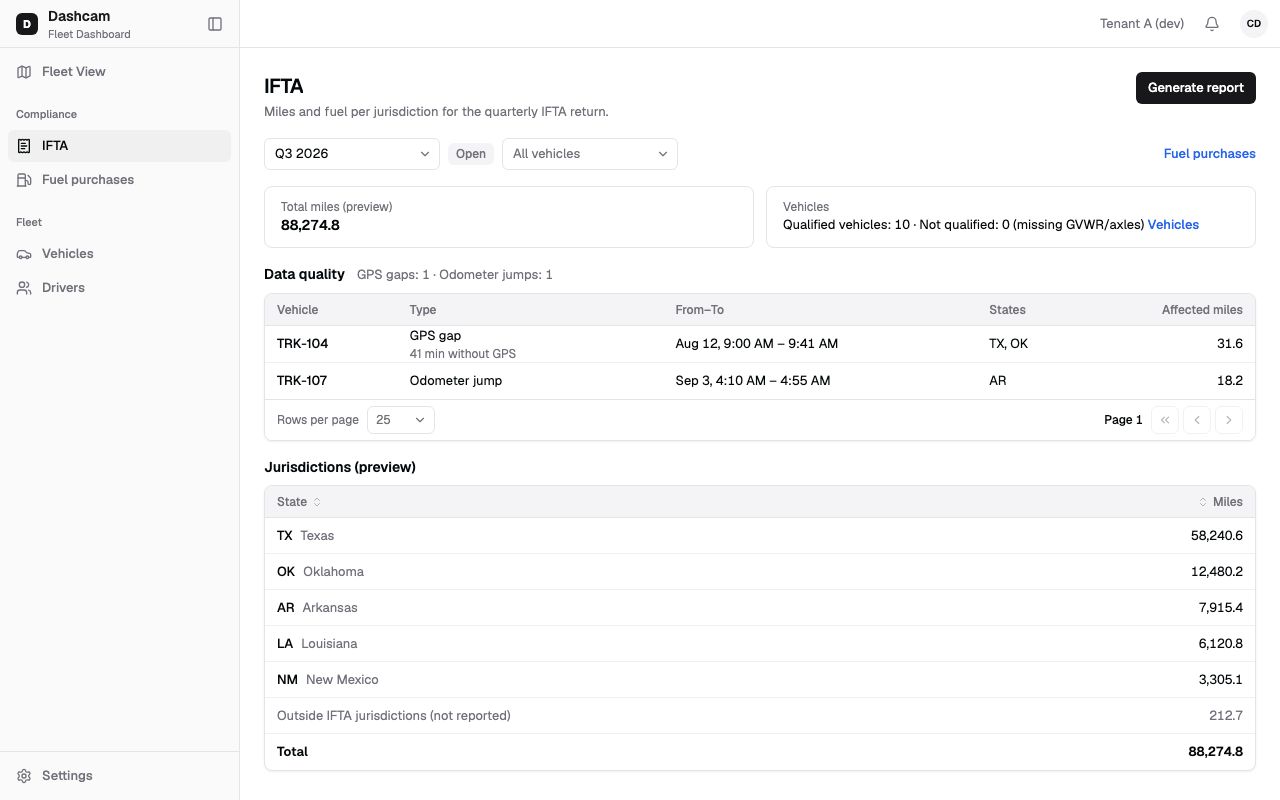
Click Compliance → IFTA. The header reads Miles and fuel per jurisdiction for the quarterly IFTA return. The Quarter list has the current quarter and the 7 before it, each with its status; the previous quarter is selected by default. The status badge shows Open, Generated, Locked or Outdated.
Next to it, Vehicle (All vehicles by default) narrows the preview and the warnings to one truck, and the Fuel purchases link opens that quarter’s purchases.
-
Check the preview.
Before you generate, you see Total miles (preview) and Vehicles, for example Qualified vehicles: 9 · Not qualified: 1 (missing GVWR/axles). The Vehicles link lists the trucks that are not qualified. The table Jurisdictions (preview) shows State and Miles.
Miles come from completed trips, split at state borders and counted per day in your home terminal time zone. Roudiy uses the engine odometer when its reading is plausible and GPS otherwise. Miles outside the 48 states and DC go to OUT. The preview and the warnings follow your groups.
-
Review the data-quality warnings.
The Data quality section sums up, for example, GPS gaps: 2 · Odometer jumps: 1. Its table has Vehicle, Type, From–To, States and Affected miles, 25 rows per page.
- GPS gap: more than 10 minutes without GPS while the truck moved at least 1 mile.
- Odometer jump: the odometer moved much more or less than GPS, by over 5 miles and over 20 % of the GPS distance.
Click a row to open that truck’s History for that day, or the vehicle page if you cannot view History. Decide whether the gap or jump really affects the miles per state.
-
Generate the report.
Click Generate report. If there are warnings, a dialog says, for example, 2 data quality warnings found and GPS gaps and odometer jumps can make the miles per state less accurate. Review them in Data quality before you generate the report. Tick I reviewed the warnings; Generate stays disabled until you do. Click Generate. You see Report for Q3 2026 generated.
-
Read the report.
The info line shows the version, when and by whom it was generated, and how many warnings were acknowledged. With more than one fuel type, a Fuel type tab bar appears. The cards show Total miles, Total gallons, Fleet MPG and Total due or Total credit.
For each fuel type Roudiy works out:
- Fleet MPG = total miles ÷ total gallons, rounded to 2 decimals.
- Taxable gal per state = miles in that state ÷ fleet MPG.
- Net gal = taxable gallons − tax-paid gallons bought in that state. A negative net is a credit, shown in green in parentheses, for example (627.5).
The table has State, Miles, Taxable gal, Tax-paid gal, Net gal, Rate ($/gal), Tax ($), Surcharge ($) and Total due / (credit). Click a column header to sort; Rate cannot be sorted. The greyed OUT row, Outside IFTA jurisdictions (not reported), has miles only, and the bold Total row stays at the bottom.
Tax rates are loaded by the platform every quarter and are the same for every company; you do not enter them. If some states have no rate yet, a warning lists them. If the quarter has no rates at all, the tax columns and the Total due card are hidden.
-
Keep it current.
If a trip, a fuel purchase or a tax rate of the quarter changes after you generate, the status turns Outdated and the banner says Data changed after the report was generated. Generate again before locking. Click Generate again. You can generate as often as you need until you lock.
What happens next
Section titled “What happens next”- Once the status is Generated, Lock quarter appears. Lock after you file; see Lock a quarter and amend it.
- The export buttons appear as soon as a version exists; see Export the IFTA return.
- Times on the page use the 12-hour clock (AM/PM) in your time zone. Quarter days follow your company time zone.
If something goes wrong
Section titled “If something goes wrong”| Message on screen | Why | What to do |
|---|---|---|
| Data for the last 72 hours is still processing. Report can be generated after … | The quarter ended less than 72 hours ago. | Come back after the date and time shown. |
| No IFTA-qualified vehicles (over 26,000 lb or 3+ axles) | No truck has GVWR over 26,000 lb or 3+ axles set. | Click Go to Vehicles and set the gross weight and axles. |
| No mileage for this quarter | The qualified trucks have no trips in the quarter. | Check that you picked the right quarter. |
| No fuel purchases for Diesel in this quarter. | A fuel type has miles but no gallons. | Click Add fuel purchases and record or import them. |
| Only users with access to all groups can generate the report | Your access is limited to some groups. | Ask your Company Admin for access to all groups. |
| This quarter is locked | The quarter was locked. | Correct it with an amendment. |
| An amendment of this quarter is already open | An amendment is in progress. | Finish or discard the amendment first. |
| Tax rates for Q3 2026 are not loaded for: NV, OR. Tax totals are incomplete. | Some states’ rates are not loaded yet. | Generate again later; the tax totals are not complete until then. |
| This report was generated before tax was calculated. Generate again to calculate tax. | The report is older than the tax calculation. | Click Generate again. |
| Couldn’t load mileage / Couldn’t load warnings | The data did not load. | Reload the page. |
Questions
Section titled “Questions”Why is one of our trucks missing from the report? It is not IFTA-qualified, or its GVWR and axles are not set. Check the Not qualified count and the Vehicles link.
Some fuel purchases are not counted. Why? Purchases of a fuel type that no qualified truck drove on in the quarter are left out.
Do I have to enter tax rates? No. They are loaded by the platform and are the same for every company. Your company has no tax rates page.