The Safety Inbox
Quick path
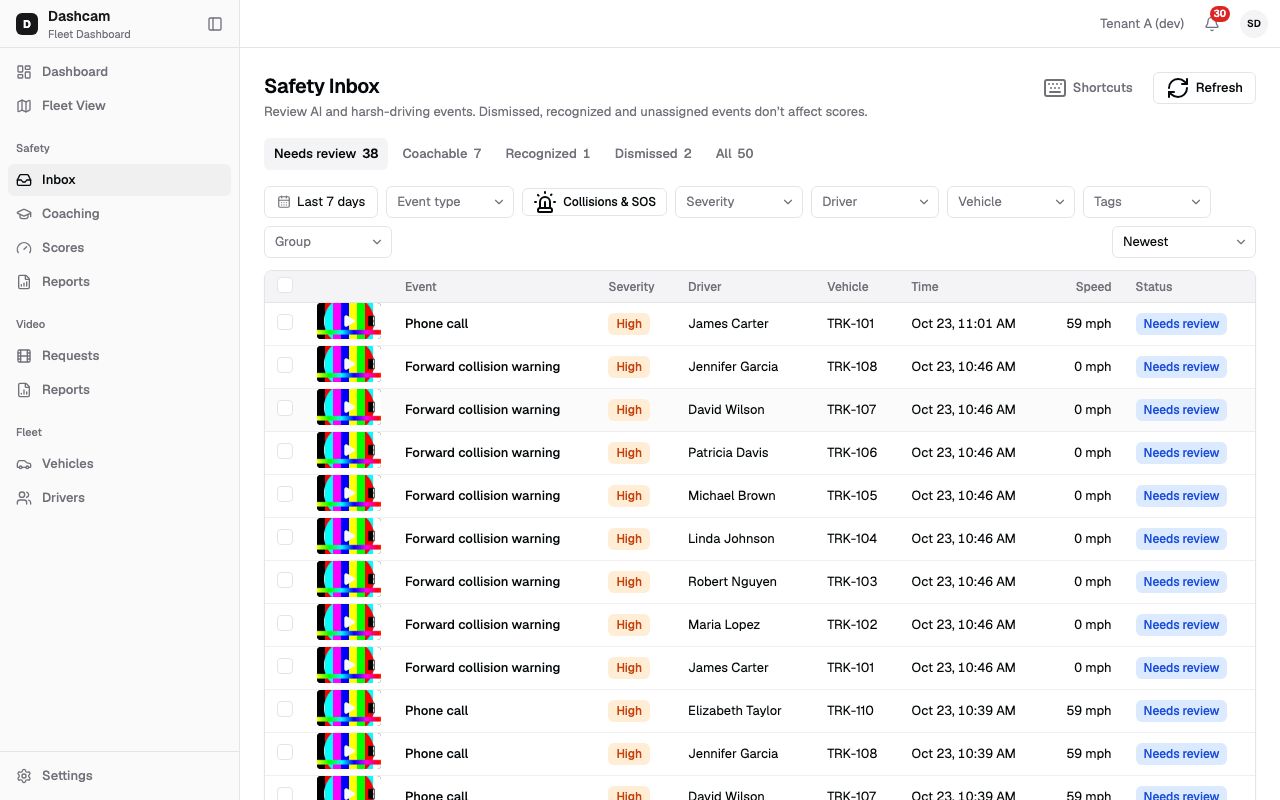
Section titled “Quick path”- In the sidebar, open Safety → Inbox. It opens on Needs review for the last 7 days.
- Narrow the list with the filters, for example Collisions & SOS or a driver.
- Hover a thumbnail to preview the road video.
- Press J to move to an event and Enter for Quick view, or click the row for the full event page.
- Click Refresh to load events that came in while you worked.
What it is and why
Section titled “What it is and why”The Safety Inbox is the queue of every safety event the kits raise, such as a phone call, a forward collision warning or harsh braking. Each event waits under Needs review until someone decides what it is. Working the Inbox every day keeps the queue short and makes sure risky driving gets coached. Safety events explains the event types and statuses.
Example: on Monday morning you open the Inbox and see Needs review 38. You click Collisions & SOS first, check that nothing serious happened over the weekend, then clear the filter and work through the phone calls with Quick view.
Before you start
Section titled “Before you start”- Opening the Inbox needs Safety: events list. By default the Company Admin, Dispatcher and Safety Manager have it. Without it there is no Inbox link, and a direct link shows You don’t have access to this page.
- Reviewing (checkboxes, review buttons and the D, C, R and X keys) needs Safety: events update status: by default the Company Admin and Safety Manager. A Dispatcher can view events but not review them.
- You only see events of vehicles and drivers in your groups. See Groups and access.
The replay could not be loaded. The steps below still describe every action.
Step by step
Section titled “Step by step”-
Open the Inbox.
Click Safety → Inbox in the sidebar. Under the title Safety Inbox you read: Review AI and harsh-driving events. Dismissed, recognized and unassigned events don’t affect scores. Unassigned events still count toward vehicle scores. The list does not refresh by itself. Click Refresh to reload the list and the counts.
-
Pick a tab.
Each tab is a review status with its count: Needs review (the default), Coachable, Recognized, Dismissed and All. Counts follow your filters. Coached events have no tab of their own; you find them under All. The browser’s Back button returns to the previous tab.
-
Filter the list.
The toolbar, left to right:
- Date range: Last 7 days by default. Presets Today, Yesterday, Last 7 days and Last 30 days, or pick your own range of up to 93 days.
- Event type: one or more types, such as Phone call.
- Collisions & SOS: one click shows only collisions and SOS events; click again to turn it off.
- Severity: Critical, High, Medium, Low.
- Driver: Unassigned first, then drivers by name.
- Vehicle, Tags and Group.
Clear filters appears when a filter is on; it keeps your tab. On the right, sort by Newest (default), Oldest or Severity. Filters and sort are saved in the page address, so you can bookmark a view or send the link to a colleague.
-
Read the rows.
Column What it shows Media Thumbnail, Media pending while the clip uploads, or No media. Event Type, a lock icon if the media is locked, and ×3 when repeats were merged. Severity Critical (red), High (orange), Medium (yellow) or Low (grey). Driver The name, or Unassigned. Vehicle Unit number, for example TRK-101. Time For example Oct 23, 11:01 AM. Speed In mph. Status Needs review, Coachable, Recognized, Dismissed or Coached. Times are in 12-hour format, in your personal time zone if you set one, otherwise in the company’s. The list loads 25 events at a time; click Load more for the next 25. The footer reads, for example, Showing 25 of 38 events.
-
Preview the video.
Rest the pointer on a thumbnail for half a second. The road camera (CH1) clip plays muted in a 5-second loop, captioned CH1 · Road · muted · 5 s loop. The preview never plays the driver-facing camera. It stops when you move the pointer away.
-
Use Quick view.
Press J or ↓ to move down the list and K or ↑ to move up, then press Enter. The Quick view panel opens on the right with the video, the details (driver, vehicle, time, speed, location), a mini map and its place in the list, such as 3 of 38. J and K move the panel to the next and previous event. With review permission you see Dismiss, Coachable and Recognize (keys D, C, R); a decision shows the toast 1 updated. Open full event (Shift + Enter) opens the event page; Esc closes the panel.
-
See all shortcuts.
Click Shortcuts or press ? to open Keyboard shortcuts:
Key Action J / ↓ Next event K / ↑ Previous event Enter Open quick view Shift + Enter Open full event Esc Close panel X Select / unselect D Dismiss (asks for a reason) C Mark coachable R Recognize ? Show shortcuts Keys are off while you type in a field or a dialog is open. Without review permission only navigation works. Reviewing many events is covered in Review many events at once.
-
Open an event.
Click a row to open the event page. Its Inbox back link returns you to the same tab, filters and sort.
What happens next
Section titled “What happens next”- An event you review leaves the Needs review tab and the counts update.
- Coachable events become available for coaching.
- Dismissed and recognized events stop counting toward driver safety scores from the next weekly calculation.
If something goes wrong
Section titled “If something goes wrong”| Message on screen | Why | What to do |
|---|---|---|
| Couldn’t load the counts. | The tab counts failed to load. | Click Retry next to the message. |
| Could not load events | The list failed to load. | Click Retry. |
| Some filters in this link are not valid | A shared link has a filter the server rejects. | Click Clear filters and pick them again. |
| No events match your filters | Nothing matches the tab, dates and filters. | Widen the date range or click Clear filters. |
| Select up to 93 days | The date range is longer than 93 days. | Pick a shorter range. |
| You don’t have access to this page | Your role lacks Safety: events list. | Ask your Company Admin. |
| Event not found (in Quick view) | The event was removed or is no longer in your groups. | Close the panel and click Refresh. |
When Needs review is empty and no filter is on, you see All caught up — no events need review. That is good news, not an error.
Questions
Section titled “Questions”Why don’t I see new events? The Inbox does not refresh by itself. Click Refresh.
Where are coached events? Coached has no tab. Open All; the Status column shows Coached.
I came from Scores and no tab is selected. Why? The link filters on several statuses at once and shows a chip such as Status: Needs review, Coachable. Click its × to go back to Needs review.
Can a Dispatcher review events? Not with the default role. A Dispatcher sees the list, Quick view and the event page, but no review buttons or checkboxes.