Invite a user
Quick path
Section titled “Quick path”- Open Settings → Users and click Invite user.
- Enter the work email, first and last name.
- Pick a role and a group (or Entire company) in the access row.
- Click Send invite.
What it is and why
Section titled “What it is and why”Everyone on your team signs in with their own account, so you can see who did what and show each person only what they need. Nobody signs up alone: you invite them by email and decide their access at the same time.
Access is a list of access rows. Each row is a role (what the person may do) in a group or in the Entire company (where they may do it). For example, you invite Emma Walsh as Dispatcher for Dallas North: she sees TRK-101 and the other Dallas North trucks, but not the Dallas South ones. A role on a group also covers its subgroups. The idea is explained in Groups and access.
Before you start
Section titled “Before you start”- You need the Company Admin role or another role with the
users.invitepermission. Without it there is no Invite user button. - To limit someone to part of the fleet, create the groups first.
- For a role with an exact set of permissions, create a custom role first.
The replay could not be loaded. The steps below still describe every action.
Step by step
Section titled “Step by step”-
Open the invite dialog.
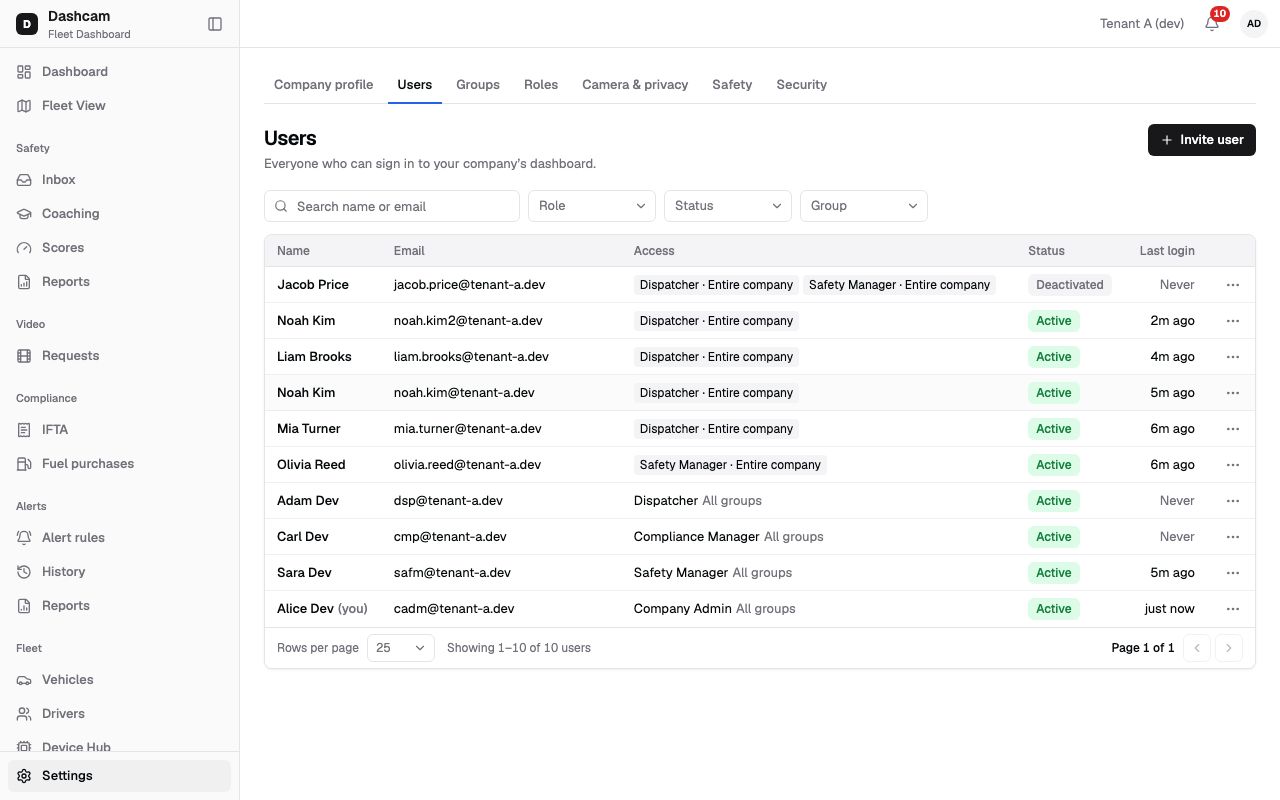
In the sidebar, click Settings, then the Users tab. The page lists Everyone who can sign in to your company’s dashboard. Click Invite user. The dialog says They sign in with their ELD platform account or set a password.
-
Enter who you invite.
- Email (required): the person’s work email, for example emma.walsh@tenant-a.dev. The invitation is sent here and it becomes their sign-in.
- First name and Last name (required, up to 60 characters each), for example Emma and Walsh.
- Phone (optional), for example (214) 555-0147.
-
Give access.
Under Access the hint says A role on a group also covers its subgroups. The dialog starts with one row: an empty Role and Entire company as the group.
- Role: pick a role. The list shows system roles (Company Admin, Dispatcher, Safety Manager,
Compliance Manager) marked System role and your own roles marked Custom role. (Custom
roles appear only if your role also has
roles.list.) - Group: keep Entire company (first in the list) or pick a group, for example Dallas North.
- + Add access adds another row, for example Safety Manager in Dallas South. You can have up to 20 rows; then you see Max 20 access rows.
- The X at the end of a row removes it. The last row can’t be removed.
Rules: every row needs a role, at least one row must use a system role, and the company must keep at least one Company Admin for the entire company.
- Role: pick a role. The list shows system roles (Company Admin, Dispatcher, Safety Manager,
Compliance Manager) marked System role and your own roles marked Custom role. (Custom
roles appear only if your role also has
-
Send the invite.
Click Send invite. You see the toast Invite sent to emma.walsh@tenant-a.dev.
-
Find the user in the list.
The new row shows the name, email, the access chips (for example Dispatcher · Dallas North), the status Invited with the date the invite expires (Expires and a date), and Last login Never.
What happens next
Section titled “What happens next”- The person gets an email with a link to join. They open it, set a password (or confirm their existing ELD platform password) and are signed in. Send them Accept your invitation.
- The invite is valid for 7 days. While it is open the user shows Invited; after they accept, Active.
- If nobody accepts in time, the row shows Invited with an Expired badge. If the email could not be delivered, you see a Bounced badge; hover it to read Email bounced: … Edit the email and resend.
- To change access, the email of a pending invite, or to resend it, see Change a user’s access.
If something goes wrong
Section titled “If something goes wrong”| Message on screen | Why | What to do |
|---|---|---|
| This email is already used by another account | An account with this email already exists. | Search the user list for the email, or check the address you typed. |
| Pick a role on every row | A row has no role. | Choose a role or remove that row with X. |
| Add at least one system role | Every row uses a custom role. | Add a row with a system role, for example Dispatcher. |
| The company needs at least one Company Admin for the entire company | The change would leave no company-wide Company Admin. | Keep a Company Admin · Entire company row on some user. |
| Some groups no longer exist. Reload groups | A group in a row was deleted meanwhile. | Close the dialog, reload the page and pick an existing group. |
| Max 20 access rows. | You reached the limit. | Use a parent group instead of many subgroups. |
| Bounced badge | The email address does not receive mail. | Correct the email and resend the invite. |
Questions
Section titled “Questions”Does the person need a password from me? No. They set it themselves from the email link, or use their ELD platform password if they already have one.
Can I give one person two roles? Yes. Add a second access row, for example Dispatcher · Dallas South and Safety Manager · Dallas North.
How do I see who has not joined yet? In the user list, set the Status filter to Invited. You can also filter by Role and Group, or type in Search name or email.
What if the invite expired? Resend it from the row menu. See Change a user’s access.