Reset a forgotten password
Quick path
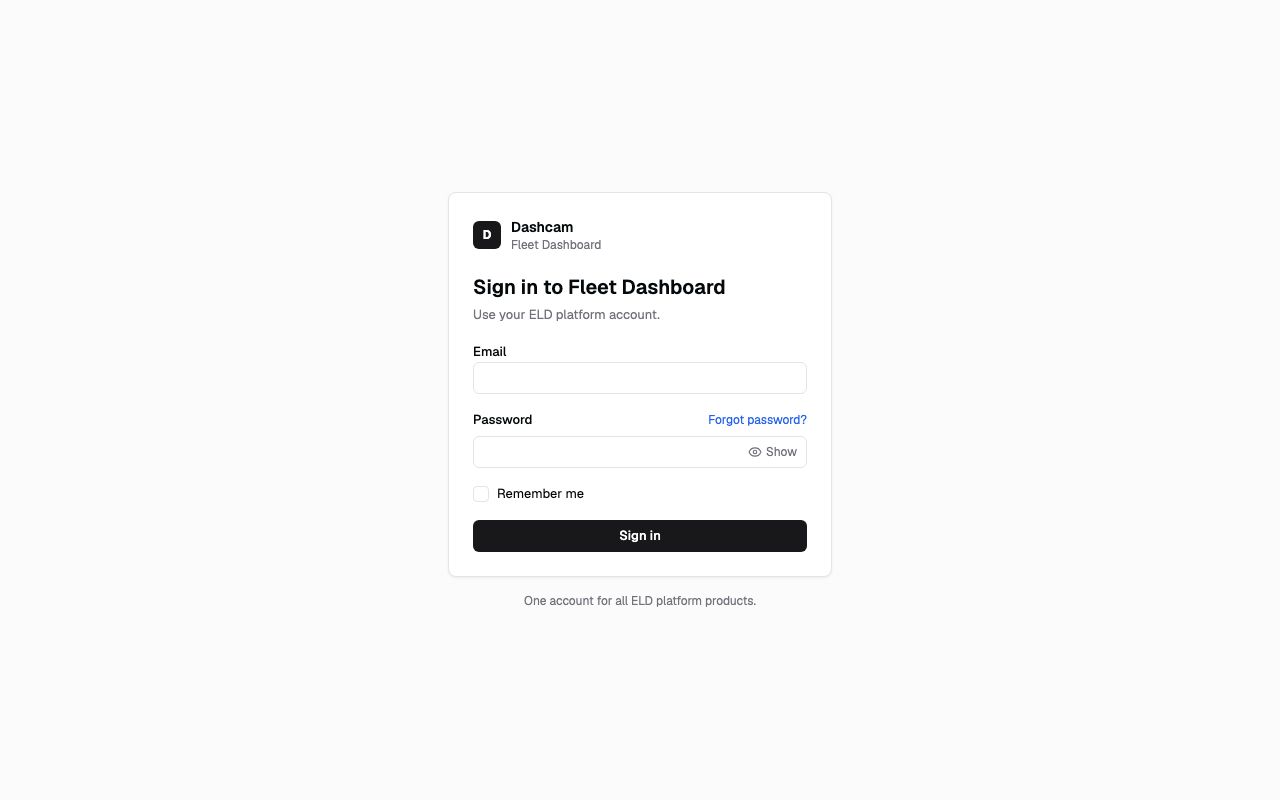
Section titled “Quick path”- On the sign-in page click Forgot password?.
- Enter your work email and click Send code.
- Type the 6-digit code from the email.
- Choose a new password, type it twice and click Update password.
- Click Sign in and use the new password.
What it is and why
Section titled “What it is and why”If you cannot remember your password, you set a new one yourself with a code sent to your work email. You do not need to wait for your company admin. For example, a dispatcher back from vacation who has forgotten the password can be working again in a few minutes.
Roudiy and your ELD platform share one account, so the new password works in both places. The page reminds you of this at every step: The password changes for all ELD platform products.
Before you start
Section titled “Before you start”- You need access to the mailbox of your work email: the code is sent there.
- This is the only way to change your password today. The Change password card on My profile is not available yet.
The replay could not be loaded. The steps below still describe every action.
Step by step
Section titled “Step by step”-
Open the reset page.
On the sign-in page click Forgot password? under the password field. A card titled Reset your password opens with the line Enter your work email and we’ll send you a 6-digit code.
-
Ask for a code.
Type your work email and click Send code.
The next card, Check your email, says If an account exists for your email , we’ve sent a code. It’s valid for a few minutes. For safety the page looks exactly the same when the address has no account, so nobody can use this page to find out who has one. If the email does not arrive, check the address you typed.
Typed the wrong address? Click Use another email. You go back one step and your email stays in the field, so you only fix the typo.
-
Enter the code.
Type the 6-digit code from the email in the Code field. You can paste it too, even with a space in the middle, such as
246 810. Only digits are accepted, and the code is checked as soon as the sixth digit is in.If the code is wrong, the field is cleared so you can type it again. No email? Check spam. The Resend code button is disabled for 60 seconds and shows Resend code in with a countdown; after that, click it to get a new code.
-
Choose a new password.
The card Choose a new password opens. Type it in New password. The list under the field ticks each rule as you type:
- At least 10 characters
- At most 128 characters
- Doesn’t contain your email (the part before the @)
Type the same password again in Confirm password. Click Show to check what you typed.
-
Save it.
Click Update password. The button stays disabled until every rule is met.
-
Sign in again.
The card Password updated says Password updated. You’ve been signed out of all devices. Click Sign in and use your email and the new password.
What happens next
Section titled “What happens next”- Every session of your account ends: on this browser, on other computers and on phones. Anyone who was signed in with the old password has to sign in again, and the old password stops working at once.
- The new password is also your ELD platform password.
- If two-step verification is on, your next sign-in still asks for an email code, as usual.
If something goes wrong
Section titled “If something goes wrong”| Message on screen | Why | What to do |
|---|---|---|
| Invalid code. | The code does not match the one we sent. The field is cleared. | Type the code again, carefully. Use the newest email if you asked for several codes. |
| Code expired. Request a new one. | The code is valid for a few minutes only. | Click Resend code (after the countdown) and use the new code. |
| Passwords don’t match | New password and Confirm password differ. | Type the same password in both fields. |
| Enter a new password | The New password field is empty. | Type a password that meets the rules. |
| This password doesn’t meet the password policy. Choose another one. | The password is too weak for the account rules. | Choose another password that is at least 10 characters and does not contain your email. |
| Too many requests. Try again in a moment. | You asked for codes or tried codes too often in a short time. The message can also show how many seconds or minutes to wait. | Wait the time shown, then try again. |
| Password reset is temporarily unavailable. Try again in a minute. | The reset service is busy or down. | Wait a minute and try again. |
| Can’t connect. Check your connection and try again. | Your device is offline or the connection dropped. | Check your internet connection. |
Questions
Section titled “Questions”I never got the code. Is my email wrong? Maybe. The page does not say whether an account exists for the address, on purpose. Check spam, check the address with Use another email, and if it still does not come, ask your company admin which email you were invited with.
Will the reset sign me out on my phone too? Yes. A successful reset signs you out of all devices, including the one you used for the reset.
Can I change my password while I am signed in? Not yet. The Change password card on My profile says Not available yet. Until it is, use Forgot password? on the sign-in page.
Does my ELD platform password change too? Yes. It is one account, so there is one password.