Where are my drivers
Quick path
Section titled “Quick path”- Go to Fleet View and click the Drivers tab.
- Type a name or phone number in Search name or phone.
- Use the Assignment tabs All, Assigned or Not assigned.
- Click a row to open the driver’s truck on its Live tab.
What it is and why
Section titled “What it is and why”The Drivers tab of Fleet View is the same live picture as the map, organised by person instead of by truck. Each row is one driver with the vehicle they are assigned to, that vehicle’s status and location, and when it last reported.
Example: Maria Lopez calls from the road and the line drops. You type Lopez, see that she is on
TRK-104, Idle, at a truck stop near Waco, and call her back knowing where she is. In the morning,
the Not assigned tab shows which drivers still have no truck before dispatch starts.
A driver is linked to a truck by an assignment; see Vehicles, drivers and assignments.
Before you start
Section titled “Before you start”- You need the Fleet View and Drivers: list permissions. By default all four system roles have both. Without them the Drivers tab is hidden.
- You see the drivers of your groups. See Groups and access.
- Drivers must exist in Roudiy first; see Add a driver.
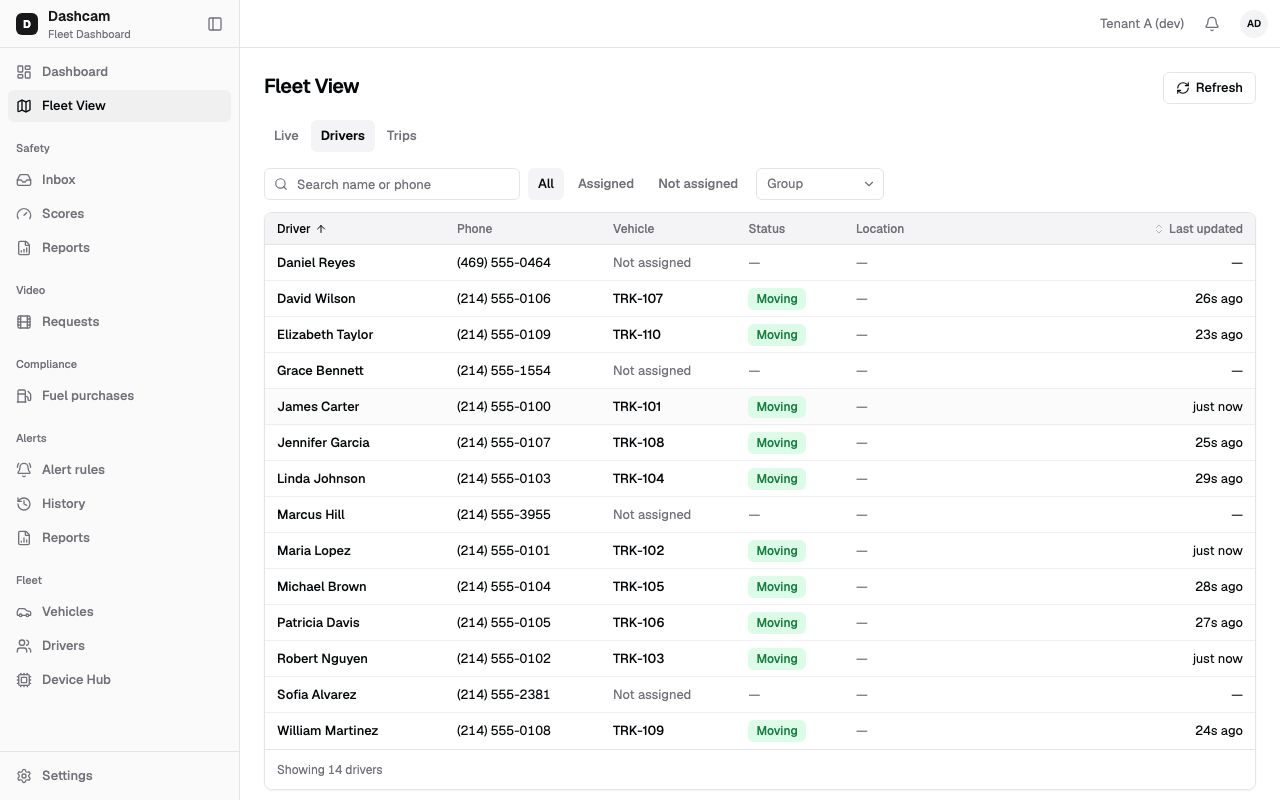
The replay could not be loaded. The steps below still describe every action.
Step by step
Section titled “Step by step”-
Open the Drivers tab.
Click Fleet View in the sidebar, then Drivers in the tab row (Live, Drivers, Trips).
-
Read the table.
Column What it shows Driver The driver’s name. Phone The driver’s phone number. Vehicle TRK-101 now, Last: TRK-101, ended 3h ago, or Not assigned. Status The status of the driver’s vehicle, such as Moving or Idle, or —. Location Where that vehicle is. Last updated When that vehicle last reported. -
Search.
Type in Search name or phone, for example
Carteror214. -
Pick an assignment tab.
- All — every driver you can see.
- Assigned — drivers who are on a truck now.
- Not assigned — drivers without a truck right now.
-
Filter by group.
Pick one group, for example Dallas South, to see only its drivers.
-
Load more and refresh.
The table shows 50 drivers at a time; click Load more for the next 50. The data refreshes every 30 seconds by itself, or click Refresh to update it now.
-
Open a driver’s truck.
Click a row. If the driver is on a truck, its Live tab opens. If the driver has no truck, the driver’s profile opens instead.
What happens next
Section titled “What happens next”- From the truck’s Live tab you can assign, change or end the driver (with the Assignments: manage permission). The Drivers tab picks up the change on its next refresh.
- To see who drove a truck in the past, open its assignment history.
If something goes wrong
Section titled “If something goes wrong”| Message on screen | Why | What to do |
|---|---|---|
| Couldn’t refresh drivers · last update … | A refresh failed. The table keeps the last loaded data. | Click Retry, or check your connection. |
| No drivers found | No driver matches the search, tab or group. | Clear the search, pick All, or choose another group. |
| A driver you expect is missing | The driver is not in your groups, or was never added. | Check Fleet → Drivers, or ask your Company Admin about your groups. |
| Status shows — | The driver has no vehicle with a status to show. | Open the row to see the driver’s profile, or assign a truck on its Live tab. |
Questions
Section titled “Questions”Is there a page called “Drivers now”? No. In the product this is the Drivers tab of Fleet View.
Can I assign a driver from this tab? No. Click the row to open the truck’s Live tab and use the driver block there.
What does “Last: TRK-101, ended 3h ago” mean? The driver has no truck now; their last assignment was TRK-101 and it ended 3 hours ago.
How often does the table update? Every 30 seconds, or right away when you click Refresh.