Safety reports
Quick path
Section titled “Quick path”- Open Safety → Reports.
- Pick Events by driver, Events by group or Coaching timeliness.
- Set Date range (default Last 30 days) and the filters.
- Click Run report and check the preview.
- Click Download CSV for every row.
What it is and why
Section titled “What it is and why”Safety reports answer the questions a monthly safety meeting asks: which drivers and groups had the most events, how many per 1,000 miles, how many were coached, and whether coaches finish their sessions on time. You pick a report and a period, see the first 100 rows on screen and download the whole report as CSV.
Example: for the September meeting you run Events by driver for Sep 1 – Sep 30, groups Dallas North and Dallas South, and download the file to share with the operations manager.
Before you start
Section titled “Before you start”- You need Reports: view and Safety: events list to open the page, and Reports: export to download. By default the Company Admin, the Dispatcher and the Safety Manager have all three.
- You see data for your own groups. An event follows its driver’s groups; an event with no driver follows its truck’s groups.
- Confidential events are included only if your role can see confidential events.
The replay could not be loaded. The steps below still describe every action.
Step by step
Section titled “Step by step”-
Open the page.
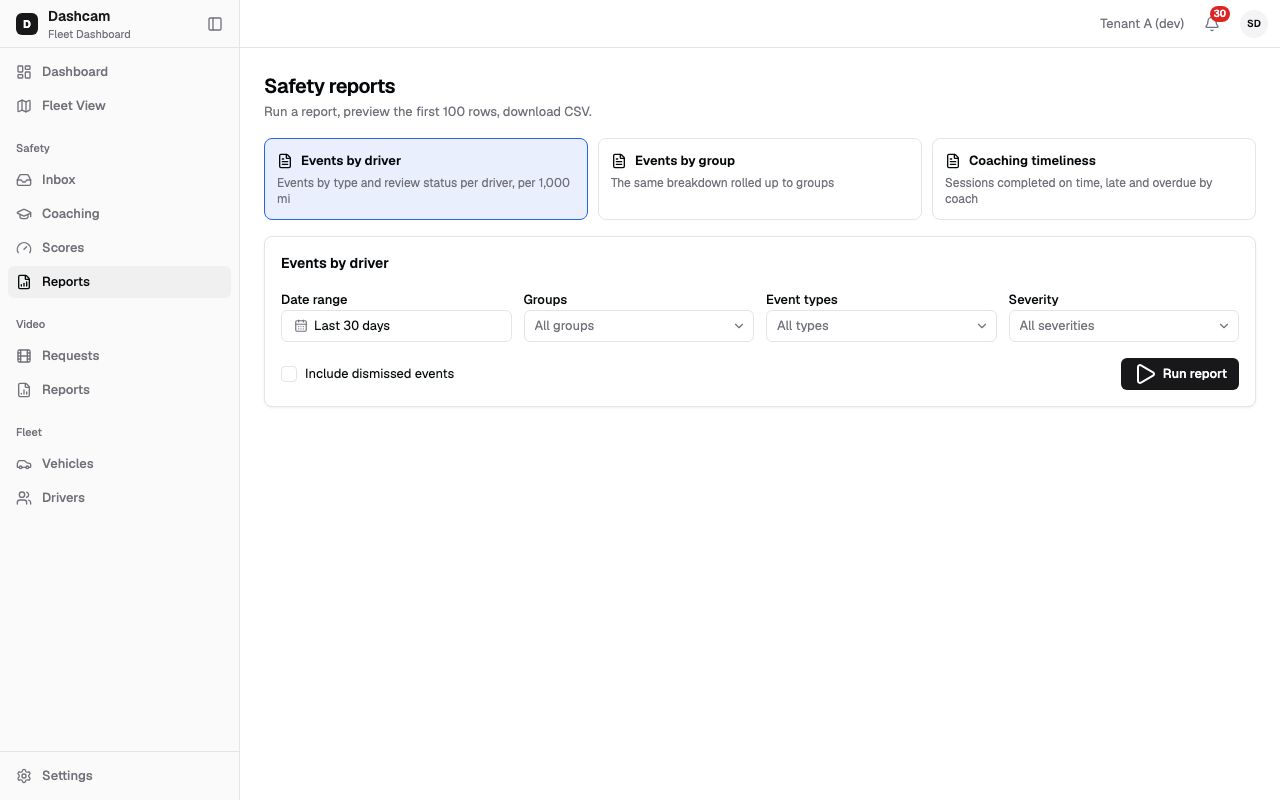
Click Safety → Reports. The header reads Run a report, preview the first 100 rows, download CSV. The general Reports page also has a Safety reports card that leads here.
-
Pick a report.
Report What it shows Events by driver Events by type and review status per driver, per 1,000 miles. Events by group The same breakdown rolled up to groups. Coaching timeliness Sessions completed on time, late and overdue, per coach. -
Set the filters.
- Date range: default Last 30 days; presets Today, Yesterday, Last 7 days and Last 30 days, or any range up to 366 days. Days are whole days in your company time zone.
- Groups: All groups by default, or pick groups.
- Event types: All types by default. Event reports only.
- Severity: All severities, or Critical, High, Medium, Low. Event reports only.
- Include dismissed events: off by default, so dismissed events are left out. Event reports only.
Coaching timeliness uses only the date range and groups.
-
Run the report.
Click Run report. Under Result you see one line with the report name, the dates, the groups (or all groups) and when it was generated, then a preview table with a bold Total row. The footnote reads, for example, Preview · first 100 of 240 rows · Download CSV for every row.
Event reports have Miles, Total events, one column per event type, Events per 1,000 mi, Coachable, Coached, Recognized and Dismissed. Events by driver adds an Unassigned row for events with no driver. In Events by group a driver in two groups counts in both, while Total counts each event once. Coaching timeliness has Coach, Sessions created, Completed on time, Completed late, Open overdue, % on time and Avg days to complete.
-
Download the CSV.
Download CSV appears when you have Reports: export and the report has at least one row. The file has every row plus the Total row and English headers. It adds ID columns (such as Driver ID and Coach user ID) and shows groups as IDs only, while driver and coach names are kept. It is named after the report and dates, for example
safety_events_by_driver_2026-09-01_2026-09-30.csv.
What happens next
Section titled “What happens next”- The CSV goes to your browser’s downloads. For next month, run the report again with new dates.
- Reports cannot be scheduled. Run them when you need them.
- There is no score report, even though the Safety reports card mentions scores. Scores are on the Safety scores page.
If something goes wrong
Section titled “If something goes wrong”| Message on screen | Why | What to do |
|---|---|---|
| Select up to 366 days | The date range is longer than 366 days. | Shorten the range; Run report is disabled until then. |
| Report took too long — narrow the date range | The report did not finish in time. | Pick a shorter date range, then Run again. |
| No events for selected filters | Nothing matches the period and filters. | Widen the range, clear filters or tick Include dismissed events. |
| Could not run the report | The request failed. | Click Retry. |
| No Download CSV button | No rows, or your role lacks Reports: export. | Check the filters, or ask your Company Admin. |
| You don’t have access to this page | Your role lacks Reports: view or Safety: events list. | Ask your Company Admin. |
Questions
Section titled “Questions”Why is the CSV different from the preview? The preview shows only the first 100 rows and shows group names. The CSV has every row, adds ID columns and shows groups as IDs only; driver and coach names are kept.
Are dismissed events in the totals? Only if you tick Include dismissed events.
Can I get a report emailed every week? No. Safety reports have no schedule.