Get a video from the SD card
Quick path
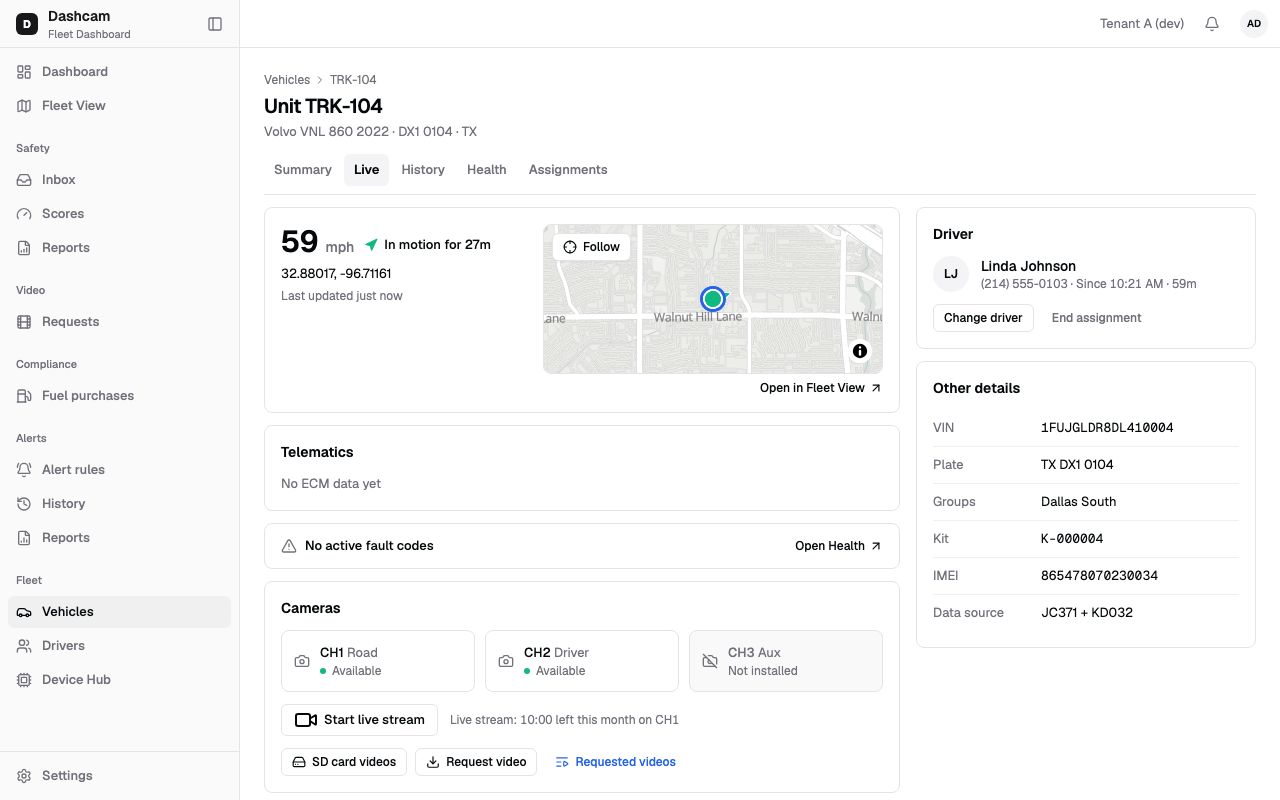
Section titled “Quick path”- On the vehicle’s Live tab, in Cameras, click SD card videos.
- Pick the day and the Channel, then click a 3-minute segment. Shift+click to add up to 3.
- Click Play to look at it, or Request video to keep it.
- In the Request video dialog, check the summary and click Submit request.
What it is and why
Section titled “What it is and why”The dashcam records all the time to its SD card. Most of that video never leaves the truck. When you need footage that is not a safety event — a customer says the trailer was damaged at their yard at 2:05 PM, or a driver reports a near miss — you find that time on the card and either play it straight from the camera or request it. A request uploads the clip to Roudiy, where it is kept for 30 days (the number of days is set by your plan) and can be locked to keep it longer.
The SD card overwrites old video over time, so request older footage soon. See Video for how SD card requests fit with live streams and event clips.
Before you start
Section titled “Before you start”- SD card videos needs the
video.playbackpermission; Request video needsvideo.request. By default the Company Admin, Dispatcher and Safety Manager have both. - CH2 (driver-facing) is offered only with the
video.driver_facingpermission. Only installed cameras are listed. - The truck needs a paired kit. The list comes from the device, so it loads fastest while the truck is online.
The replay could not be loaded. The steps below still describe every action.
The demo kit is simulated and cannot upload video, so the replay stops at the filled-in request form. The steps below describe the full flow.
Step by step
Section titled “Step by step”-
Open the drawer.
On the vehicle’s Live tab, in Cameras, click SD card videos. A side sheet titled SD card videos · TRK-104 opens, with Segments are 3 min each under the title. The toolbar has Previous day, a date picker, Next day (off on today), the Channel select (for example CH1 · Road) and Refresh list.
-
Wait for the list.
Roudiy asks the device what is on its card. You see Fetching list from device… (up to 35 s) with a progress bar. A fetched list is reused for 5 minutes; Refresh list asks the device again. If the device is offline, you see the last list it sent, or a message that the list is unavailable (see the table below).
-
Find the time on the timeline.
A 24-hour bar shows recordings as dark blocks and existing requests as amber marks. Click the bar to open that hour, or use Previous hour / Next hour. The drawer opens on the hour of the last recording.
Below it, Segments of the hour shows 20 cells of 3 minutes. Hover a cell to see, for example, 2:03 PM – 2:06 PM, on SD card. Cells with no recording or in the future are disabled. The legend explains On SD card, No recording and Already requested.
-
Select segments.
Click a cell to select one segment. Shift+click another to extend the selection across recorded segments in a row — at most 3, which is 9 minutes. Going past that shows Up to 3 segments (9 min). Changing the day, channel or refreshing clears the selection.
-
Play from the card (optional).
Click Play to stream the selection straight from the camera. Nothing is saved. It plays up to 180 seconds, or to the end of the selection or recording if that comes first. The dialog says Played from the camera’s SD card and has Play/Pause but no LIVE badge. Close stops it; so does closing the drawer or the browser tab.
-
Request the video.
Click Request video. The Request video dialog shows Vehicle: TRK-104, the Channel, the day and the same picker, plus a line such as 2:03 PM – 2:12 PM CDT selected. The summary bar reads, for example, 3 segments · 9 min · CH1; on the right is either a problem or the rule Up to 3 segments (9 min), one channel. Clicking outside does not close the dialog.
If the device is offline, did not answer, or cannot list its card, the dialog asks for Start time and Duration (3, 6 or 9 min) instead.
-
Submit.
Click Submit request. The dialog and drawer close, and a toast says Video requested with the unit, channel and time. Its View requests action opens the list for this truck.
You can also open the Request video dialog directly from the Cameras block, or from a safety event.
What happens next
Section titled “What happens next”- The request appears in Video requests as Queued, then Waiting for device or Uploading, and finally Ready, Failed or Overwritten.
- The truck uploads it when online. You get a notification when it’s ready (usually a few minutes).
- If the truck is offline: Device is offline. The request will wait up to 7 days for the device to come online.
If something goes wrong
Section titled “If something goes wrong”| Message on screen | Why | What to do |
|---|---|---|
| Device is offline — SD card list unavailable | The truck is offline and sent no list before. | Use Request video with a start time, or try later. |
| Device did not respond / Device could not read the SD card | The device timed out or could not read its card. | Click Try again, or request by start time. |
| No recordings on SD card for this day | Nothing is recorded on this channel that day. | Try another day or channel. |
| This camera can’t list SD card recordings — pick a time range | The camera cannot list its card. | Enter Start time and Duration. |
| This vehicle already has a request in progress. | One request per truck can run at a time. | Click View request and wait until it finishes. |
| Selected time is no longer on the SD card | The card has overwritten that time. | Pick a later time; older footage is gone. |
| This camera channel is busy with a live stream. Try again when it ends. | Someone is live streaming this camera. | Wait for the stream to end, then click Play again. |
| Another user is watching this camera’s recording | Someone else is playing from this card. | Try again later, or request the video. |
| Device is sleeping (ignition off or offline) | The dashcam sleeps when the ignition is off. | Request the video; it waits for the device. |
Questions
Section titled “Questions”Is anything saved when I click Play? No. Play streams from the card only. To keep a clip, use Request video.
Can I request 15 minutes? Not in one request: the limit is 3 segments (9 minutes) on one channel. Make another request after the first one finishes.
Why are some cells amber? They are already requested. Failed requests are not marked.