Safety scores
Quick path
Section titled “Quick path”- Open Safety → Scores. Drivers and the latest week are selected.
- Read the summary cards and the Riskiest drivers and Top drivers lists.
- Click a driver to see the Behavior breakdown, or the Events number to open their events.
- Switch to Vehicles or Groups, or pick an older week in Week.
What it is and why
Section titled “What it is and why”A safety score turns events and miles into one number from 50 to 100, so you can compare a driver who drives 3,000 miles a week with one who drives 500. The page header says it in one line: Driver score 50–100 over the last 4 weeks, events per 1,000 miles. Every Monday Roudiy looks at the events (except dismissed and recognized ones, and for driver scores also unassigned ones) and miles over the last 4 weeks and gives each driver a new score. How the number is built is explained in Safety events.
Example: on Monday morning you open Scores. Maria Lopez is first in Riskiest drivers. You click her row: the breakdown shows most points lost to Phone call. You click her Events number, mark the right events coachable in the Inbox and plan a session for this week.
Before you start
Section titled “Before you start”- You need Scores: view. By default the Company Admin, the Dispatcher and the Safety Manager have it; the Compliance Manager does not.
- The company time zone must be set in the company profile. Score weeks start on Monday 00:00 in that time zone.
- Scores appear only after the first Monday calculation.
- You see drivers, vehicles and groups within your own groups.
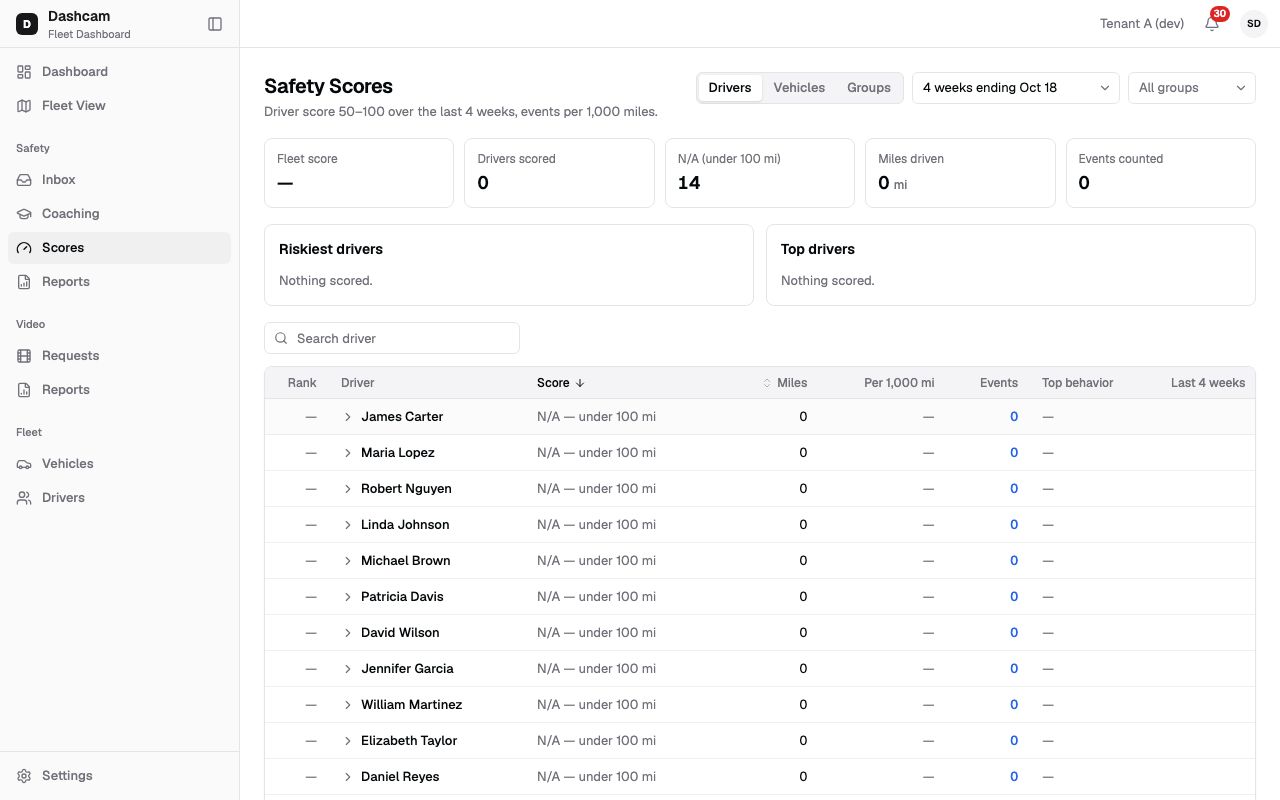
The replay could not be loaded. The steps below still describe every action.
The demo company in the replay drove under 100 miles, so every driver shows N/A.
Step by step
Section titled “Step by step”-
Choose what to rank and which week.
Leaderboard switches between Drivers, Vehicles and Groups. Week lists the last 12 calculated weeks, labelled for example 4 weeks ending Oct 18: the score covers the 4 weeks that end on that Sunday. All groups limits the page to the groups you pick (hidden in Groups mode). The search box (Search driver, or Search unit number for vehicles) needs at least 2 characters for a driver name.
-
Read the summary cards.
Fleet score with its band, Drivers scored (or vehicles, or groups), N/A (under 100 mi), Miles driven and Events counted.
-
Check the Riskiest and Top lists.
Riskiest drivers shows the 5 lowest scores, lowest first; Top drivers the highest. Each row shows the name, the top behaviour, the score and its band. With no scores you see Nothing scored.
-
Read the table.
Column What it shows Rank Highest score first; equal scores are ranked by more miles. — when not ranked. Driver Or Vehicle / Group, depending on the mode. Score The score and band Excellent, Good or Fair; N/A — under 100 mi if short. Miles Miles driven in the 4 weeks. Per 1,000 mi Events per 1,000 miles, one decimal, for example 2.5. Events Counted events; in Drivers mode a link to the Inbox. Top behavior The behaviour that cost the most, or —. Last 4 weeks A small trend line; weeks with N/A are gaps. Drivers with N/A come last, without a rank or band. Sort Score up or down, or Miles from most to least. Show 25, 50 or 100 rows per page.
-
Drill down.
- Drivers: click a row to open the Behavior breakdown with Behavior, Count, Per 1,000 mi, Weight and Points, for example −19 for phone calls.
- Vehicles: click a row to open that truck’s live page.
- Groups: click a row to see the drivers of that group.
-
Open the events behind a score.
In Drivers mode click the Events number. The Safety Inbox opens with that driver, the 4 weeks of the score and the chip Status: Needs review, Coachable. Coached events also count in the score but are not in this list, so it can be shorter than the Events number. You need Safety: events list to see this link.
The footer reads Scores update every Monday. Dismissed, recognized and unassigned events are not counted. Unassigned events (no driver on the truck) are left out of driver scores, but they do count in vehicle scores, because the truck was still driven.
The Safety score card on a driver’s profile shows the same score over 12, 26 or 52 weeks with the change from the previous week.
What happens next
Section titled “What happens next”- Reviews you make this week change the scores at the next Monday calculation. Dismissed and recognized events stop counting then.
- Use the riskiest drivers to plan coaching sessions.
- The page has no export. For a CSV use Safety reports.
If something goes wrong
Section titled “If something goes wrong”| Message on screen | Why | What to do |
|---|---|---|
| Set the company time zone to enable weekly scores | The company has no time zone, so weeks cannot be counted. | Click Company settings and set the time zone, or ask your Company Admin. |
| Scores will appear after the first weekly calculation (every Monday) | No week has been calculated yet. | Wait for the next Monday. |
| N/A — under 100 mi | Fewer than 100 miles in the 4 weeks, too few to score. | Nothing to fix. The driver gets a score once they drive more. |
| No drivers match | The search or group filter hides everyone. | Click Clear filters. |
| No drivers scored this week | No driver was scored in this week. | Pick another week. |
| Could not load scores | Loading failed. | Click Retry. |
| You don’t have access to this page | Your role lacks Scores: view. | Ask your Company Admin. |
Questions
Section titled “Questions”Why did a driver’s score not change after I dismissed events today? Scores are calculated once a week, on Monday. Your review counts from the next calculation.
Why does a truck look worse than its drivers? Vehicle scores include events recorded with no driver assigned; driver scores do not. Fix missing assignments to get fair driver scores.
What do Excellent, Good and Fair mean? They are bands of the score. The page does not show the limits; higher scores are better.
Can I export scores? No. The page has no export, and Safety reports have no score report.