Take a snapshot
Quick path
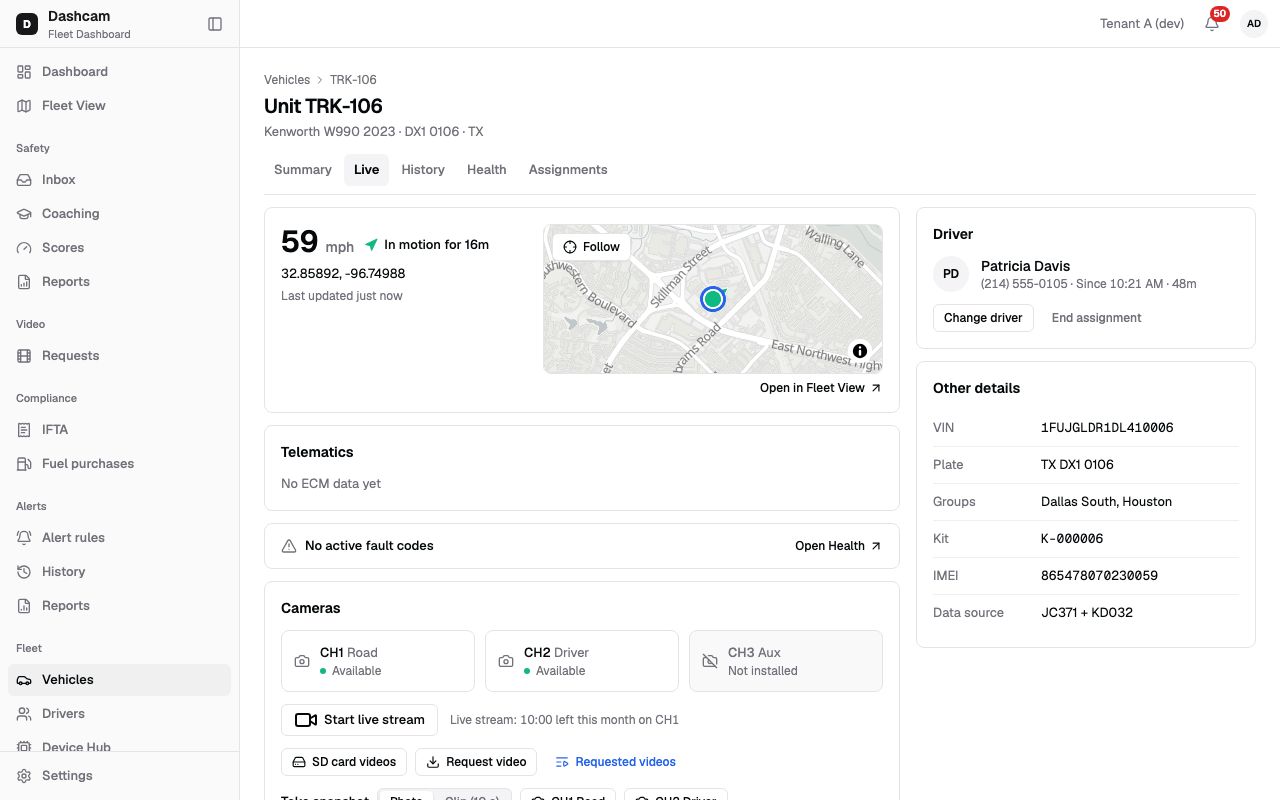
Section titled “Quick path”- Open the vehicle and go to its Live tab.
- In Take snapshot, choose Photo or Clip (10 s).
- Click the camera, for example CH1 Road.
- Wait for Requesting snapshot… to finish, then open it in Recent snapshots.
What it is and why
Section titled “What it is and why”A snapshot answers “what does the camera see this minute?” without spending live stream minutes. The camera takes a photo, or records a 10-second clip, and uploads it to Roudiy. Example: the shipper says TRK-106 left the trailer doors open. You take a Photo from CH3 Aux and see the doors in a few moments, then download the picture for the customer.
Snapshots stay in the Recent snapshots strip for 7 days. For footage from the past, use SD card video instead. See Video for how the kinds of video differ.
Before you start
Section titled “Before you start”- You need the
video.snapshotpermission. By default only the Company Admin and Safety Manager have it — the default Dispatcher role does not. Without it, the snapshot row is not shown at all. A custom role can add it. - The driver-facing camera (CH2) is offered only if you also have driver-facing access; see Camera & privacy.
- The truck must be online with the ignition on. Snapshot buttons are disabled when the truck is offline (Device is offline) or the ignition is off (Device is sleeping).
The replay could not be loaded. The steps below still describe every action.
The demo kit is simulated: it accepts the request but never uploads the photo, so the replay ends on Requesting snapshot… and an empty Recent snapshots strip. The steps below describe a real kit.
Step by step
Section titled “Step by step”-
Find the snapshot row.
On the vehicle’s Live tab, scroll to the Cameras block. Under the live stream and SD card buttons is a row starting with Take snapshot.
-
Choose Photo or Clip.
The Snapshot type switch has Photo (a still image) and Clip (10 s) (a 10-second video).
-
Click a camera.
Next to the switch is one button per camera you may use, for example CH1 Road, CH2 Driver or CH3 Aux. Click one. The request goes to the truck straight away.
-
Wait for the result.
The row shows Requesting snapshot…. Roudiy checks every 3 seconds and waits up to 4 minutes for the truck. While any snapshot of this truck is pending, all snapshot buttons are disabled. If a colleague started it, you see Snapshot in progress instead.
-
Open the snapshot.
When it is ready, it appears first in Recent snapshots as a thumbnail with a chip such as CH1 or CH1 · Clip, the time and who took it: By you, By Maria Lopez or By another user. Click it to open the viewer. Its title reads, for example, TRK-106 · CH1 · Road · Oct 24, 2:05 PM CDT. A photo shows as an image; a clip plays in the standard player.
-
Download it (optional).
Click Download in the viewer footer. The file is named after the truck, channel and time, for example
TRK-106_CH1_…jpgfor a photo or.mp4for a clip. Close returns to the tab.
Player keys
Section titled “Player keys”In the clip player: Space or K plays and pauses, ← and → jump 5 seconds, M mutes and F toggles full screen. The player also has a speed button, Download and full screen.
What happens next
Section titled “What happens next”- The snapshot stays in Recent snapshots on this truck’s Live tab for 7 days. The strip also shows snapshots your colleagues took. Only finished snapshots are listed.
- To keep a longer piece of video, request it from the SD card; it then shows in Video requests.
If something goes wrong
Section titled “If something goes wrong”| Message on screen | Why | What to do |
|---|---|---|
| Device is offline / Device is sleeping | The truck is offline or the ignition is off, so buttons are off. | Try again when the truck is running. |
| Camera could not take the snapshot | The camera failed to capture. | Click Try again, or pick another channel. |
| Device did not respond | The truck did not answer within the waiting time. | Click Try again. |
| Camera did not return an image | The camera answered but sent no image. | Click Try again, or pick another channel. |
| Video format is not supported | The camera sent the clip in a video format Roudiy does not accept (H.265). | Take a Photo instead, or contact Roudiy support. |
| The snapshot failed | Another error. | Click Try again. |
| The snapshot is not available | The file is missing when you open the viewer. | Take a new snapshot. |
| Couldn’t load snapshots. Retry | The recent list did not load. | Click Retry. |
Questions
Section titled “Questions”Why don’t I see Take snapshot?
Your role has no video.snapshot permission. This is the case for the default Dispatcher role. Ask
your Company Admin.
Does a snapshot use live stream minutes? No. Minutes are only counted while a live stream runs.
How long are snapshots kept in the list? Recent snapshots shows the last 7 days; an empty strip says No snapshots in the last 7 days.