Start a coaching session
Quick path
Section titled “Quick path”- Open Safety → Coaching. The Needs coaching tab opens.
- Find the driver; sort with Longest on list or Lowest score, or filter by Group.
- Click Start session in the driver’s row.
- The session page opens with up to 50 of the driver’s coachable events that aren’t in an open session (confidential events only if you can see them), you as coach and a due date 14 days out.
What it is and why
Section titled “What it is and why”A coaching session is one sit-down with one driver about the events they should hear about. Events get there from the Safety Inbox: when you mark an event Coachable, the driver shows up on the Needs coaching list. Starting a session gathers those events in one place, so nothing is forgotten and you can track when the talk happened.
Example: on Tuesday you marked two Phone call events and one Forward collision warning of James Carter as coachable. On Thursday he is at the Dallas North yard. You open Needs coaching, see him with 3 coachable events, click Start session, and the session with all three events is ready before he walks in.
There is no start dialog. You do not pick the events, the coach or the due date when you start; Roudiy fills them in and you can change the coach and the due date afterwards.
Before you start
Section titled “Before you start”- You need Coaching: create. By default the Company Admin and the Safety Manager have it; the Dispatcher and the Compliance Manager do not, so they do not see the Coaching page at all.
- The driver needs at least one Coachable event that is not already in an open session. Mark events coachable in the Safety Inbox or on the event page. How reviews work is explained in Safety events.
- You see only drivers in your groups. See Groups and access.
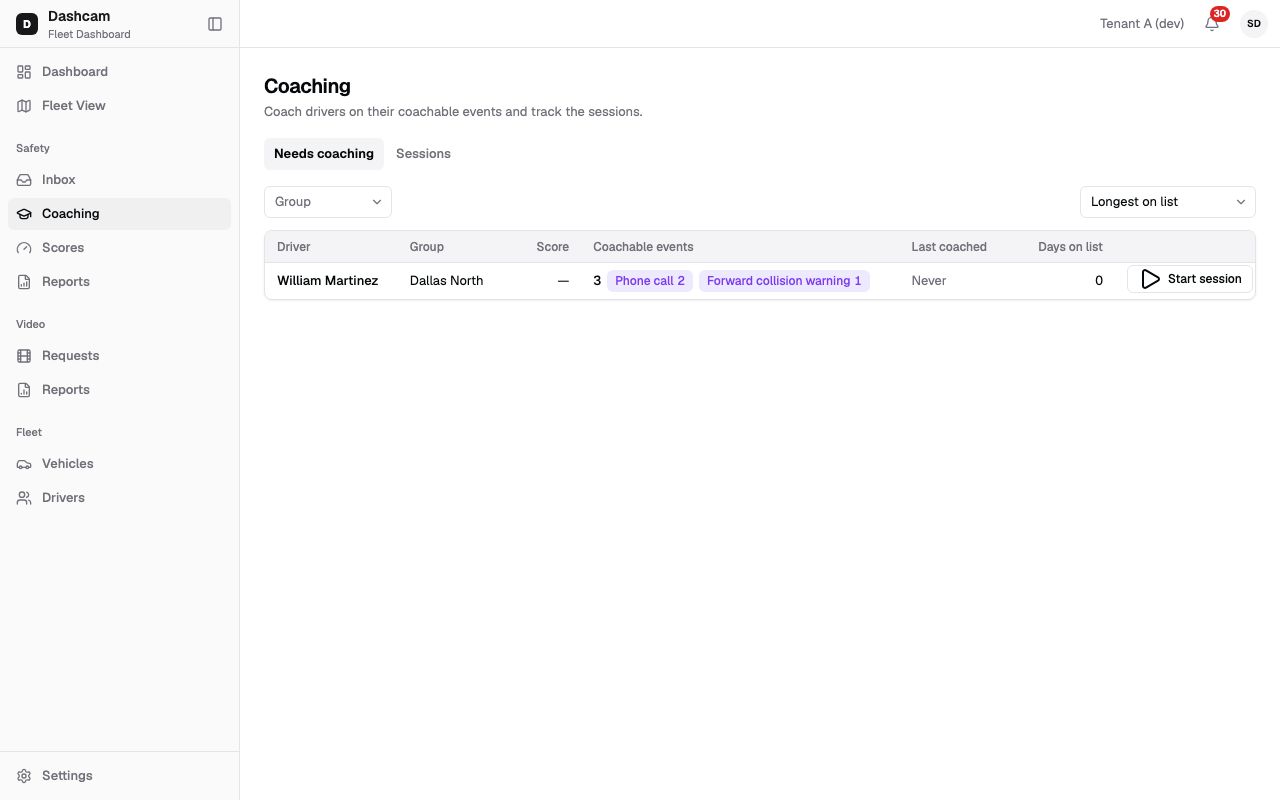
The replay could not be loaded. The steps below still describe every action.
The replay was recorded on a demo company with one driver on the list.
Step by step
Section titled “Step by step”-
Open the Coaching page.
In the sidebar click Safety → Coaching. The header reads Coach drivers on their coachable events and track the sessions. Two tabs sit below it: Needs coaching (opens first) and Sessions.
-
Read the Needs coaching table.
Each row is a driver with coachable events that are in no open session:
Column What it shows Driver The driver’s name. Group The driver’s groups, for example Dallas North, or —. Score The driver’s latest weekly safety score, or —. Coachable events The count, plus up to 3 badges for the most frequent types, for example 3 · Phone call 2. Last coached How long ago the driver’s last session was completed, or Never. Days on list Days since the oldest of these events became coachable. 0 means less than a day. Rows are not clickable; the only action is the Start session button at the end of the row. The whole list loads at once, without pages.
-
Narrow and sort the list.
- Group (multi-select) shows only drivers in the groups you pick. You see it if your role has Groups: list, which all system roles have by default.
- The sort menu offers Longest on list (the default), Newest on list, Lowest score and Highest score. Longest on list puts the drivers who have waited longest at the top, so nobody waits for weeks.
-
Click Start session.
Click Start session in the driver’s row. The button shows a spinner and the other Start session buttons are disabled until it finishes. Roudiy then creates the session:
- Events: up to 50 of the driver’s coachable events that are not in an open session. Confidential events are included only if you can see them.
- Coach: you.
- Due date: 14 days from today.
The session page opens by itself.
-
Adjust the coach and due date if needed.
On the session page use Coach and Due date in the top right. The due date can be up to 60 days after the session was created. In the Coach list, a user with Users: list sees the company’s active users; everyone else sees only themselves. By default only the Company Admin has Users: list, so a Safety Manager can pick only themselves as coach. Every change saves at once and shows Session updated.
What happens next
Section titled “What happens next”- The driver normally leaves the Needs coaching list, because their coachable events are now in an open session. If the driver had more than 50 such events, the rest stay outside the session and the driver stays on the list. New coachable events marked later bring them back to the list.
- The session appears on the Sessions tab with the status Open. Past its due date it shows Overdue.
- Go through the events with the driver as described in Run a coaching session.
- Nothing is sent to the driver. Roudiy has no driver app; the conversation is yours.
If something goes wrong
Section titled “If something goes wrong”| Message on screen | Why | What to do |
|---|---|---|
| This driver has no coachable events left | Someone reviewed or coached the events after your list loaded. The list reloads. | Nothing to start. Check the driver’s events in the Safety Inbox. |
| These events are already in an open session | Another user started a session for this driver a moment earlier. The list reloads. | Open the Sessions tab and continue that session. |
| No drivers need coaching | No driver in your groups has coachable events outside an open session. | Mark events Coachable in the Inbox first. |
| No drivers in these groups need coaching | The Group filter hides everyone. | Clear or change the Group filter. |
| Could not load drivers | The list failed to load. | Click Retry. |
| You don’t have access to this page | Your role lacks Coaching: list. | Ask your Company Admin for a role with coaching permissions. |
Any other problem while starting shows an error message from the server.
Questions
Section titled “Questions”Can I start a session from the Inbox or the driver’s profile? No. Start session exists only on the Needs coaching tab.
Can I choose which events go into the session? Not at start; up to 50 eligible events go in. On the session page you can Dismiss an event that should not be discussed, or add more with Add events.
Can I make a Dispatcher the coach? Only if your role has Users: list, which by default only the Company Admin has. With it, the Coach list shows the company’s active users; without it, it shows only you.
Why is the Score column empty? The driver has no weekly score yet, for example under 100 miles or before the first Monday calculation. See Safety scores.