Import vehicles from CSV
Quick path
Section titled “Quick path”- On Fleet → Vehicles click Import CSV.
- Click Download template and fill in one vehicle per row.
- Save as CSV (UTF-8), click Choose file and pick it.
- Click Upload, then Done.
What it is and why
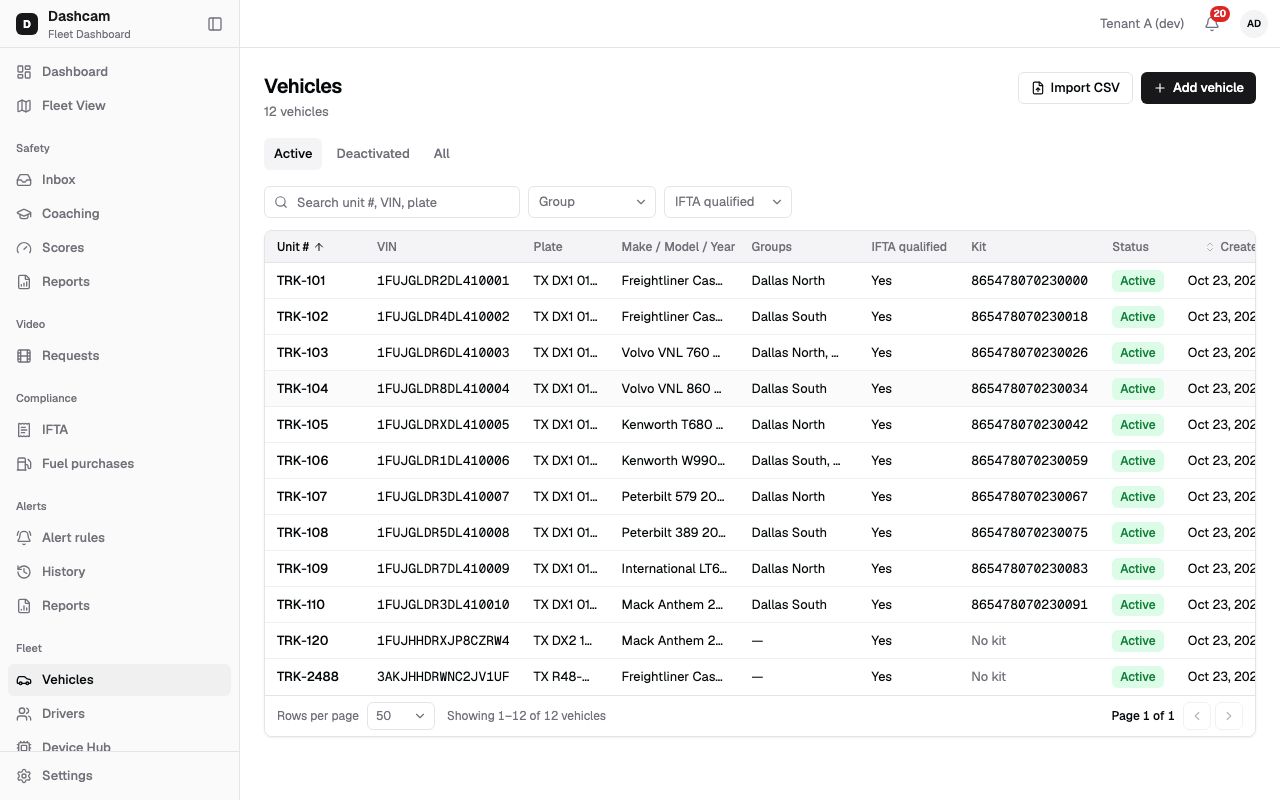
Section titled “What it is and why”With a large fleet, typing trucks one by one takes too long. Fill the template in a spreadsheet and upload it once. For example, you bring TRK-101 to TRK-110 into Roudiy in one file: five rows with the group Dallas North and five with Dallas South.
The file is imported all or nothing. If any row has an error, nothing is added and you get a list of errors by row. Fix them and upload the same file again; there is no half-imported state to clean up.
Before you start
Section titled “Before you start”- By default only the Company Admin can import vehicles. A custom role may also have this right.
- The groups you put in the file must already exist. Import does not create them; see Groups.
- The import only adds new vehicles. It does not update existing ones, and it does not pair kits or assign drivers.
The replay could not be loaded. The steps below still describe every action.
Step by step
Section titled “Step by step”-
Open the import dialog.
On Fleet → Vehicles click Import CSV. The dialog Import vehicles says Fill in the template, one row per line. The file is imported all or nothing.
-
Download and fill in the template.
Click Download template. Keep the header row exactly as it is. The template has these columns and a sample row:
unit_number,vin,plate_number,plate_state,make,model,year,gvwr_lb,axles,fuel_type,ecm_connector,groupT-101,1FUJGLDR2CSBB1234,ABC1234,TX,Freightliner,Cascadia,2022,80000,3,diesel,9_pin,Replace the sample with your trucks, one per row. Rules for the values:
- unit_number and vin are required. The VIN is 17 characters without I, O or Q.
- plate_state is required when plate_number is filled, for example
TX. - fuel_type: leave empty for diesel.
- ecm_connector:
9_pin,16_pinorunknown; leave empty for unknown. - group: the name of an existing group, for example
Dallas North; upper or lower case does not matter. If your access is limited to certain groups, the group is required. - Unit numbers and VINs must not repeat in the file or match vehicles you already have, including deactivated ones.
- There is no IFTA qualified column: Roudiy works it out from gvwr_lb and axles.
Other fields follow the same rules as Add a vehicle.
-
Save and choose the file.
Save the spreadsheet as CSV (UTF-8). In the dialog, click Choose file and pick it. Only
.csvfiles up to 5 MB are accepted; before you pick one, the dialog shows No file chosen · .csv up to 5 MB. A file with more than 1,000 rows shows The file has N rows; up to 1,000 are accepted. — split it into smaller files. In practice, keep each file under 1 MB: a larger file is refused with File is too large (max 5 MB). Nothing was imported. even though the dialog says 5 MB. -
Upload.
Click Upload. The button shows Uploading… while the file is checked.
-
Check the result.
- Success: the dialog and a message show, for example, 10 vehicles imported. Click Done.
- Rejected: the dialog shows File rejected: N errors. Nothing was imported. and a table with Row, Column and Error. Row numbers count the header as line 1, so your first vehicle is row 2. Click Download errors (CSV) to keep the list, fix the rows and upload again.
What happens next
Section titled “What happens next”- The new vehicles are on the Active tab of Fleet → Vehicles, with No kit in the Kit column.
- Kits are paired by the installer or in Device Hub; drivers are assigned on each vehicle’s Live tab.
If something goes wrong
Section titled “If something goes wrong”The file is not accepted
| Message on screen | Why | What to do |
|---|---|---|
| Pick a .csv file | The file is not a .csv. | Save the spreadsheet as CSV (UTF-8). |
| File is too large (max 5 MB) | The file is over 5 MB, or over 1 MB when uploaded. | Split it into files under 1 MB. |
| The file is empty / The file has no data rows. | The file has no content, or only the header. | Add at least one vehicle row. |
| File is larger than 5 MB or has more than 1,000 rows | The server refused the size or the row count. | Split the file. |
| Column x is missing. Download the template. | A template column was removed or renamed. | Download the template and copy your data into it. |
| Unknown column x. Download the template. | The header has a column the template does not. | Remove the extra column or start from the template. |
Typical row errors
| Error in the table | What to do |
|---|---|
| unit_number is required | Fill in the unit number. |
| vin must be 17 characters without I, O, Q | Correct the VIN. |
| plate_state is required with plate_number | Add the 2-letter state, or clear the plate. |
| unit_number repeats an earlier row | Give each truck its own unit number. |
| a vehicle with this vin exists | Remove the row; the truck is already in Roudiy (possibly deactivated). |
| no group named “X” | Fix the group name or create the group first. |
Questions
Section titled “Questions”Can I use the import to update vehicles I already have? No. It only adds new vehicles. Change existing ones with Edit.
Some rows were fine. Why was nothing imported? The import is all or nothing. Fix the listed rows and upload the whole file again.
Does the import pair kits or assign drivers? No. Kits and assignments are not imported. Kits are paired in Device Hub or by the installer, and drivers are assigned on the vehicle’s Live tab.