Safety settings
Quick path
Section titled “Quick path”- Open Settings → Safety.
- In ADAS · road camera and DMS · driver camera set Activation speed (mph), switch events on or off and pick a sensitivity.
- Click Save, check the list of changes and click Save and send.
- Watch Push status; click Retry failed if a kit failed.
What it is and why
Section titled “What it is and why”These settings decide which events the cameras raise in the first place, for every kit in your company. ADAS events come from the road camera (for example forward collision warning), DMS events from the driver-facing camera (for example phone use). If drivers get too many false alerts of one kind, lower its sensitivity; if you do not want an event at all, switch it off.
Example: your drivers in Dallas South get many Close following alerts that turn out to be false. You set Close following to Low and save. Roudiy sends the new settings to every kit.
Before you start
Section titled “Before you start”- You need Safety: settings. By default only the Company Admin has it. There is no read-only view; without the permission the page is blocked.
- A kit takes ADAS or DMS settings only if it has that licence. The badge Licensed on 8 of 10 kits on each card shows how many kits have it.
- To learn what each event means, see Safety events.
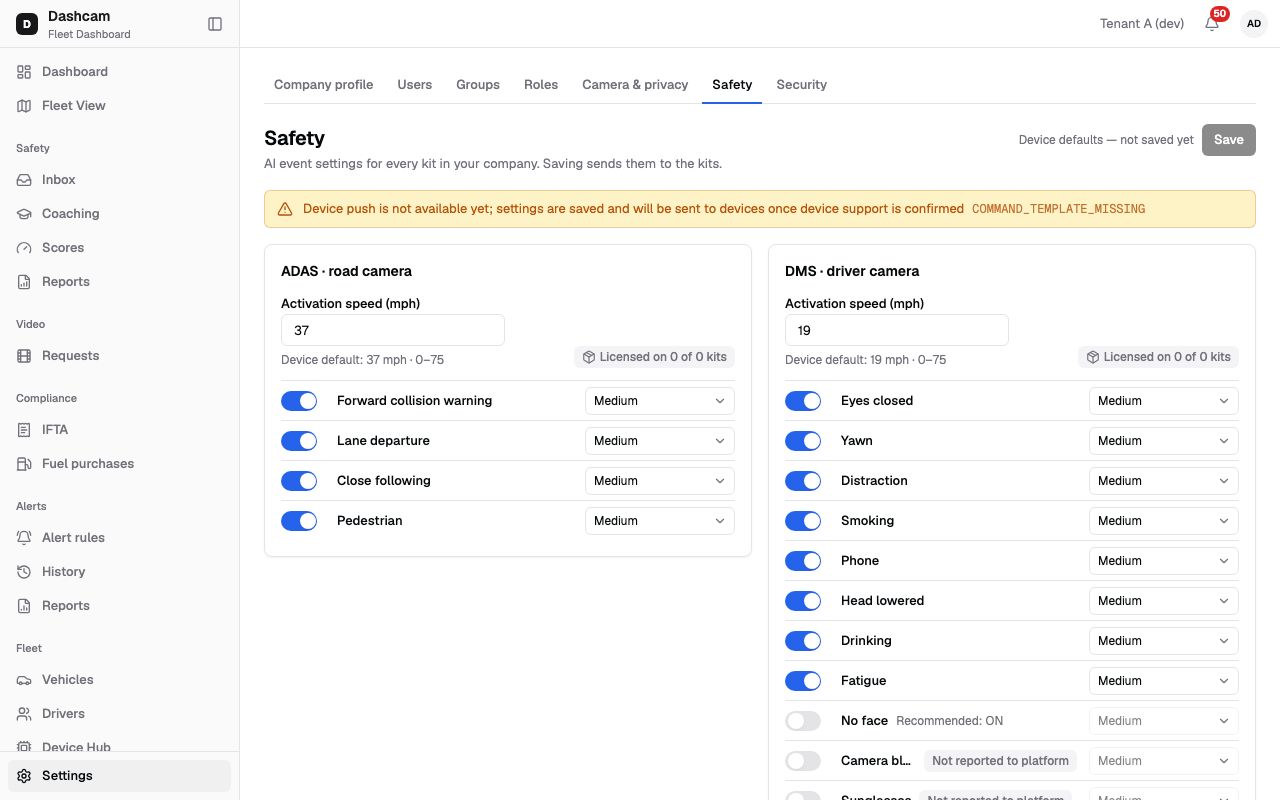
The replay could not be loaded. The steps below still describe every action.
The replay was recorded on a demo company with no kits, so it shows 0 kits and the Device push is not available yet banner.
Step by step
Section titled “Step by step”-
Open the page.
Click Settings, then the Safety tab. The header reads AI event settings for every kit in your company. Saving sends them to the kits. If nothing was ever saved, the status next to Save reads Device defaults — not saved yet.
-
Set the activation speeds.
Each card (ADAS and DMS) has its own Activation speed (mph) setting. Enter a whole number from 0 to 75. The hint shows the device default: 37 mph for ADAS and 19 mph for DMS. A wrong value shows 0–75 mph and Save stays disabled.
-
Switch events on or off and set the sensitivity.
Each row has a switch, the event name and a sensitivity: Off, Low, Medium or High. The sensitivity is greyed out while the switch is off.
- ADAS · road camera: Forward collision warning, Lane departure, Close following, Pedestrian.
- DMS · driver camera: Eyes closed, Yawn, Distraction, Smoking, Phone, Head lowered, Drinking, Fatigue, No face, Camera blocked, Sunglasses, Seatbelt.
Before the first save, all events are on at Medium except No face, Camera blocked and Sunglasses, which are off. No face shows the label Recommended: ON. Camera blocked, Sunglasses and Seatbelt carry the badge Not reported to platform: they are not reported as Safety Inbox events.
-
Save and send.
The status shows how many changes you have, for example 2 unsaved changes. Discard undoes them at once. Click Save. The dialog Settings will be sent to 10 kits says Kits that are offline get them when they reconnect (within 7 days). and lists the changes, for example ADAS · Activation speed → 40 mph or DMS · Phone → Off. Click Save and send. You see Settings saved and sent to 10 kits.
-
Check the push status.
Push status lists each kit with Unit, IMEI, Status, Failed part (for example ADAS — License missing), Last attempt and Error. The status is Pending, Applied, Applied manually, Partial, Failed or Not applied. A summary line reads, for example, 10 kits · 8 applied · 2 pending · refreshes every 10 s (parts that are zero are left out); while a kit is pending the table reloads every 10 seconds. Retry failed is enabled when any kit is failed or partial, but it sends the settings again only to failed kits: Sending again to 2 kits.
If you try to leave with unsaved changes, Roudiy asks Discard changes? — Your unsaved changes will be lost. Choose Discard or Keep editing.
Names on this page and in the Inbox
Section titled “Names on this page and in the Inbox”Some events have a shorter name here than in the Safety Inbox:
| Name in Safety settings | Name in the Safety Inbox |
|---|---|
| Pedestrian | Pedestrian collision warning |
| Yawn | Yawning |
| Phone | Phone call |
| Head lowered | Head down |
| No face | No direct match confirmed |
| Camera blocked, Sunglasses, Seatbelt | Not in the Inbox |
| Forward collision warning, Lane departure, Close following, Eyes closed, Distraction, Smoking, Drinking, Fatigue | Same name |
| Not on this page | Harsh acceleration, Harsh braking, Harsh turn, Collision, SOS, Speeding, Device overspeed |
Harsh driving, collision, SOS and speeding events are not set here.
What happens next
Section titled “What happens next”- Every active or offline kit is sent the settings. Offline kits get them when they reconnect, for up to 7 days; a kit that stays offline longer shows Device offline for 7 days.
- Each kit uses the new settings once it applies them. Push status shows where each kit is: Pending, Applied, Applied manually, Partial, Failed or Not applied.
If something goes wrong
Section titled “If something goes wrong”| Message on screen | Why | What to do |
|---|---|---|
| Settings were changed by another user | Someone saved while you were editing. | Click Reload, then make your changes again. |
| Device push is not available yet; settings are saved and will be sent to devices once device support is confirmed | Sending to devices is not enabled for your kits yet. | Your settings are saved. Contact your Roudiy account manager. |
| 0–75 mph | The speed is empty, not a whole number or over 75. | Enter a whole number from 0 to 75. |
| No ADAS/DMS licence | The kit has no licence for that part. | Contact your Roudiy account manager about licences. |
| No answer from the device | The kit did not reply. | Check that the kit is online, then Retry failed. |
| Device rejected the command | The kit refused the settings. | Click Retry failed; if it repeats, contact support. |
| Not supported by this device | The kit cannot take these settings. | Contact support. |
| Another command is running | The kit is busy with another command. | Wait a moment, then Retry failed. |
| Replaced by a newer save | A later save replaced this one. | Nothing to do; the newer settings are being sent. |
| Couldn’t load safety settings | Loading failed. | Click Retry. |
Questions
Section titled “Questions”Can different trucks have different settings? This page applies the same settings to every kit in your company.
I switched Seatbelt on. Why are there no seatbelt events? Seatbelt is Not reported to platform: it is not reported as a Safety Inbox event.
When do new settings start working? Each kit uses them once it applies them. Check Push status: Pending, Applied, Partial, Failed and the other statuses show where each kit is.