The dashboard
Quick path
Section titled “Quick path”- Click Dashboard, the first item in the sidebar.
- Optional: pick a group in the Group selector.
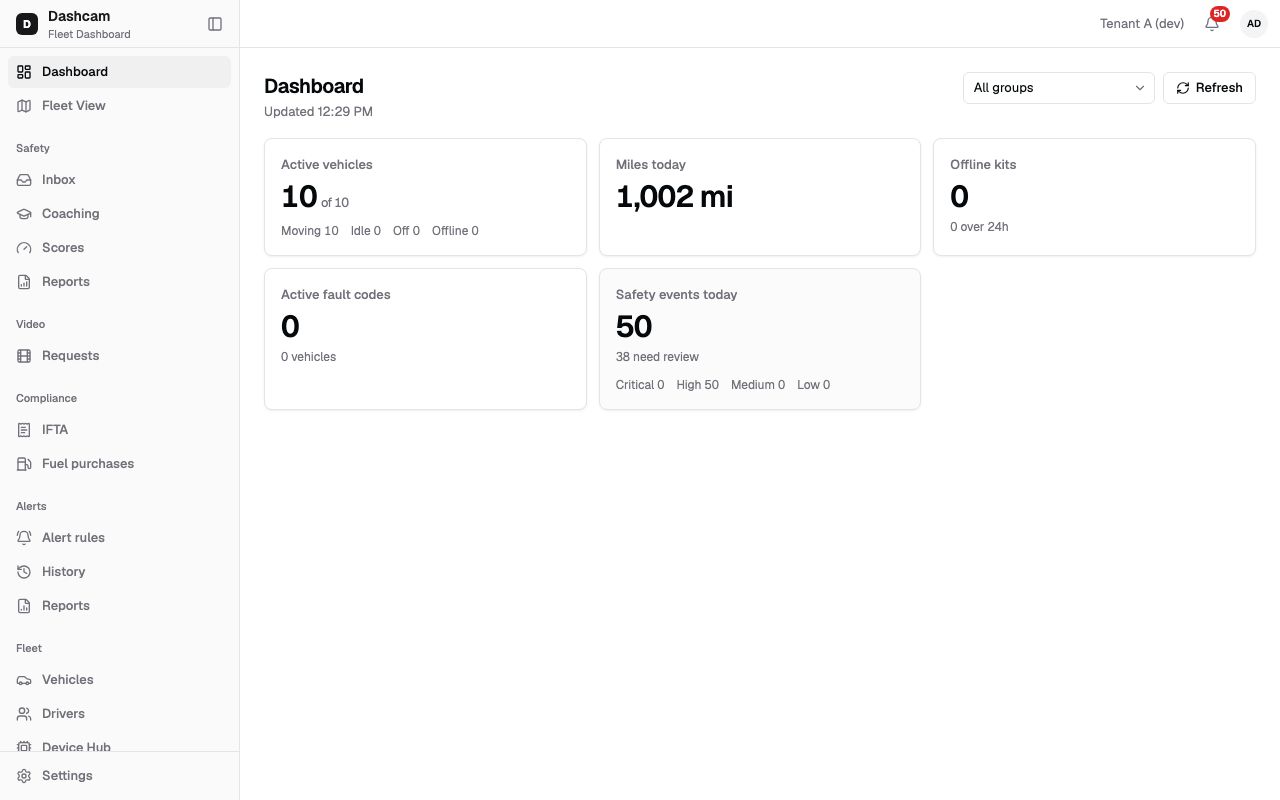
- Read the tiles: Active vehicles, Miles today, Offline kits, Active fault codes and Safety events today.
- Click a number to open the matching list.
- Click Refresh for fresh numbers, or wait: the page refreshes every 5 minutes.
What it is and why
Section titled “What it is and why”The dashboard answers “how is the fleet doing right now?” on one screen. It shows only today and now: how many trucks are moving, how many miles they drove since midnight, which kits went quiet, which trucks have engine fault codes and how many safety events came in. Each number leads to the page where you act on it.
Example: at 7 AM a dispatcher in Dallas sees Offline kits at 2 with 1 over 24h. One click opens Device Hub filtered to offline kits, and the dispatcher calls the driver of the truck that has been silent since yesterday.
Before you start
Section titled “Before you start”- You need Reports: view. By default the Company Admin, the Dispatcher and the Safety Manager have it; the Compliance Manager does not and has no Dashboard in the sidebar.
- Dashboard is the first page in the sidebar, so it is the page the app opens when you go to app.roudiy.com and have this permission.
- You see only the vehicles of your groups. See Groups and access.
- The numbers need at least one paired kit. See Pair a kit.
The replay could not be loaded. The steps below still describe every action.
Step by step
Section titled “Step by step”-
Open the dashboard.
Click Dashboard in the sidebar. Under the title you see when the numbers were last loaded, for example Updated 9:42 AM. Times are shown in 12-hour format in your time zone.
-
Choose a group (optional).
The Group selector starts on All groups. Pick a group, for example Dallas North, and every tile reloads for that group only. The choice is kept in the page address, so you can bookmark the Dallas North view. If your access is limited to some groups, the list holds only those. It becomes searchable when there are more than 8 groups, and it is hidden when there is nothing to choose.
-
Read the tiles.
The tiles appear in this order. For Active vehicles, Miles today and Offline kits, “today” starts at midnight in your company time zone (UTC if none is set). Safety events today counts from midnight in your own time zone: your personal one if you set it, otherwise the company one.
Tile What it shows Active vehicles Trucks moving or idling now, out of all trucks with a paired kit, for example 5 of 12. Below: Moving, Idle, Off and Offline counts. Deactivated trucks are not counted. Miles today Miles of the trips that started today, for example 12.3 mi. A trip that started before midnight counts toward yesterday. Offline kits Trucks whose kit is offline now. The line below, for example 1 over 24h, counts the ones already flagged for 24 hours without data. Active fault codes Open engine fault codes across the fleet, with the number of trucks that have at least one, for example 3 vehicles. Safety events today All safety events since midnight in your time zone, with n need review and a line Critical, High, Medium, Low. Shown only if your company has the video safety module and your role has Safety: events list. A tile that could not load shows — instead of a number. The other tiles keep working.
-
Click through to the details.
- Moving, Idle, Off or Offline under Active vehicles opens Fleet View filtered to that state. The tile itself is not a link.
- Offline kits opens Device Hub filtered to offline kits. It needs Devices: list (Company Admin and Dispatcher by default).
- Active fault codes opens Fleet View with the faults filter on.
- Safety events today opens the Safety Inbox for today in your time zone. It shows every event of the day, not only the ones that need review.
- Miles today is not a link.
A tile is clickable only when its numbers loaded and your role can open the target page.
-
Refresh.
Click Refresh to reload every tile; a spinner turns while it loads. The page also refreshes by itself every 5 minutes while it stays open.
What happens next
Section titled “What happens next”- The dashboard only reads data; nothing you do here changes the fleet.
- There is no date picker, chart or history here. For a past period, use Run a report. For safety trends, see Safety reports.
If something goes wrong
Section titled “If something goes wrong”| Message on screen | Why | What to do |
|---|---|---|
| Times shown in UTC until company time zone is set | Your company has no time zone yet, so “today” starts at midnight UTC. | Ask your Company Admin to set the time zone in Company profile. |
| Could not load dashboard | The numbers failed to load. | Click Retry. If it keeps failing, click Copy details and send them with the reference to support. |
| No vehicles are reporting yet | No truck has a paired kit, so there is nothing to count. | Pair a kit; Tiles fill in once a paired kit sends data. Go to Device Hub takes you there. |
| — on one tile | That tile failed to load. | Click Refresh. |
| You don’t have access to this page | Your role lacks Reports: view. | Click Go to home, or ask your Company Admin for access. |
Questions
Section titled “Questions”Why does Miles today look low in the morning? It counts only trips that started after midnight in your company time zone. A night trip that began before midnight belongs to yesterday.
Can I see yesterday or last week here? No. The dashboard shows today and now only. Run a report for any other period.
Why don’t I see the Safety events today tile? Your company does not have the video safety module, or your role lacks Safety: events list.