Export the IFTA return
Quick path
Section titled “Quick path”- Open Compliance → IFTA and pick the quarter.
- If there is more than one version, pick it in Version.
- Click PDF, Jurisdictions CSV or Vehicle distance (IVDR) CSV.
- The file opens in a new tab. Save it; the link works for 15 minutes.
What it is and why
Section titled “What it is and why”Roudiy builds the IFTA numbers, and you file them with your base state. The export gives you the files for that: a PDF to keep with your records, a Jurisdictions CSV with the miles, gallons and tax per state to copy into your return, and a Vehicle distance (IVDR) CSV with every trip per state for an audit.
Example: after you lock Q3 2026, you download the PDF for your files and the Jurisdictions CSV to fill in the return. A year later an auditor asks how many miles TRK-103 drove in Oklahoma; the IVDR CSV of that quarter answers it trip by trip.
Before you start
Section titled “Before you start”- You need Ifta: export. By default the Company Admin and the Compliance Manager have it.
- The quarter needs a generated version; the buttons appear once one exists. See Build a quarterly IFTA report.
- If you file from the files, lock the quarter first, so the filed numbers cannot change.
The replay shows a sample quarter, so every step is visible; your report uses your own trips and fuel purchases.
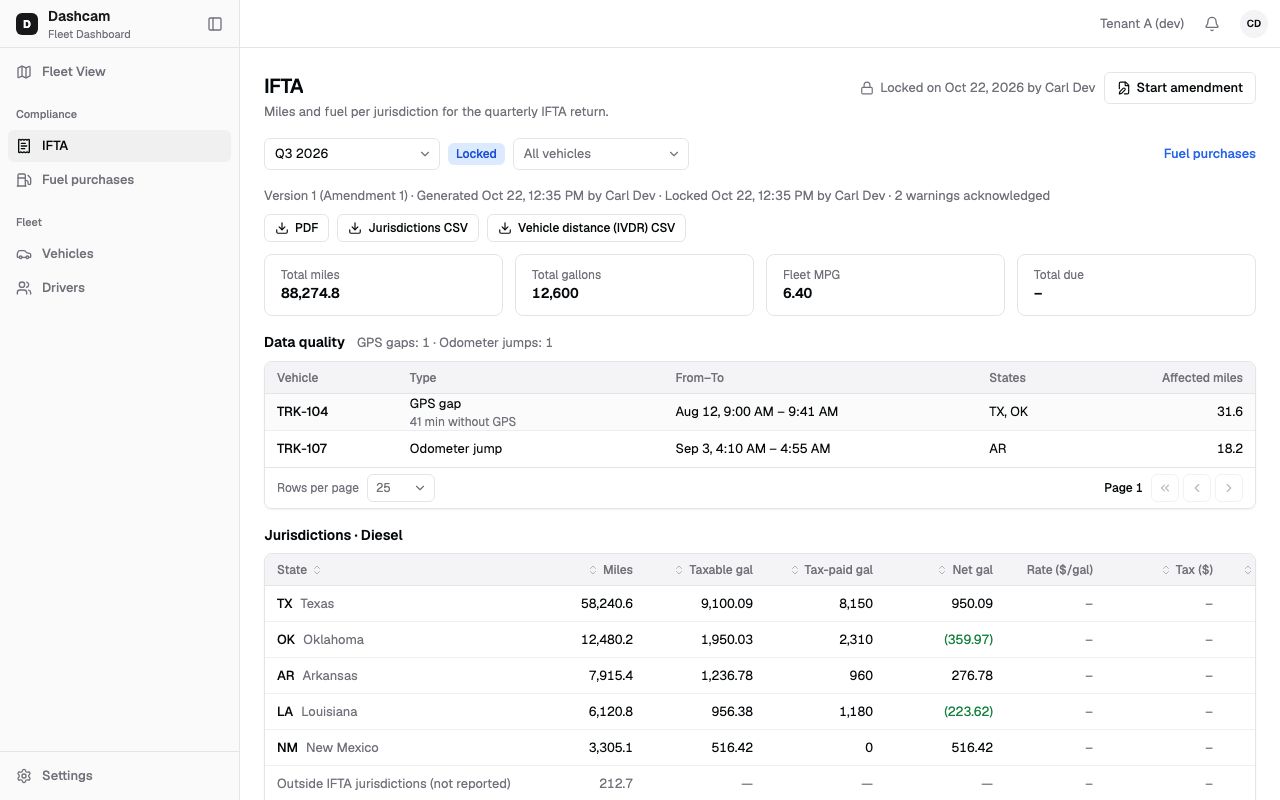
The replay could not be loaded. The steps below still describe every action.
Step by step
Section titled “Step by step”-
Open the quarter and the version.
On Compliance → IFTA pick the quarter. The export uses the version you are looking at. When the quarter has amendments, pick Original or an amendment in Version.
-
Click the file you need.
Click PDF, Jurisdictions CSV or Vehicle distance (IVDR) CSV. While Roudiy builds the file, the button spins and the page checks every 5 seconds. Then the file opens in a new tab through a link that is valid for 15 minutes. Save it right away; if the link has expired, click the button again.
The file names show the quarter and the version. The original report is version 0, Amendment 1 is version 1, and so on. For Amendment 1 of Q3 2026:
File Example name PDF ifta-2026-Q3-v1.pdfJurisdictions CSV ifta-2026-Q3-v1-jurisdictions.csvIVDR CSV ifta-2026-Q3-v1-ivdr.csv -
Check the PDF.
The PDF is US Letter size. It contains:
- A header IFTA Quarterly Report with the quarter, your company name and USDOT number, and the version with its status and generation time.
- For an amendment: a red AMENDED line with the amendment number and date, and the reason.
- Summary by fuel type: fuel type, total miles, total gallons, fleet MPG and total due, then Total due or Total credit.
- A note listing states without tax rates, if any: the tax totals are then incomplete.
- A Jurisdictions table per fuel type: miles, taxable, tax-paid and net gallons, rate, tax, surcharge and total due. The legend explains that OUT means miles outside the IFTA jurisdictions (not reported), money is in USD and a value in parentheses is a credit.
- For an amendment: a table of changes compared with the earlier version.
- Vehicle breakdown: miles per truck, fuel type and state.
-
Use the Jurisdictions CSV.
One row per fuel type and state, with the columns fuel_type, jurisdiction, miles, taxable_gallons, tax_paid_gallons, net_gallons, fleet_mpg, tax_rate_usd_per_gal, surcharge_rate_usd_per_gal, tax_usd, surcharge_usd and total_due_usd. Gallons have 4 decimals. A credit is a negative number. The tax columns are empty for OUT and for states without a rate.
-
Use the IVDR CSV for audits.
One line per trip, with the columns unit_number, vin, trip_id, date, jurisdiction, entered_at, entry_lat, entry_lng, entry_odometer_mi, exited_at, exit_lat, exit_lng, exit_odometer_mi, miles and distance_source. It shows where each truck entered and left each state and whether the miles came from the odometer or GPS.
What happens next
Section titled “What happens next”- After an amendment, export its version too. Earlier versions and their files stay as they are, so you can still export the original.
If something goes wrong
Section titled “If something goes wrong”| Message on screen | Why | What to do |
|---|---|---|
| Export failed | Roudiy could not build the file after several tries. | If you can generate and the version is a draft amendment or the quarter is unlocked, click Retry: it generates the report again. On a locked quarter there is no Retry: contact Roudiy support or, if needed, start an amendment. |
| No export buttons | The quarter has no generated version, or you lack Ifta: export. | Generate the report, or ask your Company Admin. |
| The link no longer opens | Download links are valid for 15 minutes. | Click the button again for a new link. |
| Tax columns empty | Rates are missing for some states, or the row is OUT. | OUT never has tax. For missing rates, see the warning on the IFTA page. |
Questions
Section titled “Questions”Which version do I get? The one you are viewing. Pick it in Version before you click.
Can I export before locking? Yes, any generated version can be exported. For filing, lock first so the numbers stay as filed.
Why are credits shown differently in the PDF and the CSV? The PDF shows a credit in parentheses, as in the report. The CSV uses a negative number.