Camera & privacy
Quick path
Section titled “Quick path”- Open Settings → Camera & privacy.
- Under Driver-facing camera (CH2), tick the roles that may see it, or choose Hidden for everyone.
- Set the Audio switches and the Event video upload table.
- Click Save.
What it is and why
Section titled “What it is and why”Your kits record on camera channels: CH1 is the road camera, CH2 the driver-facing camera and CH3 an auxiliary camera. Video of the cab is the most personal of them. This page decides Who can see driver-facing video, audio recording and which cameras upload event video. It applies to the whole company.
For example, your Safety Manager reviews a Fatigue event of James Carter in TRK-101 and needs the cab view to coach him; your dispatchers do not. By default CH2 is visible to the Safety Manager role and to Company Admins, so you keep that and leave Dispatcher unticked. Background on the channels is in Video.
Before you start
Section titled “Before you start”- To see the page you need
org.view. To change it you needorg.settings.privacy; without it the page says Read-only for your role and the controls are disabled, and there are no Save or Discard buttons. - Talk to your drivers (and your policy) before you change who sees CH2 or whether audio is recorded.
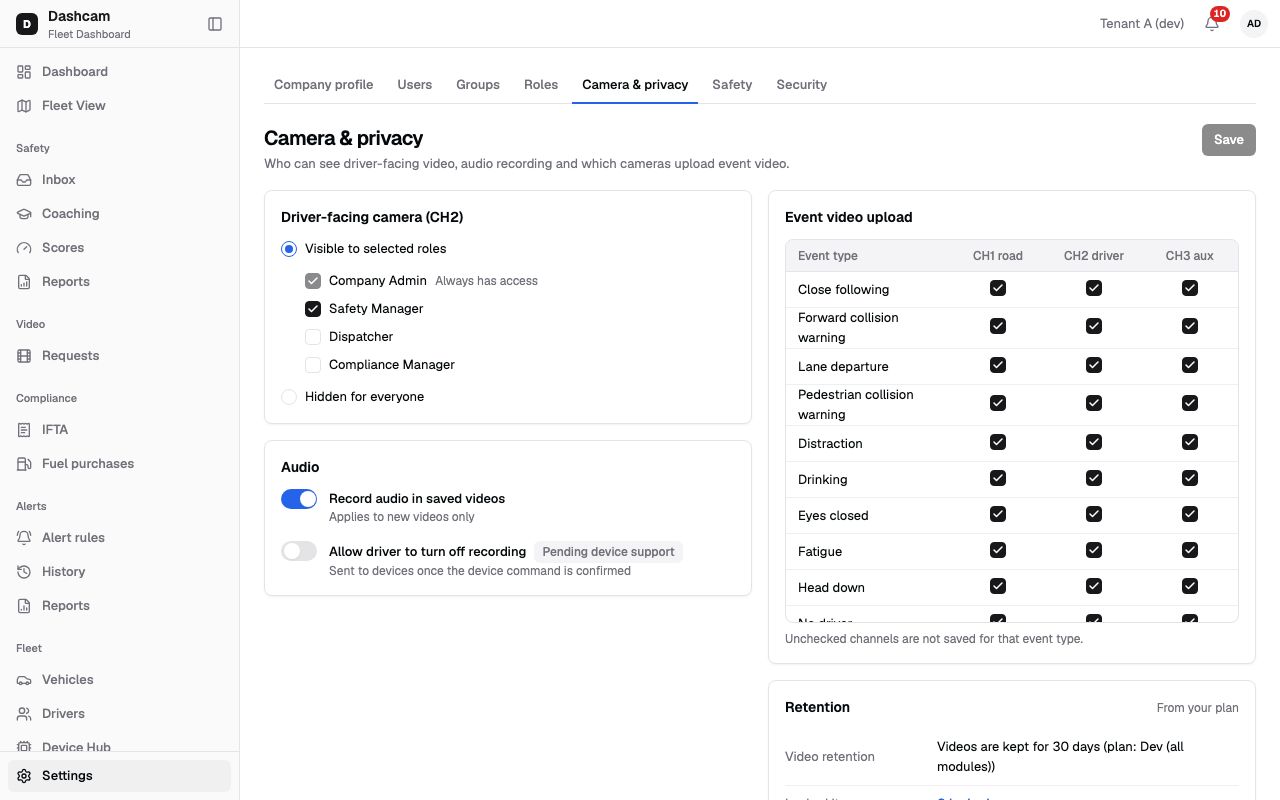
The replay could not be loaded. The steps below still describe every action.
Step by step
Section titled “Step by step”-
Choose who sees the driver-facing camera (CH2).
Open Settings → Camera & privacy. In Driver-facing camera (CH2) pick one option:
- Visible to selected roles: CH2 is shown to the roles you tick.
- Hidden for everyone: the warning says Driver-facing video won’t be shown to anyone, Company Admins included — not in live view, collisions or coaching. DMS events still appear with road video only.
-
Pick the roles.
With Visible to selected roles, Company Admin is always on and marked Always has access. Tick or untick Safety Manager, Dispatcher and Compliance Manager. The default is Safety Manager on, the others off.
-
Set audio.
- Record audio in saved videos (default on): Applies to new videos only. Videos saved before the change are not affected.
- Allow driver to turn off recording (default off): marked Pending device support. The hint says Sent to devices once the device command is confirmed, so turning it on may not reach the kits yet.
-
Choose which cameras upload event video.
The Event video upload table has one row per event type and the columns CH1 road, CH2 driver and CH3 aux. By default every box is ticked. Unchecked channels are not saved for that event type. For example, untick CH3 aux for an event type if that camera adds nothing for it.
-
Check retention.
The Retention card is marked From your plan and can’t be edited here:
- Video retention: Videos are kept for a number of days set by your plan.
- Locked items: how many videos are locked (a link to the locked video requests if you have
video.view_requested). - Live stream quota: minutes per camera per month.
If your plan has no value for Video retention or Live stream quota, it shows Not set in your plan.
-
Save.
Click Save. You see Camera & privacy settings saved. If you switched to Hidden for everyone, you also see Driver-facing video is now hidden for everyone, Company Admins included.
Discard drops your edits at once, without asking. If you leave the page with unsaved edits, the Discard changes? dialog asks first (Keep editing or Discard).
What happens next
Section titled “What happens next”- Users in the selected roles who also have the
video.driver_facingpermission see CH2; others see road video only. - New event videos are saved only for the channels ticked for that event type.
- The audio setting applies to new videos only.
If something goes wrong
Section titled “If something goes wrong”| Message or situation | Why | What to do |
|---|---|---|
| Read-only for your role | Your role lacks org.settings.privacy. |
Ask a Company Admin to make the change. |
| Settings were changed by another user | Someone saved this page while you were editing. | Click Reload, check their change, then edit again. |
| A Dispatcher can’t see the cab camera | Dispatcher is not ticked, CH2 is hidden for everyone, or the user lacks video.driver_facing. |
Tick Dispatcher and save. The user also needs video.driver_facing, which the Dispatcher system role doesn’t include (use a custom role). |
| Nobody sees CH2, not even admins | Hidden for everyone is selected. | Switch to Visible to selected roles and save. |
| Old videos still have audio after you turned it off | Applies to new videos only. | Nothing to fix; new videos follow the setting. |
| Driver can’t turn off recording | The switch is Pending device support. | Wait until the device command is confirmed. |
Questions
Section titled “Questions”Who sees CH2 by default? The Safety Manager role and Company Admins.
Can I hide CH2 from Company Admins only? No. Company Admin always has access unless you choose Hidden for everyone, which hides it from everyone.
Can I change how long videos are kept? Not on this page. Retention comes from your plan.