Pair a kit with a vehicle
Quick path
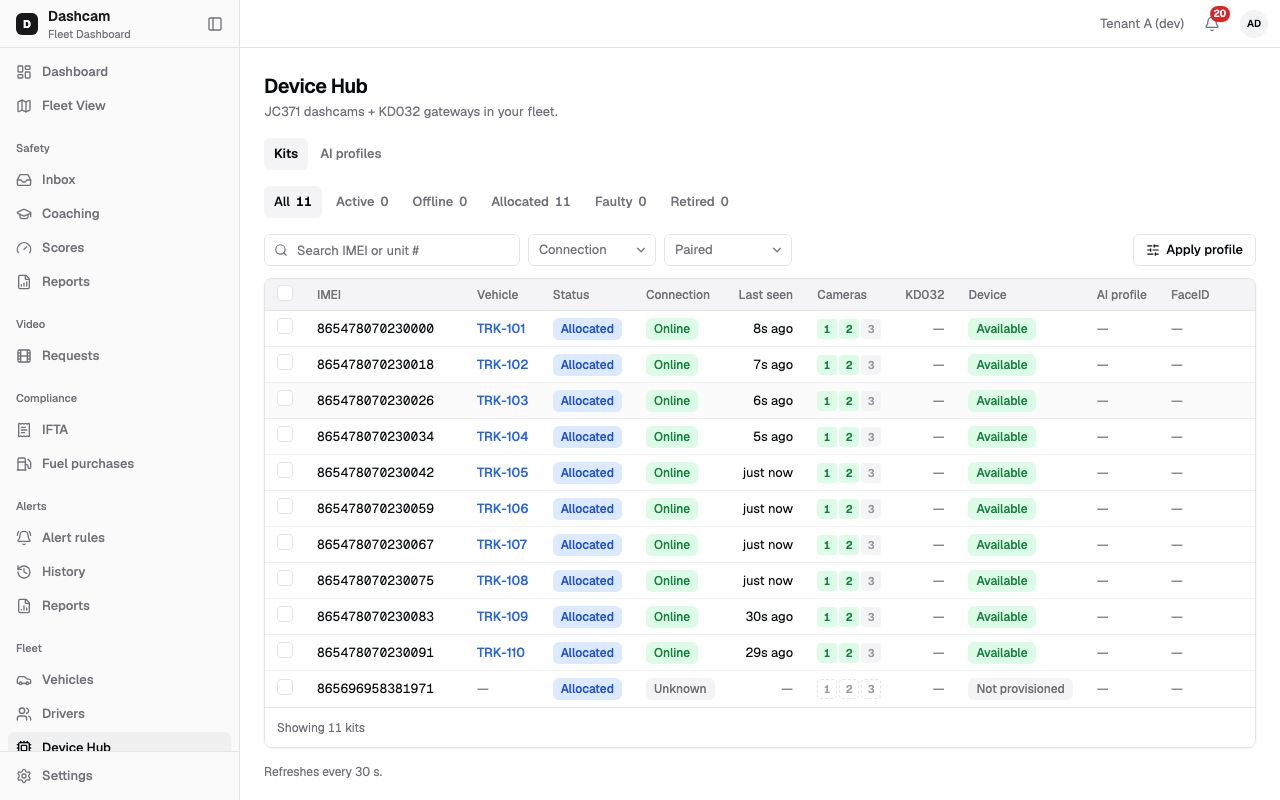
Section titled “Quick path”- In Fleet → Device Hub search for the kit by IMEI and open it.
- Click Pair to vehicle, pick the truck and click Pair.
- If the kit misbehaves, click Reboot, then Reboot in the dialog.
- Before moving the kit to another truck, click Unpair, then Unpair in the dialog.
What it is and why
Section titled “What it is and why”A kit sends GPS, events and video for the vehicle it is paired with. Usually the Roudiy technician pairs it during the install, so you only come here for changes: a kit moved to a replacement truck, a truck sold, or a kit that needs a restart.
Example: TRK-107 goes into the shop for a month. Its kit is moved to the spare truck TRK-110. You unpair the kit from TRK-107 and pair it with TRK-110; from then on its location and video show up under TRK-110. See Kits and cameras.
Before you start
Section titled “Before you start”- Pair and Unpair: by default the Company Admin. Reboot: by default the Company Admin. Dispatchers can open kits but do not see these buttons.
- The vehicle must exist in Fleet → Vehicles and must be an active vehicle (not deactivated) without a kit. See Add a vehicle, or reactivate the vehicle if it was deactivated.
The replay could not be loaded. The steps below still describe every action.
Step by step
Section titled “Step by step”-
Find the kit.
Go to Fleet → Device Hub and type the IMEI in Search IMEI or unit #. Set the Paired filter to Unpaired to list kits that are not paired yet. Click the row to open the kit drawer.
-
Pair it with a vehicle.
Click Pair to vehicle (shown only for a kit that is not paired). The dialog says Pick the vehicle kit 865… is installed in. Only vehicles without a kit are listed. Only active vehicles without a kit are listed; if none are left the dialog says All vehicles already have a kit. Pick the truck, for example TRK-110, and click Pair.
Pair the kit with the truck it is physically installed in; otherwise its data is recorded against the wrong vehicle.
-
Check that it is paired.
A message confirms Kit paired to TRK-110. The drawer’s Vehicle field shows the truck, and Pairing history gets a new line such as TRK-110 Oct 23 – now. From now on the kit’s GPS, events and video show up on the vehicle. The Kit column in Fleet → Vehicles shows the kit’s IMEI instead of No kit.
-
Reboot the kit if needed.
Click Reboot. The dialog asks Reboot device? and warns The JC371 will restart and go offline for a short time. Click Reboot in the dialog, and Reboot sent — waiting for the device appears.
- If the kit is not Online (Offline, Sleeping or Unknown), the dialog itself shows Device is offline — the command will be delivered when it reconnects (expires in 1 h) before you confirm. The command waits in a queue for up to 1 hour.
- Recent commands shows the reboot with its status: Queued, Sent, Executed, Failed, Expired or Cancelled.
- Only a Queued reboot can be stopped, with Cancel reboot. You then see Reboot cancelled; if it was already sent, Command was already sent.
- For 10 minutes after a reboot has executed, a new reboot is refused: the dialog shows Reboot available in N min and Reboot stays disabled until then. While a reboot is still Queued or Sent, Reboot is disabled (A command is already in progress). It is also disabled for Faulty or Retired kits (Kit is faulty / Kit is retired).
-
Unpair before moving the kit.
Click Unpair. The dialog asks Unpair kit? and explains The kit will be unpaired from Unit TRK-107. New GPS data will not be recorded for this vehicle. Click Unpair, and Kit unpaired from TRK-107 appears. The kit can now be paired with another truck.
What happens next
Section titled “What happens next”- After pairing, the truck shows on the live map once the kit reports, and the vehicle’s Live tab shows its data. Engine values need the KD032 and appear on Vehicle health.
- After unpairing, the old truck keeps its history but records no new GPS data. Its Live tab shows No device paired to this vehicle — Telematics and cameras appear once a kit is installed.
- A vehicle can only be deactivated after its kit is unpaired. See Edit or deactivate a vehicle.
If something goes wrong
Section titled “If something goes wrong”| Message on screen | Why | What to do |
|---|---|---|
| This vehicle already has a kit. Unpair it first or pick another vehicle. | The truck you picked already has a kit paired. | Unpair the other kit first, or pick the right truck. |
| This kit is already paired to TRK-105. | Someone paired this kit in the meantime. | Check the kit’s Vehicle; unpair it first if it has to move. |
| The truck is not in the vehicle list | Only active vehicles without a kit are listed. | Unpair the truck’s old kit, reactivate the vehicle, or add the vehicle. |
| Device is offline — the command will be delivered when it reconnects (expires in 1 h) | The kit is not connected. | Wait, or cancel with Cancel reboot. After 1 hour the status chip reads Expired — device did not reconnect within 1 h. |
| Reboot available in N min | A reboot executed less than 10 minutes ago. | Wait the time shown. |
| No Pair to vehicle, Unpair or Reboot button | Your role cannot use it, or the kit is already paired (no Pair). | Ask your Company Admin. |
Questions
Section titled “Questions”Do I lose the old truck’s history when I unpair? No. History stays with the vehicle. Only new GPS data stops being recorded for it.
Can one truck have two kits? No. A vehicle that already has a kit is not offered in the pair dialog.
Why can’t I cancel a reboot that says Sent? Only a reboot still Queued can be cancelled; once sent, it is with the device.