Watch a live camera
Quick path
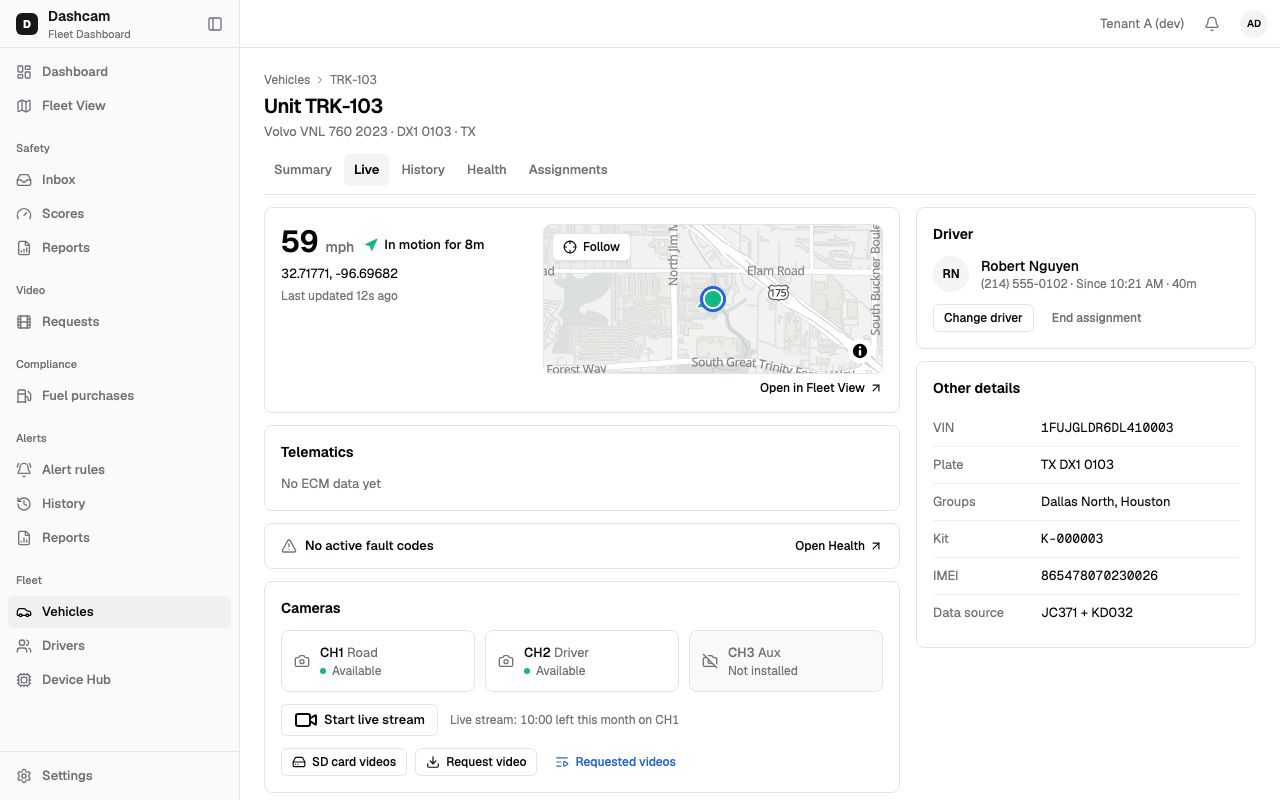
Section titled “Quick path”- Open the vehicle and go to its Live tab.
- In Cameras, click Start live stream. The sheet opens and the stream starts.
- Switch cameras with CH1 Road, CH2 Driver or CH3 Aux at the top of the sheet.
- Click Stop or Close when you are done, so the minutes stop counting.
What it is and why
Section titled “What it is and why”A live stream shows one camera of the truck in real time in your browser. Use it when you need to see what is happening right now: a driver calls about a crash on I-35, or a customer asks whether TRK-103 is already at the dock. Streaming uses minutes from a monthly allowance per camera, by default 10 minutes, set by your plan.
A live stream is not saved anywhere. If you need to keep footage, request it from the SD card with Request video (see Get a video from the SD card). For how live streams, snapshots and SD card requests differ, see Video.
Before you start
Section titled “Before you start”- You need the
video.livepermission. By default the Company Admin, Dispatcher and Safety Manager have it; the Compliance Manager does not. - The driver-facing camera (CH2) also needs the
video.driver_facingpermission, which the default Dispatcher role does not have. Your company’s Camera & privacy setting can also hide driver-facing video for everyone. - The truck needs a paired kit and the video module on your account. The dashcam must be awake: it sleeps when the ignition is off.
The replay could not be loaded. The steps below still describe every action.
The demo truck has no real camera, so the replay shows the sheet connecting rather than a road picture. The steps below describe what you see with a real kit.
Step by step
Section titled “Step by step”-
Open the Cameras block.
On the vehicle’s Live tab, the Cameras block shows a tile per channel: CH1 Road, CH2 Driver and CH3 Aux, each with a state such as Available, Device is sleeping or Not installed. Under the tiles, next to Start live stream, you see your minutes, for example Live stream: 10:00 left this month on CH1.
Start live stream is disabled when no channel can be used, no minutes are left, or for 30 seconds after a start failed because the device is sleeping. If a colleague is already streaming, you also see Live now on CH1 — Join; click it to watch the same stream.
-
Start the stream.
Click Start live stream. A side sheet titled Live stream · TRK-103 opens with the driver and address underneath, and the stream starts at once on the first channel you are allowed to watch. While it connects, the player shows Connecting….
-
Pick a camera.
The top row of the sheet has the Camera channel buttons and the minutes left, for example 7:30 left this month. A greyed-out channel shows why on hover and under the player: Camera not connected or You don’t have access to the driver-facing camera. Picking another channel while streaming leaves the old stream and starts the new one. Only one camera per truck streams at a time.
-
Watch.
On the player you see a red LIVE badge, a clock, the connection type with its delay, and Full screen. Unmute appears only if the stream has audio; it always starts muted. Roudiy tries WebRTC first; if nothing plays within 10 seconds it switches to HTTP-FLV by itself.
The footer shows Live with a red dot, then a line such as WebRTC · 2 watching · started 1m ago. Colleagues who join share the same stream.
-
Answer Still watching?
From time to time Roudiy asks Still watching? — The stream stops if nobody answers — it saves your monthly minutes. Click Keep watching to continue or Stop to end it. Pressing Esc or the × also counts as Keep watching.
-
Stop the stream.
Click Stop, then Close. Closing the sheet, pressing Esc, leaving the page or closing the browser tab also takes you out of the stream. When the last viewer leaves, the stream ends.
What happens next
Section titled “What happens next”- Your minutes are counted down while you watch, in 10-second steps. At 0 the stream closes with Live stream limit reached.
- Months are counted in UTC, and the reset date is shown as a UTC day, for example Live stream limit reached. Resets on Nov 1.
- When a stream ends, the sheet shows Stream ended with a reason: Everyone stopped watching, Stream closed due to inactivity, Live stream limit reached, The camera stopped sending video, The account is suspended or The account is closed.
If something goes wrong
Section titled “If something goes wrong”| Message on screen | Why | What to do |
|---|---|---|
| Device is sleeping (ignition off or offline) | The dashcam sleeps when the ignition is off. | Try again when the truck is running. Start stays off for 30 s. |
| Live stream limit reached / Request SD card video instead. | No minutes are left on this camera this month. | Request SD card video, or wait for the reset date. |
| Another camera is streaming (CH1) | Someone is watching another camera of this truck. | Click Watch CH1 to join that stream. |
| Could not start the live stream | The stream could not be started. | Click Try again. |
| Could not connect to camera / Connection lost | The connection to the camera failed or dropped. | Click Try again or Retry. |
| Unsupported codec / This browser cannot play the camera’s video format. | Your browser cannot play this video format. | Try another browser. |
| The stream link expired. | The stream link ran out and could not be renewed. | Start the stream again. |
| Video is not enabled for this account / No camera kit on this vehicle | The video module is off, or no kit is paired with the truck. | Ask your Company Admin. |
Questions
Section titled “Questions”Does the stream use my minutes when two of us watch? The allowance is per camera, and colleagues join the same stream, so watching together does not start a second stream.
Can I record what I see? No. A live stream is not saved. Request the same time from the SD card to keep a clip.
Why can’t I click CH2? Your role has no driver-facing access, or driver-facing video is hidden for everyone in Camera & privacy.