Run a coaching session
Quick path
Section titled “Quick path”- Open Safety → Coaching → Sessions and click the session.
- For each event click the event thumbnail to play the video and talk it through with the driver.
- Click Coached, or Dismiss with a reason.
- Write a Session note and click Save note.
- When no event is pending, click Complete session.
What it is and why
Section titled “What it is and why”The session page is your checklist for the talk with the driver. It shows the driver’s events grouped by behaviour, with the video right on the card. You record the outcome of each event and a short note, so the next coach can see what was agreed.
Example: James Carter’s session has Phone call 2 and Forward collision warning 1. You watch both phone clips with him and click Coached on each. The collision warning turns out to be a car cutting in, so you Dismiss it with the reason Incorrect. You write Phone in the cradle, hands-free only as the note and complete the session.
Before you start
Section titled “Before you start”- A session exists. See Start a coaching session.
- Opening sessions needs Coaching: list; changing them needs Coaching: update. By default only the Company Admin and the Safety Manager have both.
- Driver-camera video on the cards needs Video: driver facing; by default the Company Admin and the Safety Manager have it.
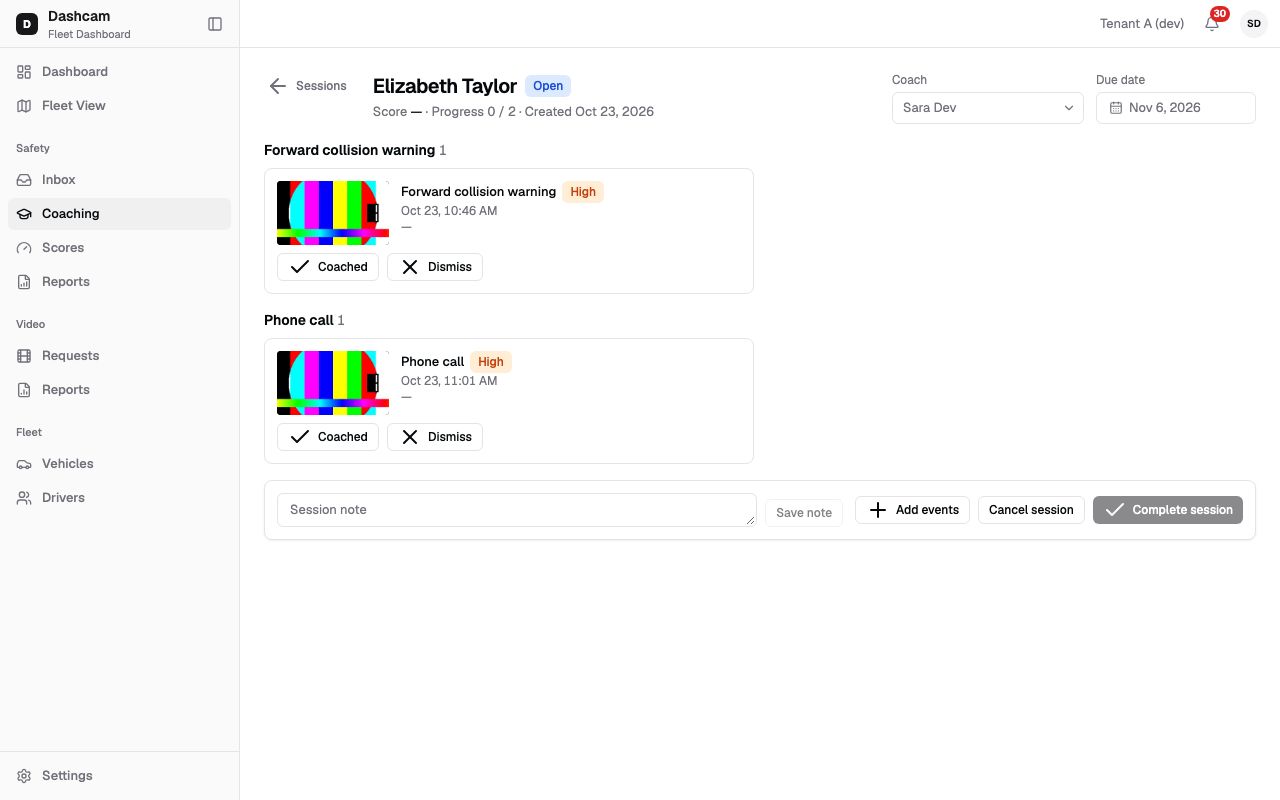
The replay could not be loaded. The steps below still describe every action.
The replay uses demo test clips instead of real camera video.
Step by step
Section titled “Step by step”-
Find the session.
Open Safety → Coaching → Sessions. The table lists sessions by due date, 25 at a time, and loads more on request. Columns: Driver, Coach, Progress (reviewed of total events, for example 3 / 5), Due date (red and bold when overdue) and Status: Open, Overdue, Completed or Cancelled. Filter with Status, Coach and Driver. Click a row to open the session.
-
Read the header.
You see the driver’s name and the status, then a line such as Score 92 · Progress 0 / 3 · Created Oct 23, 2026 (the score shows only if you can see scores). On the right are Coach and Due date. While the session is open you can change both; the due date can be at most 60 days after the creation date. Each change saves at once with Session updated.
-
Go through the events.
Events are grouped by behaviour under headings such as Phone call 2, oldest first. Each card shows the event type (a link to the event page), the severity, the date and time, for example Oct 23, 10:46 AM, and the address. Click the event thumbnail to play the clip inside the card, and click it again to hide it. You cannot request new video from here; do that on the event page.
-
Mark each event Coached or Dismiss it.
- Coached records that you discussed it. It applies at once, without a confirmation.
- Dismiss opens Dismiss event — The event leaves the driver’s score. Pick a Reason: Incorrect, Minor or Other. The Note takes up to 500 characters and is required for Other. Click Dismiss. Clicking outside does not close the dialog.
The card then shows the outcome badge Coached or Dismissed; a dismissed card also shows the reason and the note, for example Incorrect — car cut in.
-
Add more events if needed.
Add events opens a list of the driver’s coachable events from about the last 92 days that are not in this session (up to 100 are shown). Tick events and click Add 2 (the number follows your choice). You see, for example, 2 events added.
-
Write the session note.
Type in Session note (up to 2,000 characters) and click Save note. The button is active only after you change the text.
-
Complete the session.
Complete session is disabled while any event is pending; hover it to see, for example, 1 event not reviewed. When all events are done, click it. There is no confirmation; you see Session completed and the status becomes Completed.
Cancel a session
Section titled “Cancel a session”Click Cancel session. The dialog asks Cancel session? — Events not reviewed yet stay coachable and can go into a new session. Click Cancel session to confirm or Keep session to go back. You see Session cancelled and the status becomes Cancelled.
What you cannot do
Section titled “What you cannot do”- There is no button to remove a single event from a session. If an event should not be discussed, Dismiss it, or cancel the session so its pending events become coachable again.
- Sessions cannot be deleted; cancelling is the way to close one you do not need.
- Completed and cancelled sessions are read-only. The note shows as text, or No session note.
- The driver does not confirm or sign anything in Roudiy.
What happens next
Section titled “What happens next”- A Coached event gets the status Coached and no longer appears in the Inbox tabs except All. Its review cannot be undone.
- A dismissed event gets the status Dismissed and leaves the driver’s score from the next Monday calculation.
- The session counts in the Coaching timeliness report in Safety reports: completed on time, completed late or open overdue.
If something goes wrong
Section titled “If something goes wrong”| Message on screen | Why | What to do |
|---|---|---|
| This session was changed by another user | Someone else edited the session at the same time. | Look at the updated session and repeat your change if it is still needed. |
| 1 event not reviewed (on Complete session) | An event is still pending. | Mark it Coached or Dismiss it. |
| Choose a reason | You clicked Dismiss without a reason. | Pick Incorrect, Minor or Other. |
| Describe why the event is dismissed | Other needs a note. | Write a short note. |
| Use up to 500 characters | The dismiss note is too long. | Shorten it. |
| No other coachable events | The driver has no other coachable events in the window. | Mark more events coachable in the Safety Inbox. |
| Session not found or you don’t have access | The session is outside your groups, or the link is wrong. | Go back to Sessions. |
| Could not load the session / Could not load sessions | Loading failed. | Click Retry. |
Questions
Section titled “Questions”Does dismissing in a session differ from dismissing in the Inbox? The result is the same: the event becomes Dismissed with the reason and leaves the score.
Why can’t I change the driver of an event in a session? The event page asks you to Remove this event from the coaching session first. Since there is no remove button, Dismiss the event or cancel the session first.
Who sees an overdue session? Everyone who can open Sessions; the Due date turns red and the status shows Overdue.