Notifications
Quick path
Section titled “Quick path”- Click the bell in the top bar to see your latest notifications.
- Click a notification to open what it is about.
- Click View all for the full list; turn on Unread only to see what is new.
- Click Mark all as read to clear the counter.
What it is and why
Section titled “What it is and why”A notification is a short message in the dashboard about something that needs your attention: a new high-severity safety event on TRK-104, a dashcam kit that has been offline for a day, a coaching session that is overdue. They collect in the bell at the top of every page, so you see them wherever you are working.
Most of what lands in your bell is decided by alert rules; some notifications, such as a video that is ready or an overdue coaching session, come straight from the product. An alert rule says what to watch for, who gets told and how: in the dashboard, by email, or both. For example, the default rule Critical and high severity safety events notifies Company Admins and Safety Managers. See Alert rules and Alerts and notifications.
Before you start
Section titled “Before you start”- Sign in. Everyone has the bell; no special permission is needed.
- To get alerts from rules, you must be a recipient of at least one alert rule. Recipients of company rules are chosen by role; your own rules notify only you. You only get alerts for the groups you have access to.
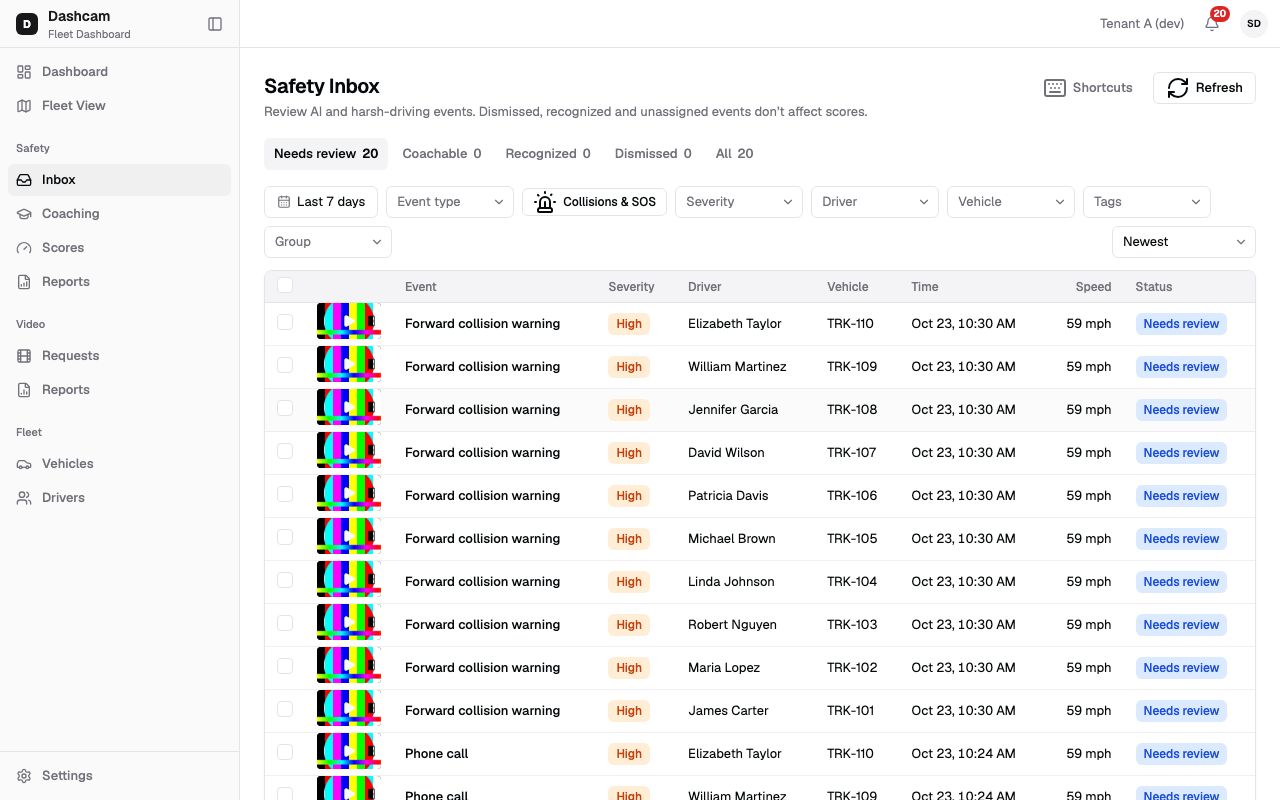
The replay could not be loaded. The steps below still describe every action.
Step by step
Section titled “Step by step”-
Check the bell.
The badge on the bell shows how many notifications you have not read. It is hidden when you have none and shows 99+ above 99. The count refreshes every 30 seconds, and the browser tab title starts with it too, for example
(3), so you notice new ones from another tab. -
Open the dropdown.
Click the bell. You see your newest 20 notifications, read ones included. Each one has:
- an icon for its kind: Safety, Video, Vehicle health, Device, Billing or Company;
- a title, in bold while unread, and a short text below it;
- how long ago it arrived, such as just now or 5m ago; after 7 days the date is shown;
- a dot while it is unread.
If you have no notifications at all, the list says You’re all caught up.
-
Open a notification.
Click it. It is marked as read and opens what it is about, for example the safety event page. If your role can see Alert history, a notification from an alert rule opens Alert history, where you can see the alert and who else was notified; otherwise it opens the item it is about.
-
See the full list.
Click View all at the bottom of the dropdown. The Notifications page shows how many are unread (for example 12 unread) and lists 25 at a time; click Load more for older ones.
-
Show only what is new.
Turn on Unread only to hide what you have already read. When everything is read, the page says No notifications and You have read everything.
-
Mark all as read.
Click Mark all as read, in the dropdown or on the page. The counter goes to zero. On the Notifications page you also see, for example, 12 marked as read; the dropdown button shows no such message. The button is disabled when there is nothing unread.
What happens next
Section titled “What happens next”- New notifications keep arriving in the bell as your alert rules fire.
- If a rule also sends email, you get the same alert in your inbox.
- To get fewer or different alerts, change your personal rules or ask your company admin about the company rules in Alert rules.
If something goes wrong
Section titled “If something goes wrong”| Message on screen | Why | What to do |
|---|---|---|
| This item is no longer available | The notification itself no longer exists. If only what it points to was removed, the click still opens the page, which shows its own message. | Nothing to fix. Look for the item from the sidebar if you still need it. |
| No badge on the bell, but you expected alerts | You are not a recipient of a matching alert rule, or the vehicle is outside your groups. | Check Alert rules or ask your company admin. |
| Mark all as read is greyed out | Nothing is unread. | Nothing to do. |
Questions
Section titled “Questions”Can I turn off a kind of notification? Alert notifications come from alert rules: if you manage your own rules, edit the rule; for company rules, ask your company admin. Other notifications, such as video ready or the in-app notice Company Admins and Dispatchers get for every new fault code, cannot be turned off.
Why does my colleague get alerts I don’t? Alert rules pick recipients by role, and each person only gets alerts for the groups they have access to. A dispatcher for Dallas North does not get alerts for Dallas South trucks.
Do notifications disappear after I read them? No. Read notifications stay on the Notifications page; turn on Unread only to hide them.